
Manage public holidays
In Weplanify, check the year's list of public holidays, say whether they are paid rest days, and add the days that are specific to your company.
In Weplanify, public holidays are used by the planning, the time clock, leave counting and payroll. They are set in Settings → Leave → Public holidays.
Steps
- Open Settings → Public holidays.
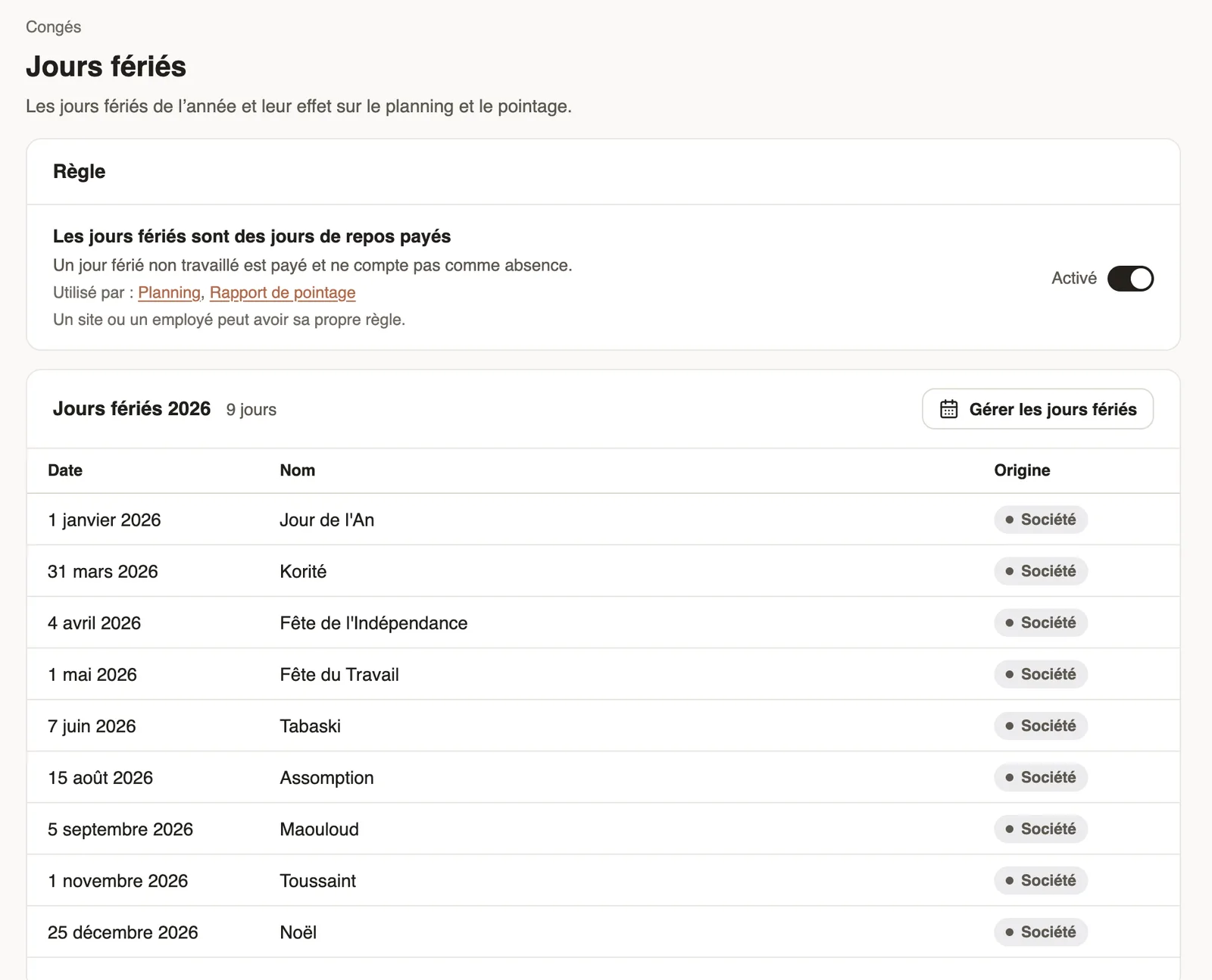
- Check the rule Public holidays count as paid rest days: an unworked holiday is paid and does not count as an absence.
- Read the year's list; click Manage public holidays to change year, fix a date, delete a day or Add one specific to the company.
Go further
An employee's clock-in settingsIn Weplanify, the Time tracking and leave section of the record sets how the employee clocks in and what, for them alone, differs from company rules.Public holidaysIn Weplanify, check and complete the year's public holidays: they are used by the planning, by leave counting, by the time clock and by payroll.Your company settings in WeplanifyIn Weplanify, settings are sorted by theme in a menu on the left: company, approvals, expenses, time and attendance, leave, payroll and account.Set up the time clock and overtimeIn Weplanify, allow several clock-ins per day, set the length of a working day and set up overtime tracking for the whole company in one place.