
Sign a document from a personal link
In Weplanify, each signer has a personal link: they read the document, sign with a finger or the mouse, or decline, with no account and even on a phone.
In Weplanify, each person in a request has their own signing link. The page opens with no account or password, on a computer or on a phone. This is how someone outside the company signs.
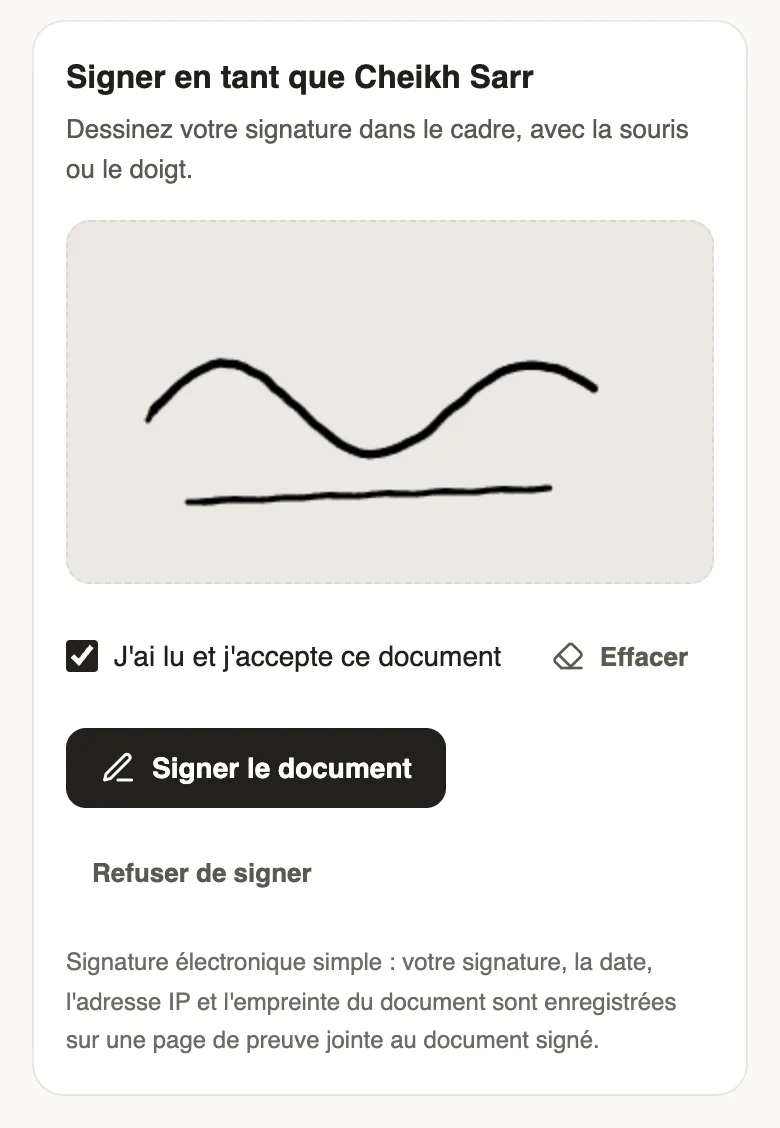
Steps
- The signer opens their link, received by email or passed on by you with Copy link, from the detail of the request.
- They read the message, then every page of the document.
- They draw their signature in the box, with a finger or the mouse; Clear lets them start again.
- They tick I have read and I accept this document, then tap Sign the document.
- They can then Download the signed document, with its proof page.
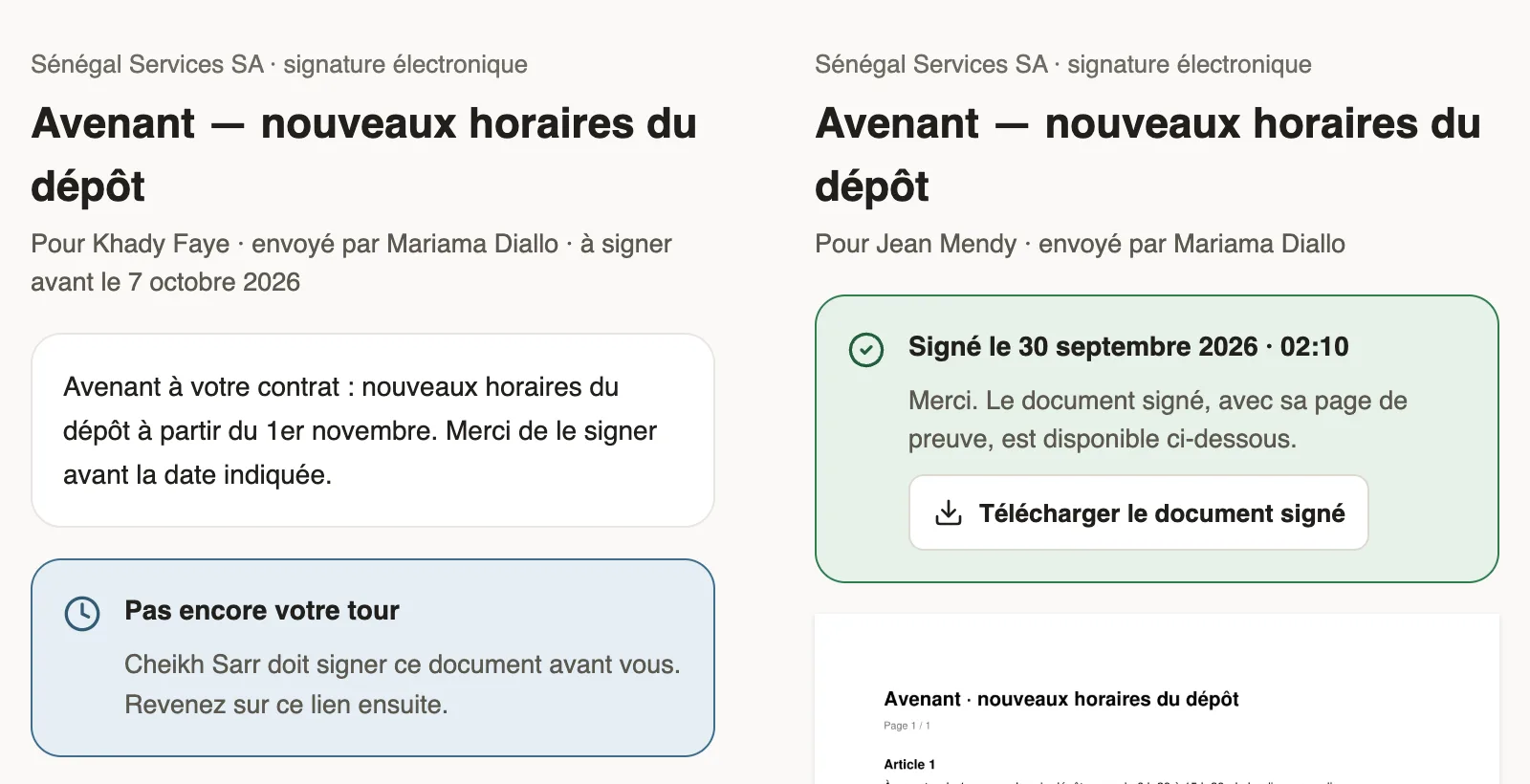
Good to know
- To decline, the signer taps Decline to sign, gives a reason and confirms. The reason shows in the detail of the request.
- When everyone signs the same document, the next person sees "Not your turn yet" and the name of whoever signs before them. They come back to the same link afterwards.
- An employee also finds the request in the app, in their documents, with a notification.
- If the request was withdrawn, the link shows "This link is no longer valid".
- The signature, date, IP address and fingerprint of the document are recorded on a proof page attached to the signed document.
Go further
Follow the signatures of a request and send remindersIn Weplanify, the detail of a request shows where each signer stands, copies their signing link, reminds late signers and opens the signed document.Documents and payslips on mobileUpload the documents HR requests from the Weplanify app, follow their review and find your payslips.Send a document for signature in four stepsIn Weplanify, sending a PDF for signature takes four steps: the document, the signers, where each one signs, then a final check before you send it.Choose who signs a document and in which orderIn Weplanify, have a document signed by employees, a whole group or someone outside the company, one after the other or each on their own copy.