
DocumentationForms & requestsWeplanify forms: requests, reports and surveysReceive employees' HR requests
Attach files in a request's discussion
In Weplanify, attach a quote, a photo or a supporting document to a message in a request's discussion: every participant opens it with one click.
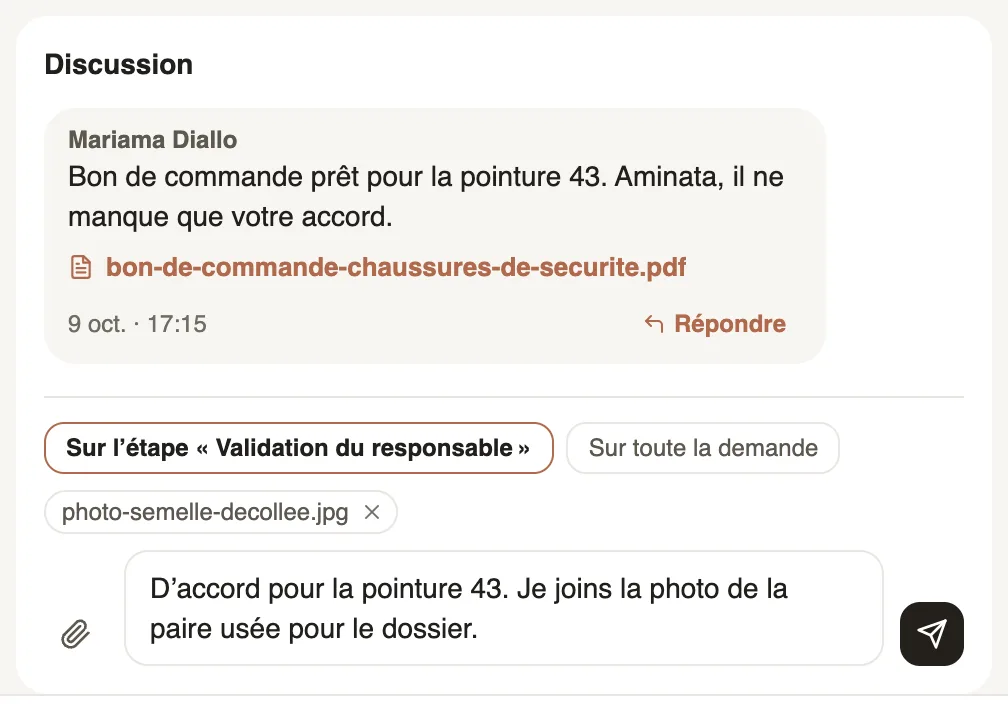
In Weplanify, a request's Discussion takes files: the requester, the approvers and HR exchange a purchase order, a photo or a supporting document without changing the request.
Steps
- Open the request: in Requests → To review, in the HR requests home, or in My requests for the employee.
- In Discussion, click the paperclip Attach a file and pick one or more files.
- The chosen files show above the message; the cross removes one before sending.
- Write your message if needed, then send: the message can stay empty when a file is attached.
- The file shows under the message; click its name to open it.
Good to know
- Five files at most per message, 15 MB at most each.
- Attachments stay in the request: they are not added to the employee's documents. To hand over a document, see hand over the requested document.
- The approver chooses to post the message On the “…” step or On the whole request: see approve a request.
Go further
Hand over the requested document to the employeeIn Weplanify, upload the certificate before or after the decision: it reaches the employee's documents on approval, and never if the request is refused.Approve, refuse or send a request back for changesIn Weplanify, open a request waiting for you, discuss it if needed, then approve it, refuse it or ask its author to change it before deciding again.Receive employees' HR requestsIn Weplanify, the HR requests home shows what your employees can request and who decides, then their requests, with those waiting listed first.Follow your requests: correct, remind, cancelIn Weplanify, My requests shows where each of your requests stands and who holds it: correct it, remind the approver or cancel it when needed.