
Make a request or fill in a form on mobile
In Weplanify, employees make their requests from the app: an expense, an advance, a schedule change, a report or any other form, then follow them.
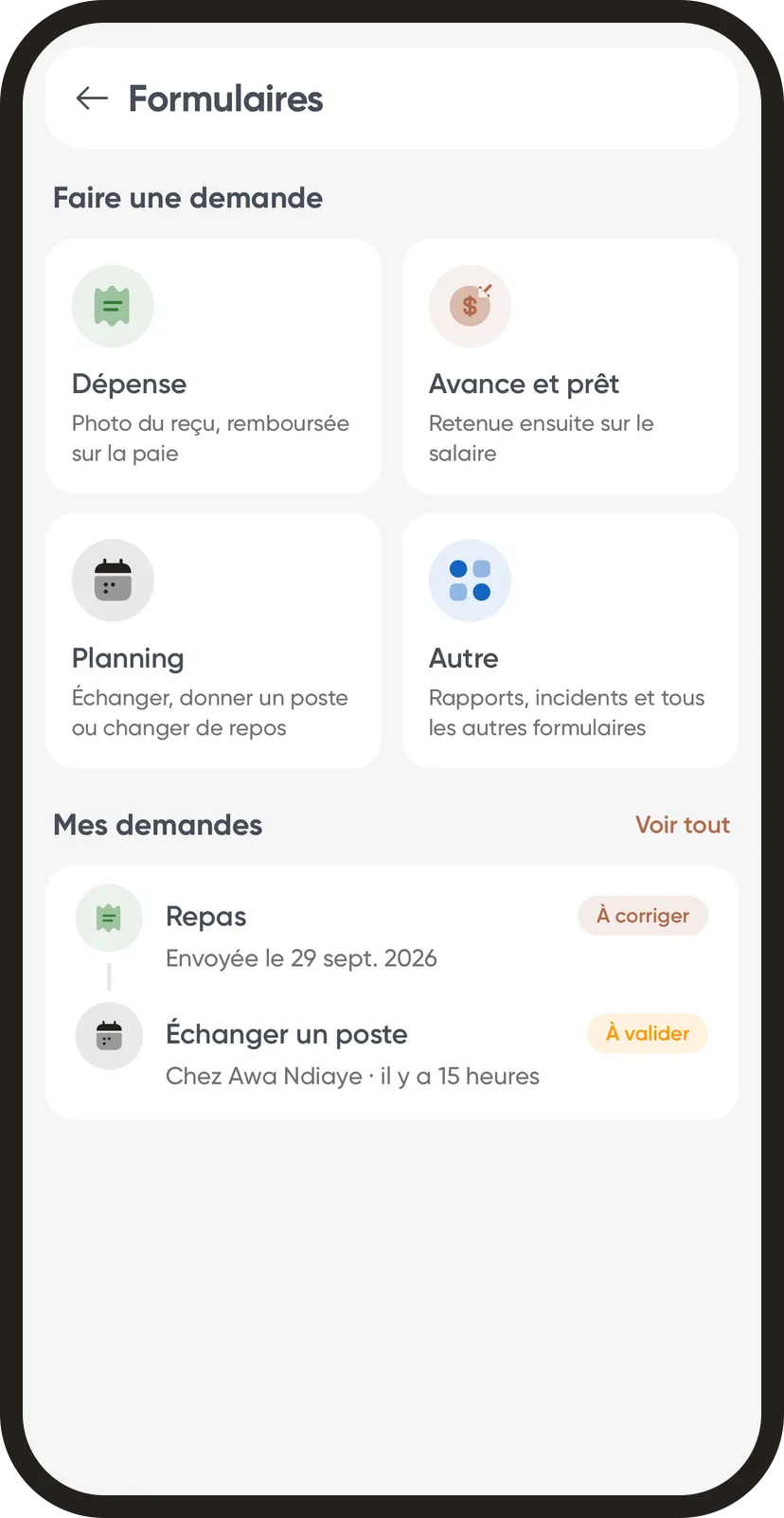
In Weplanify, the Forms screen of the app gathers everything an employee can request or report: common requests at the top, their latest requests at the bottom.
Steps
- On the home screen, tap Forms.
- Under Make a request, tap a card: Expense, Advance and loan, Planning, Report or Incident, depending on the company's forms. If there are several, pick the right one.
- For another form, tap Other and search it by name; the star keeps it as a favourite.
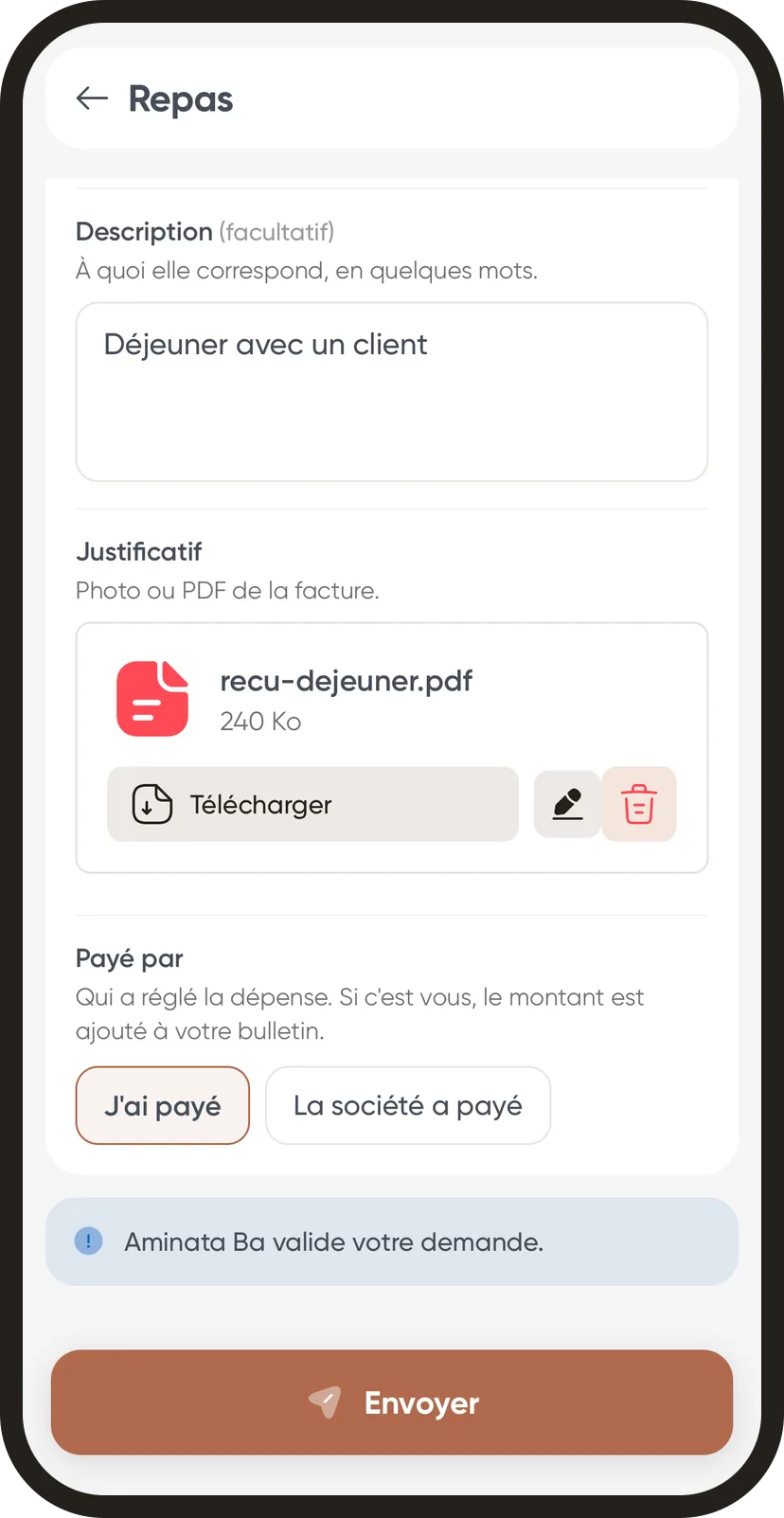
- Fill in the fields, add a photo or a file if needed, then tap Send.
- The app says who has to approve it; tap Follow my request to see where it stands.
Good to know
- When a form is featured, a "New: …" card shows at the top of the home screen and opens it directly. In the Forms screen, it carries the New tag.
- The latest requests show under My requests; See all opens the full list.
- If an approver asks for a change, the request becomes To fix: open it, tap Fix my request and send it again. It then goes through the whole approval workflow again.
- Employees see the forms open to them. An expense or an advance then follows its approval workflow, and answers arrive on the web in the form responses.
Go further
Publish a form and let employees knowIn Weplanify, publish a form and let people know: notification, New card on the home screen, poster; then close it or reopen it whenever needed.Choose who can answer a form, and whenIn Weplanify, a form's Sharing step sets who can answer it (everyone, some sites, some groups or some people) and during which period of time.Repay an expense claim on the payslipIn Weplanify, repay an employee, through their payslip, the money they advanced for the company: meals, taxi rides, fuel or a business trip.Grant an advance or a loanIn Weplanify, grant a salary advance or a loan repaid every month by a deduction on the payslip, and see its effect on the employee's pay right away.Follow, approve and export a form's responsesIn Weplanify, a form's Responses tab sorts answers by status, opens each one on the side so you can decide, and exports everything to Excel.The Weplanify mobile app for your employeesWhat your employees do from their phone with Weplanify: clock in, see their schedule, request leave, fill in a form, read their payslips.Receive employees' HR requestsIn Weplanify, HR requests is a category of forms (equipment, certificate, working hours) that employees find in their Make a request screen.Make a request: leave, expense, advance or formIn Weplanify, the Make a request screen brings leave, expense claims, advances and forms together: find what you need and send your request.Request approval circuitsIn Weplanify, a leave request, an expense claim, an advance or a form answer moves from one approver to the next, following its circuit, until the decision.