
Branches: agencies and payroll countries
In Weplanify, a branch is an agency of the company: its country decides the payroll rules applied to its employees; create one for each country.
In Weplanify, branches are managed in the Branches block of Settings → Structure and teams.
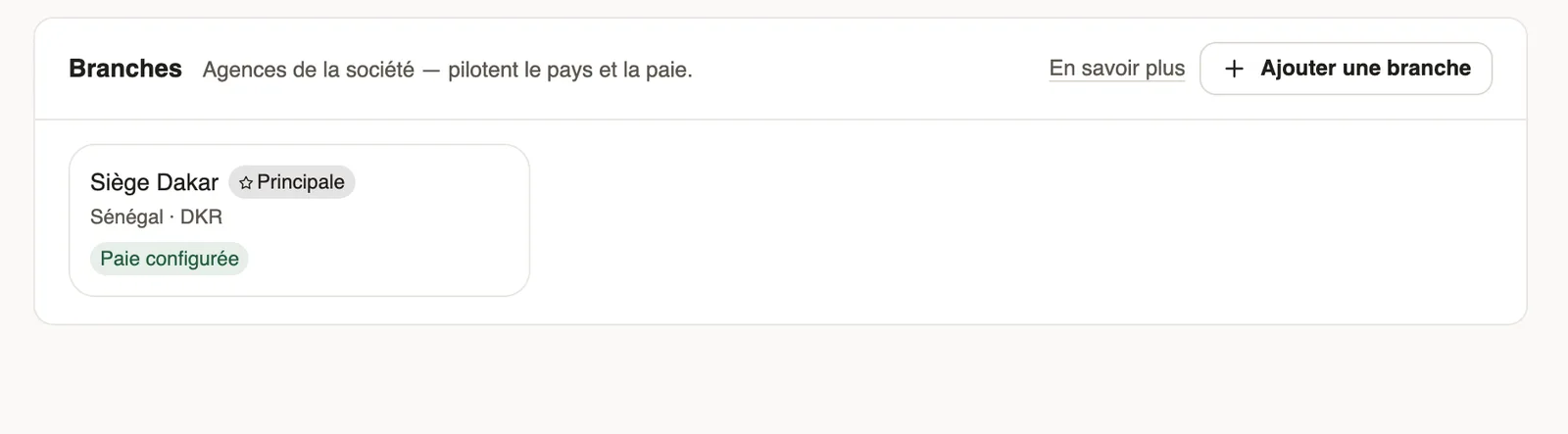
Steps
- Click Add a branch.
- Enter the Name, choose the Country and, if needed, a code.
- Choose the Reference structure: the branch builds its own from it (base, rules, agreements).
- Tick Main branch to make it the default branch, then Save.
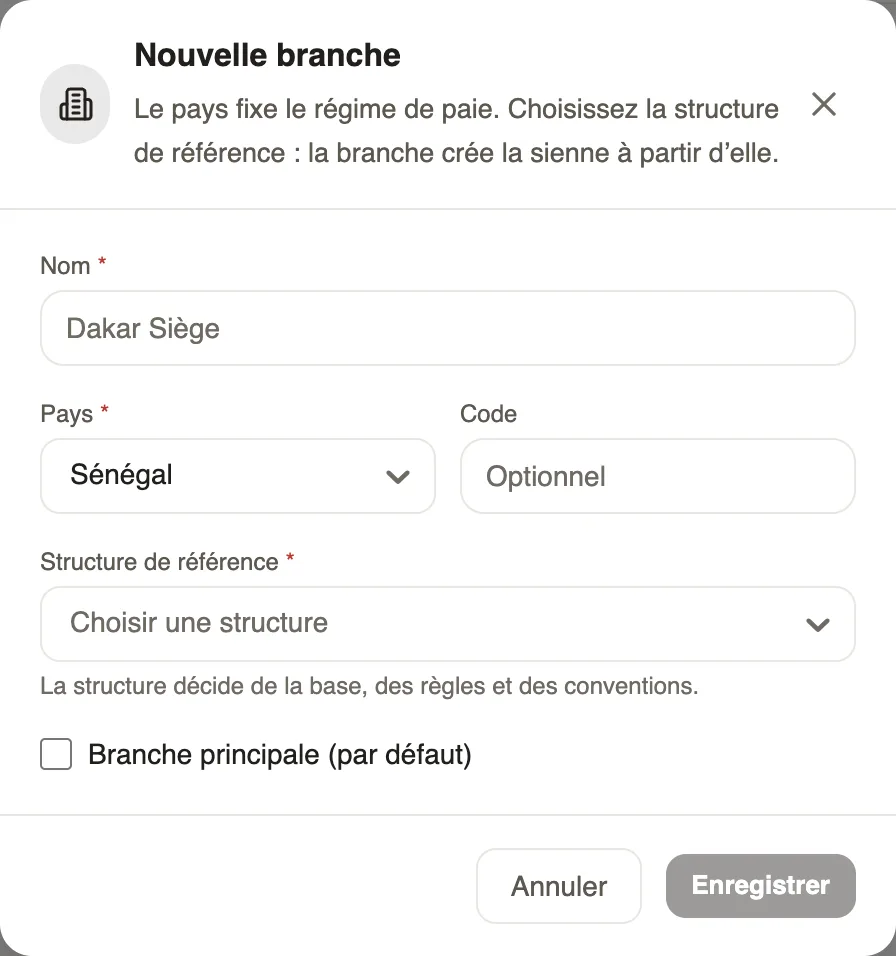
Good to know
- A branch's country cannot be changed after it is created. The Payroll ready badge shows that payroll for that country is ready.
- An employee's branch is set when their contract is created.
- With several branches, a selector shows at the top of the screen (navigation).
Go further
Create or edit an employment contractIn Weplanify, record an employee's contract and pay so that they are included in payroll; only one contract can be running for them at a time.Find your way in Weplanify: menu and top barIn Weplanify, the left menu sorts the screens into four sections, and the top bar gathers the search, the help, the notifications and your account.Your company settings in WeplanifyIn Weplanify, settings are sorted by theme in a menu on the left: company, approvals, expenses, time and attendance, leave, payroll and account.Payroll settingsIn Weplanify, the Payroll group of settings gathers payroll setup, paid leave handling, contributions, pay elements and the accounting export.Structure the company: divisions, departments, teamsIn Weplanify, describe how the company is organised in levels (division, department, team) with a manager for each one and the level it reports to.Set up the company's payrollIn Weplanify, payroll settings are in Settings → Payroll: installation, leave, contributions, control bounds and the accounts used by the accounting export.