
DocumentationGetting started
Getting started with Weplanify
In Weplanify, the web is for managers and the mobile app is for employees: here is where to start, from creating the account to the first published schedule.
In Weplanify, the web platform is the managers' space: employees, schedules, leave, payroll and requests. The mobile app is the employees' space: they clock in, check their schedule and send their requests there.
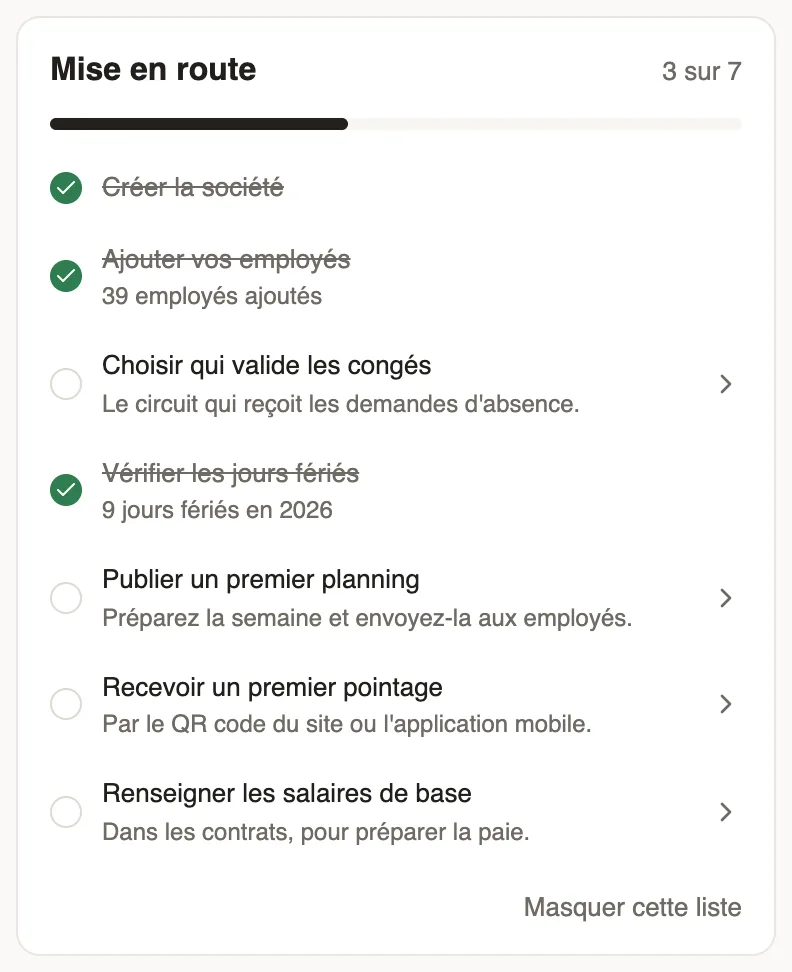
Steps
- Create your workspace with the wizard, with or without samples.
- Complete the company information, your sites and your jobs.
- Add your employees, one by one or by importing an Excel file.
- Choose who approves leave and check the public holidays.
- Publish a first schedule, then put up the clock-in QR code on site.
- Give managers their access (roles and access).
Good to know
- The dashboard Getting started list tracks these steps for you.
- Employees use the mobile app: send them the link.
- On every screen, the Guide button opens the page's help.
Go further
A manager's access by module: none, view or manageIn Weplanify, a manager only opens the chosen modules, for the employees of their groups: View to consult, Manage to create, edit and approve.Open a screen's help without leaving itIn Weplanify, the Guide button or the ? key opens the screen's help in a side panel, with the page's buttons and the articles to go further.Sign in to Weplanify on the web and on mobileIn Weplanify, managers sign in on the web with their email address, and employees sign in to the mobile app with their phone number and a code.Create your Weplanify workspace with the wizardIn Weplanify, the setup wizard creates your company in five steps: company, business and jobs, working hours, modules, then getting started.Try Weplanify with sample dataIn Weplanify, start with samples: fictitious employees, schedules, clock-ins and requests to try everything out, then remove them all with one click.Filter a list by site, group, job or contractIn Weplanify, the same filter bar narrows a list or a report down to a group of people: site, department, job, group, manager or contract type.Import an Excel file into WeplanifyIn Weplanify, the import wizard goes through four steps, file, mapping, check and import, and writes nothing into your data before the very last one.Find your way in Weplanify: menu and top barIn Weplanify, the left menu sorts the screens into four sections, and the top bar gathers the search, the help, the notifications and your account.The dashboard Getting started listIn Weplanify, the dashboard Getting started list shows what is left to do to get going, and each of its lines ticks itself once the step is done.Employee, manager, administrator: who sees what in WeplanifyIn Weplanify, each person has a role that sets what they see: their own data, the employees of the groups they manage, or the whole company at once.Company information, language and time zoneIn Weplanify, update the company's name, sector, address and phone number, the language used for notifications and the company's own time zone.Create and set up a siteIn Weplanify, declare your workplaces, their geolocation clock-in area, their time zone and their own overtime rules, one site at a time here.Manage jobs and sub-jobsIn Weplanify, create the list of jobs with their colour and their sub-jobs: they are used on employee records, for day labourers and in the planning.Add an employee in WeplanifyIn Weplanify, an employee is created in four short steps; the name and phone number are enough, the rest can be completed later on their record.Import your employees from ExcelIn Weplanify, create or update dozens of employees at once from an Excel or CSV file, each of them being recognised by their own phone number.Choose who approves absencesIn Weplanify, the leave circuit says who receives each absence request, in which order, under which conditions, and who stands in for an absent approver.Public holidaysIn Weplanify, check and complete the year's public holidays: they are used by the planning, by leave counting, by the time clock and by payroll.The team planningIn Weplanify, the planning says who works, when and where, week after week; the slots stay as drafts until you publish them to your employees.Print the clock-in QR codeIn Weplanify, print from the dashboard the clock-in QR code poster, to put up at the site entrance so that employees can clock in with their phone.The Weplanify mobile app for your employeesWhat your employees do from their phone with Weplanify: clock in, see their schedule, request leave, fill in a form, read their payslips.