
DocumentationForms & requestsWeplanify forms: requests, reports and surveysReceive employees' HR requests
Hand over the requested document to the employee
In Weplanify, upload the certificate before or after the decision: it reaches the employee's documents on approval, and never if the request is refused.
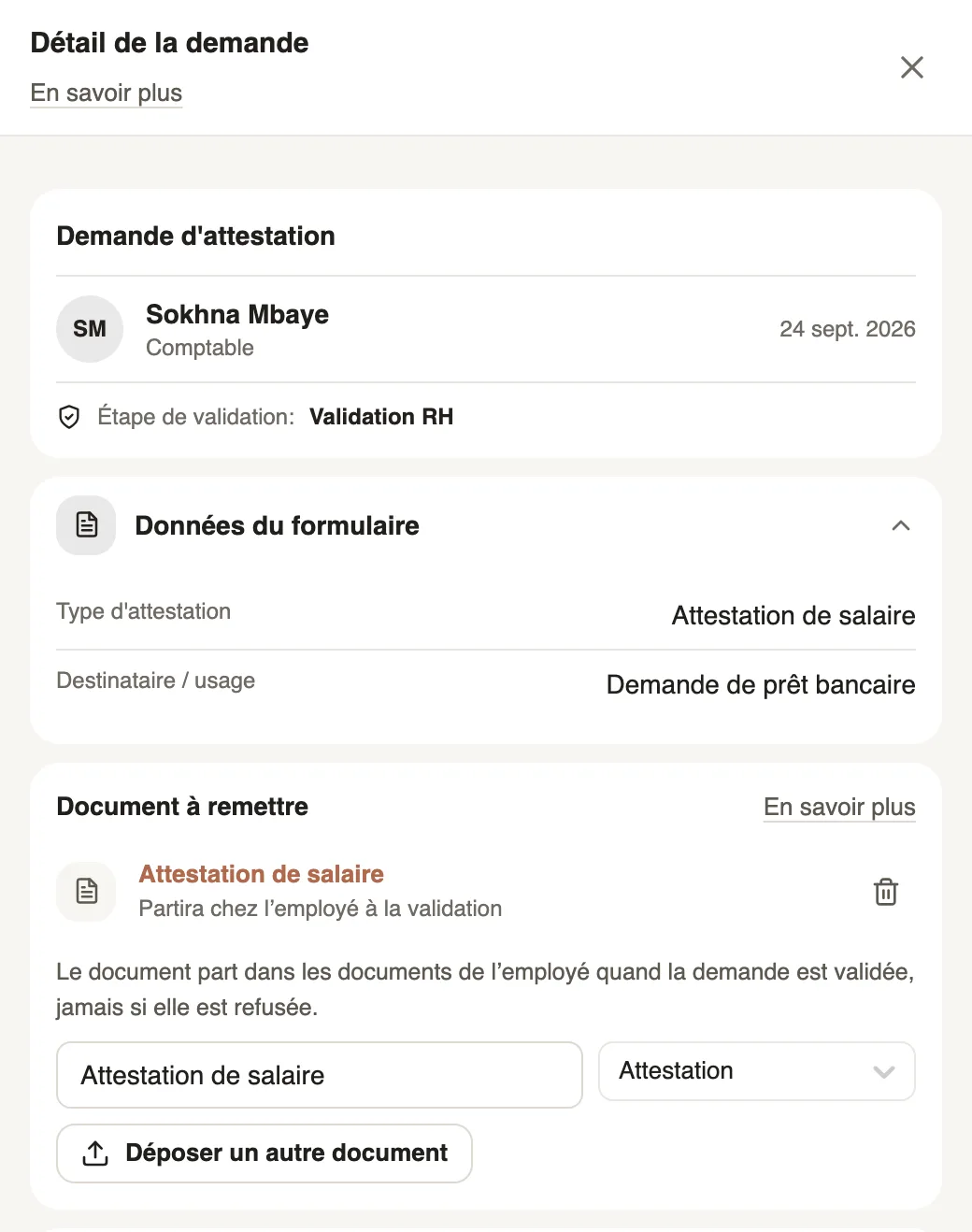
In Weplanify, a request that ends with a document, like the certificate request, shows the Document to hand over block in the decision panel and in the request panel. Weplanify does not write the document: you upload the file you prepared.
Steps
- Open the request in Requests → To review, or from the HR requests home.
- In Document to hand over, check the suggested name, taken from the employee's answer (for example Employment certificate), and the type: Attestation (suggested by default), Certificate, Contract, Payslip, Diploma or Other.
- Click Upload the document and pick the file: PDF, image or Word, 15 MB at most.
- Before the decision, the file waits with Will reach the employee on approval; the bin removes it as long as it has not left.
- Click Approve, then Confirm: the document goes to the employee's documents.
Good to know
- The block only shows for a request that ends with a document, or once a file has been uploaded or handed over.
- Approved without a file, the request stays document to hand over: upload it later, it leaves at once.
- Refused or cancelled, the request never sends the uploaded file; sent back for changes, wait until it is approved before uploading.
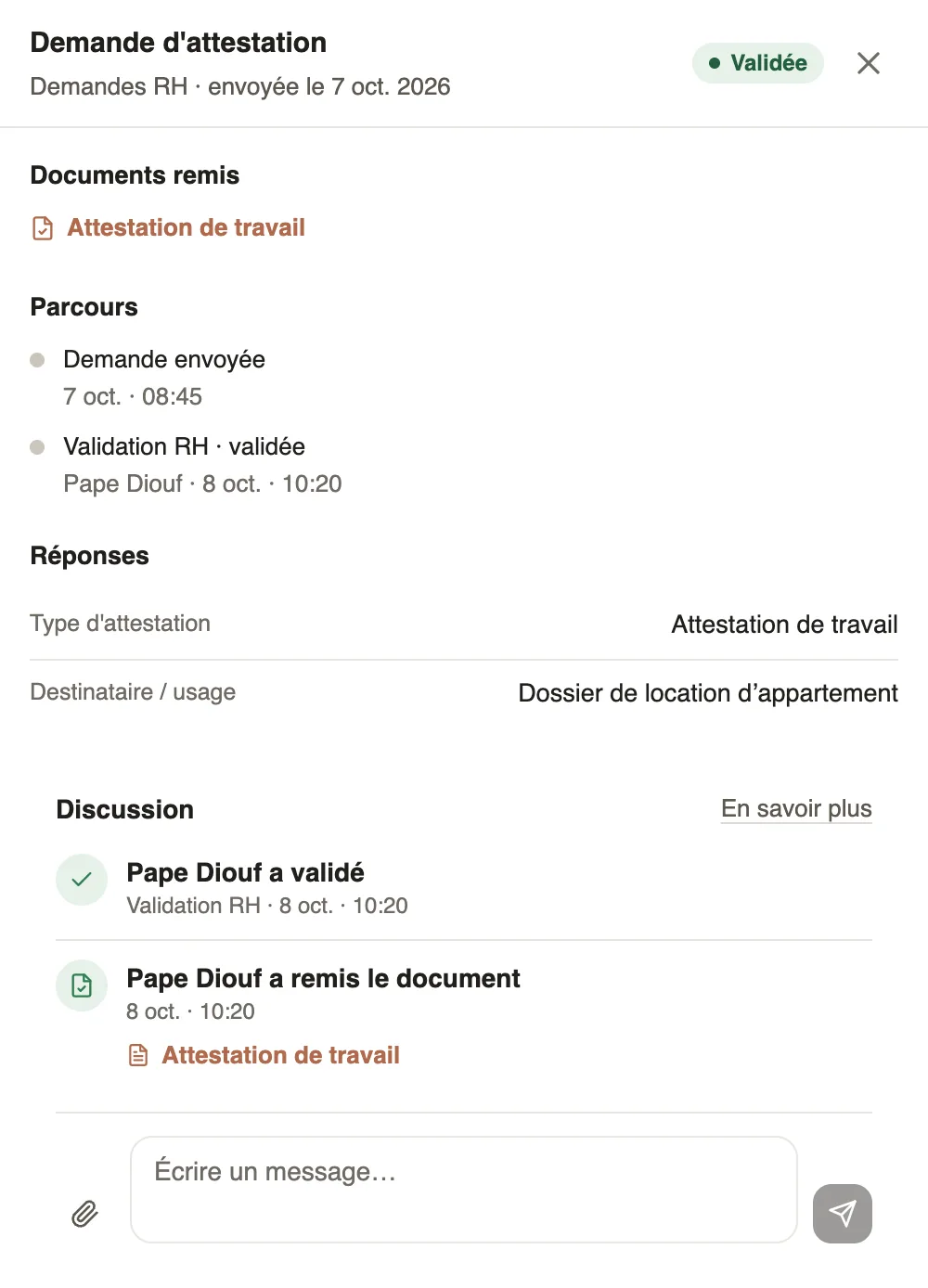
- The employee gets the Your document is ready notification and finds the file under Documents handed over in My requests, and in their documents, HR requests folder.
- To make another request end with a document: its card's ⋯ button, Ends with a document. Only an administrator and the request's approvers can upload.
Go further
Follow your requests: correct, remind, cancelIn Weplanify, My requests shows where each of your requests stands and who holds it: correct it, remind the approver or cancel it when needed.An employee's documentsIn Weplanify, the Documents section of the employee record gathers their papers by type: contract, ID document, certificates and signed copies.Receive employees' HR requestsIn Weplanify, the HR requests home shows what your employees can request and who decides, then their requests, with those waiting listed first.Attach files in a request's discussionIn Weplanify, attach a quote, a photo or a supporting document to a message in a request's discussion: every participant opens it with one click.Approve, refuse or send a request back for changesIn Weplanify, open a request waiting for you, discuss it if needed, then approve it, refuse it or ask its author to change it before deciding again.