
DocumentationForms & requestsWeplanify forms: requests, reports and surveysRecruit: job offers and candidate tracking
Hire a candidate and create their employee record
In Weplanify, hiring a candidate moves them to the Hired step and prepares their employee record, prefilled with their name, phone, job and site.
In Weplanify, hiring is decided in the candidate's panel. It puts them in the Hired step and offers to create their employee record, prefilled from their application and the offer.
Steps
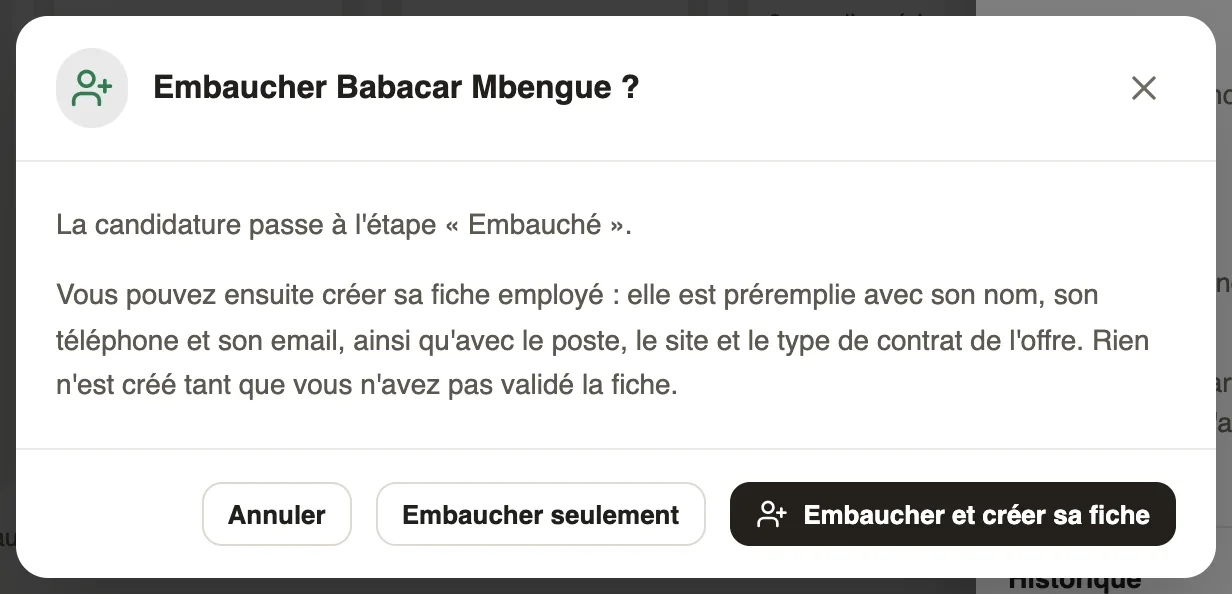
- In the offer's Candidates tab, open the candidate's panel and click Hire.
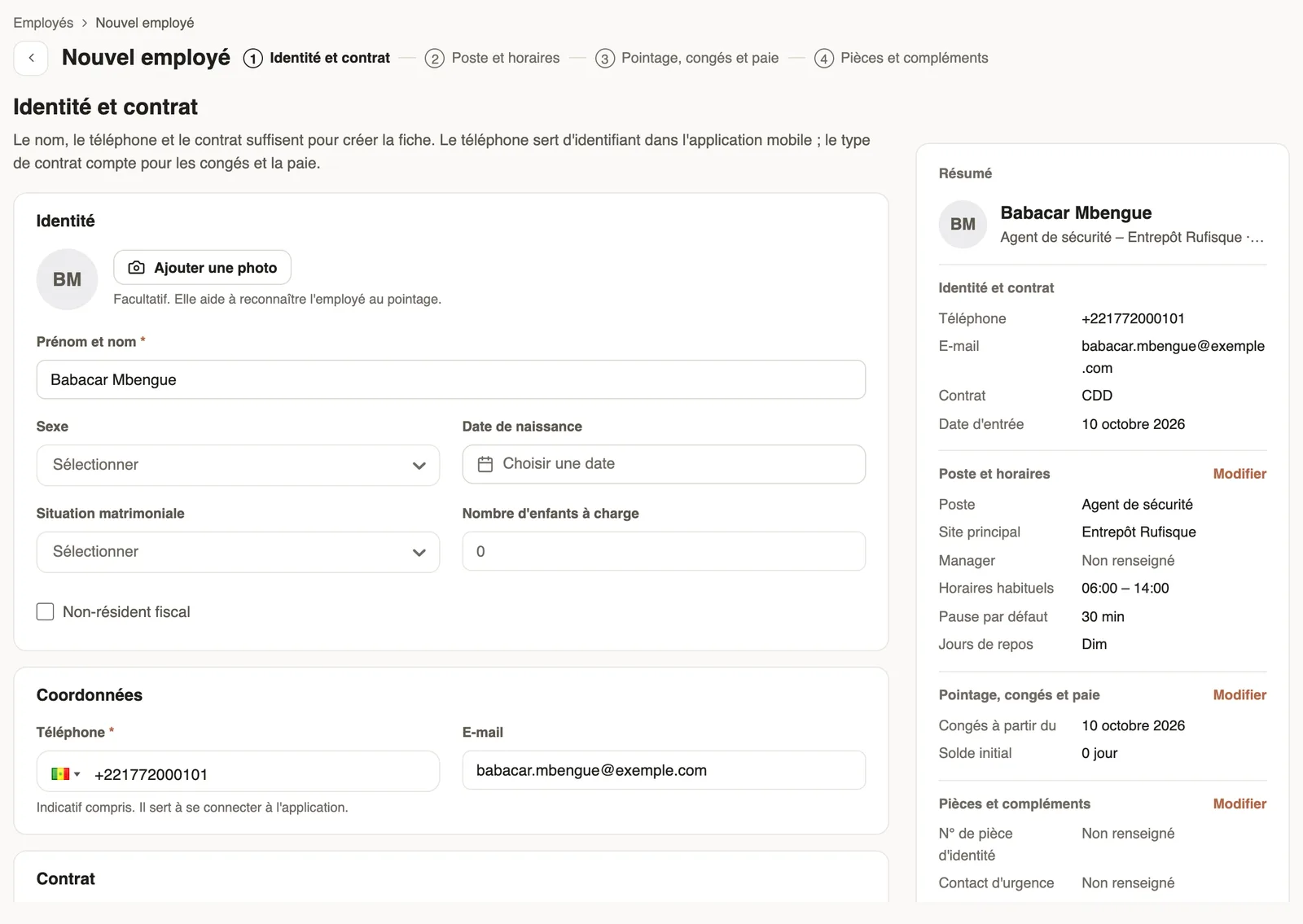
- Click Hire and create the record: the New employee screen opens with their name, phone, email, and the job, site and contract type of the offer.
- Complete the record, including the contract in the first step Identity and contract, then click Create employee (add an employee).
Good to know
- Nothing is created until you confirm the record.
- Hire only changes the step without opening the record; the Create their employee record button then stays on their card and in their panel.
- Once the record exists, the card shows Employee record created and the candidate's panel offers Open their employee record: Weplanify links them through the phone or the email.
- The Hired column counts hires against the number of positions ("1 of 3"); when every position is filled, the hiring window warns you.
- For the contract in detail: create a contract.
Go further
Add an employee in WeplanifyIn Weplanify, an employee is created in four short steps; the name, phone number and contract are enough, the rest can be completed later on the record.Create or edit an employment contractIn Weplanify, record an employee's contract and pay so that they are included in payroll; only one contract can be running for them at a time.Recruit: job offers and candidate trackingIn Weplanify, Recruitment shows your job offers as cards: create an offer, share its link and follow every candidate from application to hiring.Move candidates from step to stepIn Weplanify, an offer's Candidates tab puts each candidate in the column of their step: drag their card, or open it to read the answers and decide.