
DocumentationPayroll
Payroll in Weplanify
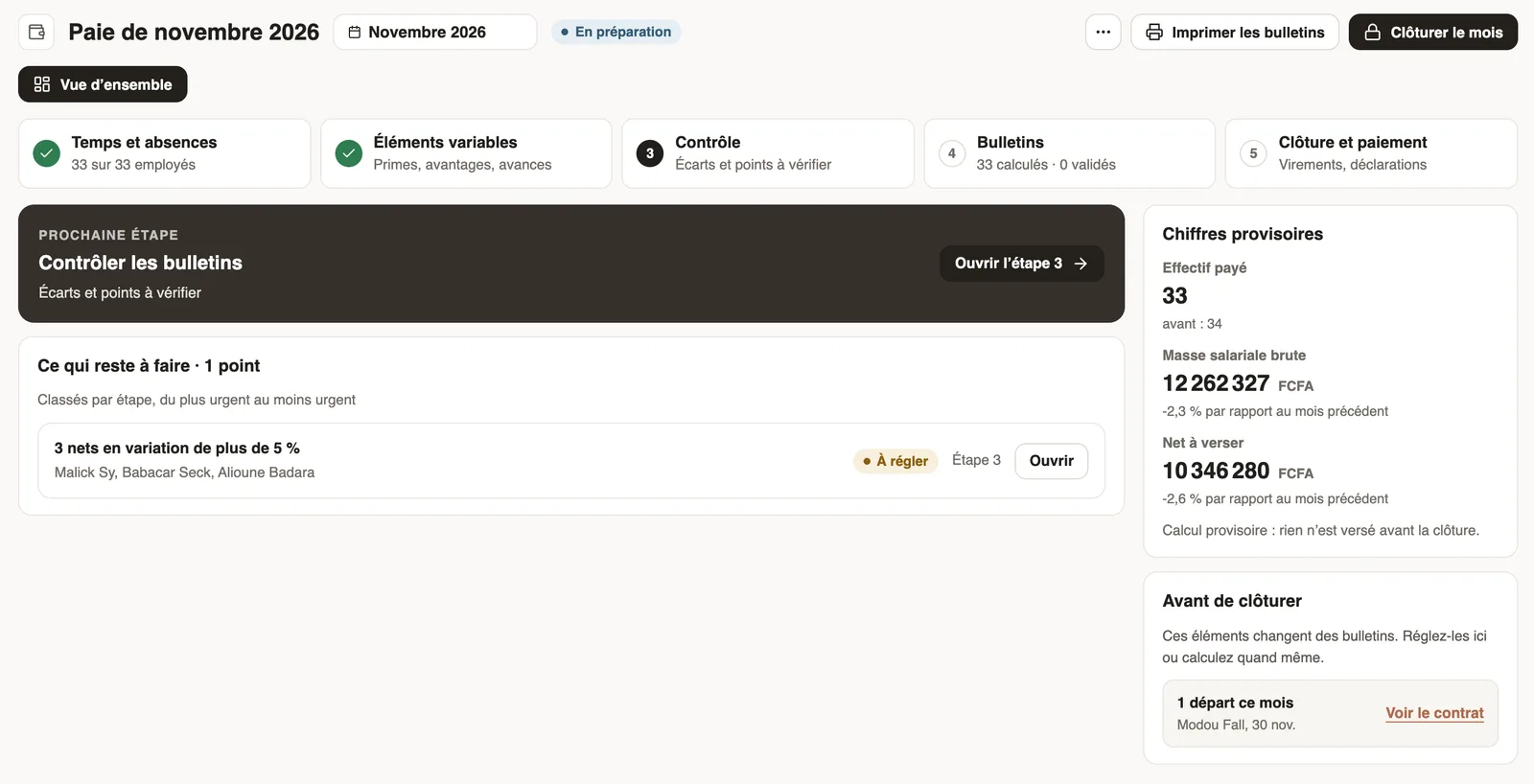
In Weplanify, the monthly payroll is prepared in five steps, from time, absences and variable elements up to the payslips, the payment and the closing.
In Weplanify, payroll is prepared every month from the data already entered in the app. The rules for taxes and contributions, like the currency, are those of each branch's country.
The five steps of the month
- Time and absences: each person's paid days, taken from time tracking, the schedule or the full month (source rule).
- Variable elements: the month's bonuses, benefits, advances and expense claims.
- Control: the variations and points to check before approving.
- Payslips: preview, recompute and approval.
- Closing and payment: lock the month, pay the salaries, declare.
What feeds payroll
- The schedule, time tracking and approved leave and absences.
- The pay elements, advances and loans and expense claims.
- Each employee's contract and payroll situation.
Good to know
- Payroll produces the payslips, the payroll statements, the annual statement and the accounting entry.
- Who has access: the company's payroll option and the administrator's payroll access.
- Settings: set up the company's payroll.
Go further
Control payroll before approving payslipsIn Weplanify, the Control step lists what can make a payslip wrong: blocking points, variations to check and information, with the cause of each change.Grant an advance or a loanIn Weplanify, grant a salary advance or a loan repaid every month by a deduction on the payslip, and see its effect on the employee's pay right away.Check, approve and print payslipsIn Weplanify, the Payslips step shows the month's payslips: totals, each person's gross and net, preview, recompute, approval and printing in one PDF.Close the month, pay salaries and declareIn Weplanify, closing locks the payroll month, publishes payslips to employees and prepares the next month; the step then helps you pay and declare.Set up payroll accounting accountsIn Weplanify, choose the accounting account of each payroll line to produce a balanced payroll entry, ready to import into your accounting software.Set up the company's payrollIn Weplanify, payroll settings are in Settings → Payroll: installation, leave, contributions, control bounds and the accounts used by the accounting export.Set safeguards on payroll amountsIn Weplanify, get an alert when a computed amount falls outside a set range, and block the payroll closing until it is corrected, if you need to.Choose how leave is handled in payrollIn Weplanify, choose how a departure on leave is paid: salary maintained, allowance on departure, or deduction then add-back on the payslips.Follow the monthly payroll step by stepIn Weplanify, the Monthly payroll page shows where payroll stands: the next step, what is left to settle, the provisional figures and the five steps.Declare a departure on leave or a final departureIn Weplanify, declare a departure on leave or a final departure from the employee's record, Contracts tab, so that payroll prepares what is due to them.Prepare a departure on leaveIn Weplanify, prepare an employee's departure on leave from their record: days counted, balance, leave request and allowance, then validate the departure.Export the payroll accounting entryIn Weplanify, download a month's payroll accounting entry in Excel or CSV, balanced, with an account per employee and the analytical section per site.Pay elements: bonuses, benefits, advances and deductionsIn Weplanify, the Pay elements page lists what can appear on a payslip: bonuses, benefits in kind, advances and deductions, for whom and when they apply.Create a bonus, a benefit or a deductionIn Weplanify, create a bonus in five questions: what it is, how much, for whom, when, and whether it is subject to taxes and to contributions.Prepare the annual salary statementIn Weplanify, the annual statement gives each employee's totals for the year, taken from approved payslips, ready for the year-end declaration.Produce a payroll statementIn Weplanify, payroll statements sum up the month's payslips for the bank, social bodies, the tax office and your archives, with an Excel export.Prepare the month's time and absencesIn Weplanify, the Time and absences step gives each employee's paid days, leave, absences and overtime, taken from the source chosen for their site.Import payroll history at installationIn Weplanify, import the payroll totals paid before you started using it, so that annual totals, the annual statement and allowances start out right.Check the month's variable elementsIn Weplanify, the Variable elements step sums up the bonuses, benefits in kind, advance deductions and expense claims that will be on the month's payslips.Choose where paid days come from: time tracking, schedule or full monthIn Weplanify, the source rule says, site by site, whether paid days come from time tracking, the schedule or the full month, and what to do without data.The team planningIn Weplanify, the planning says who works, when and where, week after week; the slots stay as drafts until you publish them to your employees.Employee time clockIn Weplanify, the Time entries screen shows, day by day, each employee's arrival and exit against what was planned, and what is left to fix.Manage leave and absencesIn Weplanify, the Leave and absences screen gathers the whole team's requests, as a list or a calendar, with the requests to approve shown first.Repay an expense claim on the payslipIn Weplanify, repay an employee, through their payslip, the money they advanced for the company: meals, taxi rides, fuel or a business trip.Create or edit an employment contractIn Weplanify, record an employee's contract and pay so that they are included in payroll; only one contract can be running for them at a time.An employee's family and payroll situationIn Weplanify, the record keeps an employee's family situation, social security numbers and bank details, which every payroll run takes into account.Give an employee a role and accessIn Weplanify, make an employee a manager or an administrator from the Access tab of their record: role, groups they manage and what they can do.Follow the company's expensesIn Weplanify, the Expenses screen gathers purchases paid by the company and costs advanced by employees: to approve, to reimburse and to pay.