
Manage the planning's jobs
In Weplanify, keep the list of jobs (driver, storekeeper…) used in slots up to date; each job's colour outlines its slots so the grid is easy to read.
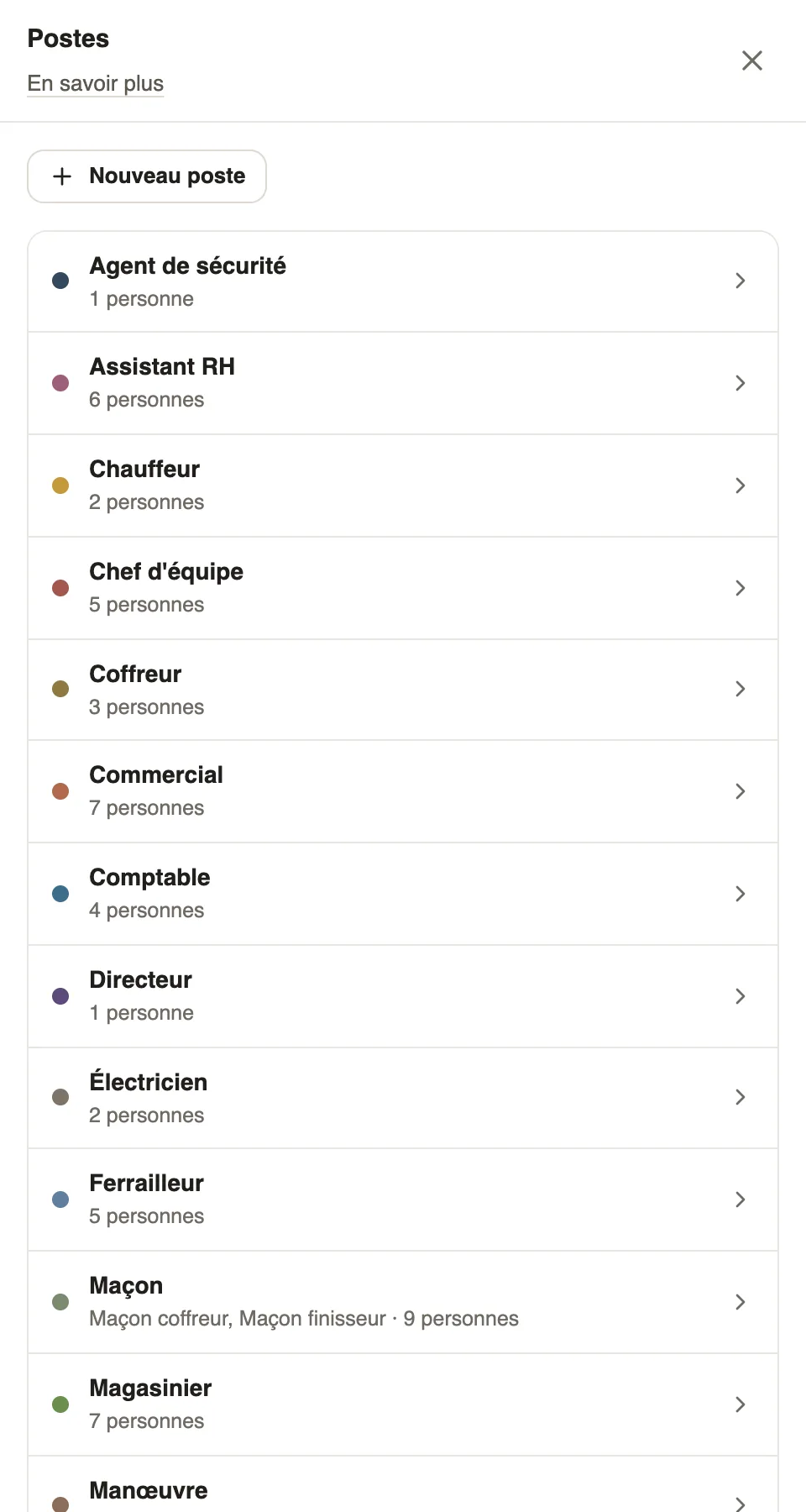
In Weplanify, the job says what the employee does on the slot. Each job has a colour, visible on the edge of the slot.
Steps
- Open Filters → Groups, job and display, then Manage next to Jobs.
- The panel lists the jobs, their sub-jobs and the number of people.
- Click New job to add one, or Manage jobs in settings for colours and sub-jobs (Settings → Jobs).
Go further
Manage jobs and sub-jobsIn Weplanify, create the list of jobs with their colour and their sub-jobs: they are used on employee records, for day labourers and in the planning.Filter and sort the planningIn Weplanify, show only the site, group or job you care about, choose what the slots display, and then sort the employees in the order you need.The planning viewsIn Weplanify, switch from the week's planning to the month's, and read it by employee, by job or by schedule, in hours or in codes (M, D, E, N).The team planningIn Weplanify, the planning says who works, when and where, week after week; the slots stay as drafts until you publish them to your employees.