
Turn on overtime tracking
In Weplanify, turn on overtime counting, then set the weekly threshold, the way overtime hours are approved, and the range of the night hours.
In Weplanify, as long as tracking is off, no overtime is counted, in time entries or in payroll.
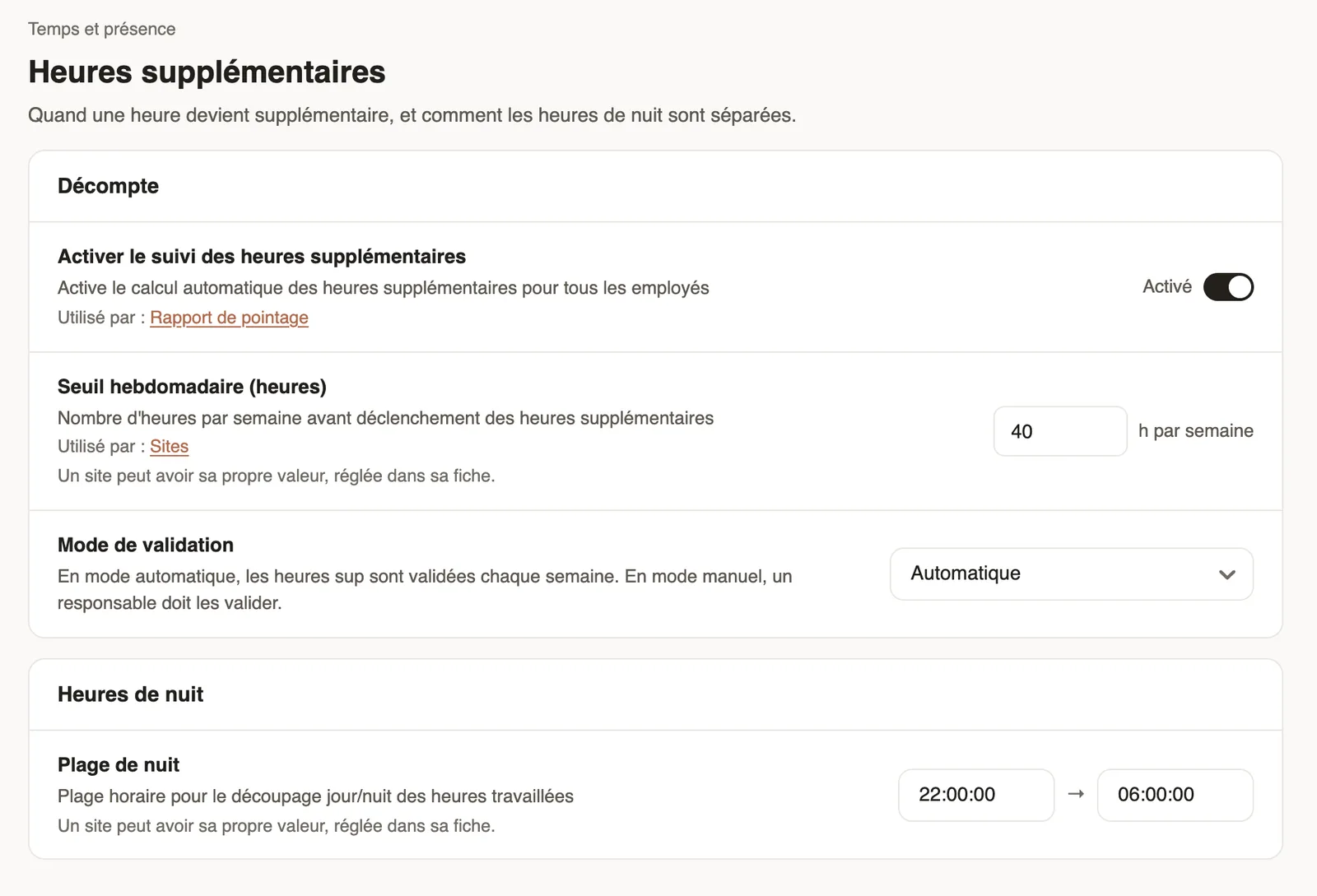
Steps
- Open Settings → Time and attendance → Overtime.
- Turn on Enable overtime tracking.
- Set the Weekly threshold: beyond this number of hours per week, hours become overtime.
- Choose the Approval mode: automatic (approved every week) or manual (a manager approves them).
- Set the Night range (for example 22:00 → 06:00) to split day and night hours.
Good to know
- A site can have its own threshold and night range; an employee can be left out of overtime tracking (record).
- Overtime shows in the time clock report and goes into the monthly payroll.
Go further
Create and set up a siteIn Weplanify, declare your workplaces, their geolocation clock-in area, their time zone and their own overtime rules, one site at a time here.An employee's clock-in settingsIn Weplanify, the Time tracking and leave section of the record sets how the employee clocks in and what, for them alone, differs from company rules.The monthly time clock report and Excel exportIn Weplanify, the time clock report sums up the month: hours worked against planned, lateness, overtime, absences, and what to fix before payroll.Prepare the month's time and absencesIn Weplanify, the Time and absences step gives each employee's paid days, leave, absences and overtime, taken from the source chosen for their site.Set up the time clock and overtimeIn Weplanify, allow several clock-ins per day, set the length of a working day and set up overtime tracking for the whole company in one place.How lateness, missing time and overtime are computedIn Weplanify, each clocked day is compared with the planned slot: here is where lateness, missing time, time worked and overtime all come from.Hours worked and planned hours on the dashboardIn Weplanify, the dashboard compares the hours clocked over the period with the hours planned in the schedule, and shows where overtime is being done.