
Set up the time clock and overtime
In Weplanify, allow several clock-ins per day, set the length of a working day and set up overtime tracking for the whole company in one place.
In Weplanify, two pages of Settings → Time and attendance set working time for all employees, except where their record or site says otherwise.
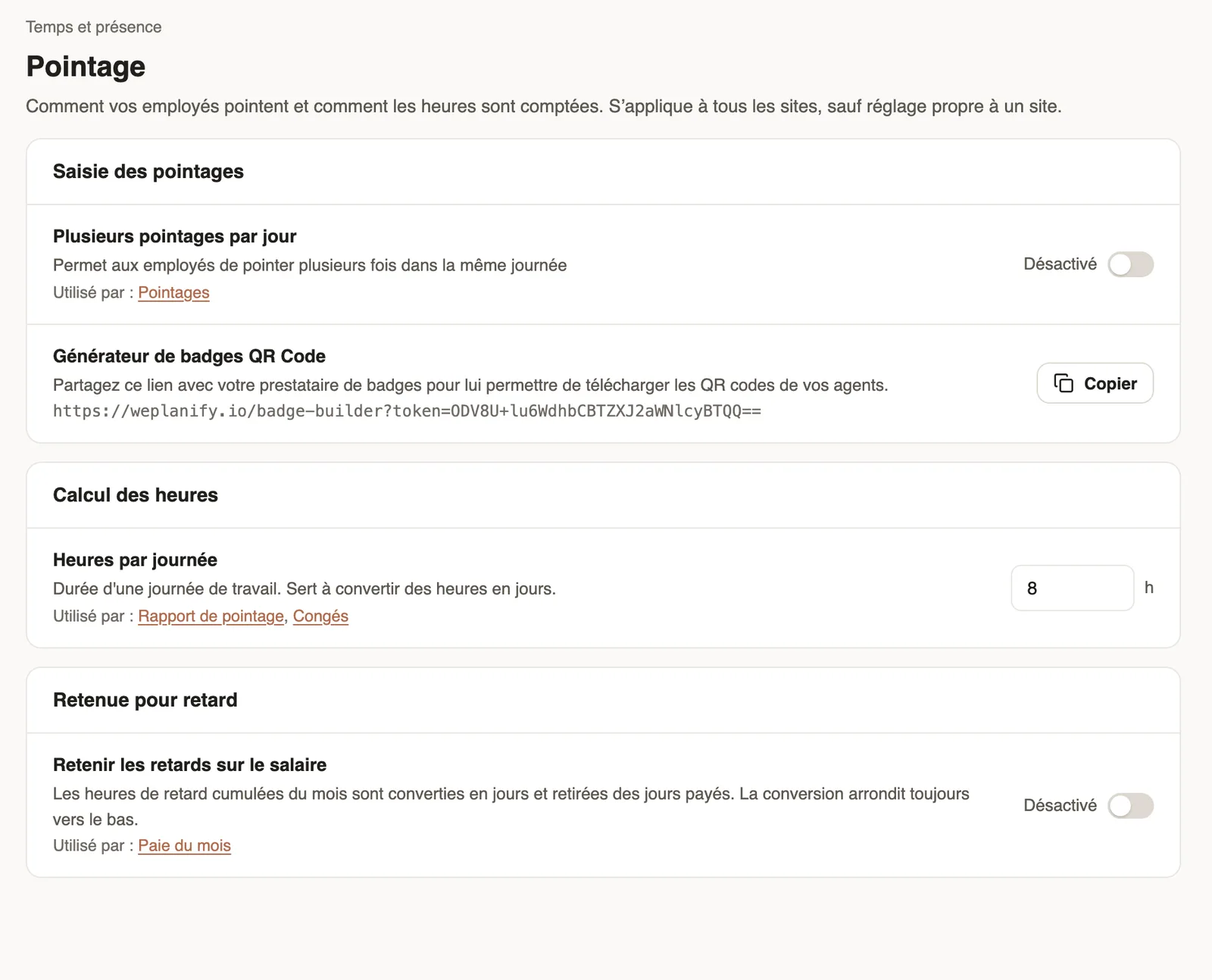
Steps
- Time clock: turn on Several clock-ins per day if your teams clock their breaks or several shifts, and set the Hours per day (they convert hours into days).
- Overtime: turn on tracking, then set the weekly threshold, the approval mode and the night range (details).
- For an unworked public holiday to be paid and not count as an absence: Leave → Public holidays.
Good to know
- An employee can depart from these rules on their record, a site in its Configuration tab.
- Hours per day are also used by the lateness deduction and the time clock report.
Go further
Turn on overtime trackingIn Weplanify, turn on overtime counting, then set the weekly threshold, the way overtime hours are approved, and the range of the night hours.Manage public holidaysIn Weplanify, check the year's list of public holidays, say whether they are paid rest days, and add the days that are specific to your company.An employee's clock-in settingsIn Weplanify, the Time tracking and leave section of the record sets how the employee clocks in and what, for them alone, differs from company rules.Create and set up a siteIn Weplanify, declare your workplaces, their geolocation clock-in area, their time zone and their own overtime rules, one site at a time here.Deduct lateness from the salaryIn Weplanify, turn the month's accumulated lateness into unpaid days, with a monthly tolerance granted before anything is deducted from the salary.Your company settings in WeplanifyIn Weplanify, settings are sorted by theme in a menu on the left: company, approvals, expenses, time and attendance, leave, payroll and account.Prepare the month's time and absencesIn Weplanify, the Time and absences step gives each employee's paid days, leave, absences and overtime, taken from the source chosen for their site.