
DocumentationSettings
Your company settings in Weplanify
In Weplanify, settings are sorted by theme in a menu on the left: company, approvals, expenses, time and attendance, leave, payroll and account.
In Weplanify, settings open with the Settings entry at the bottom of the menu. They are reserved for administrators and managers with access to settings.
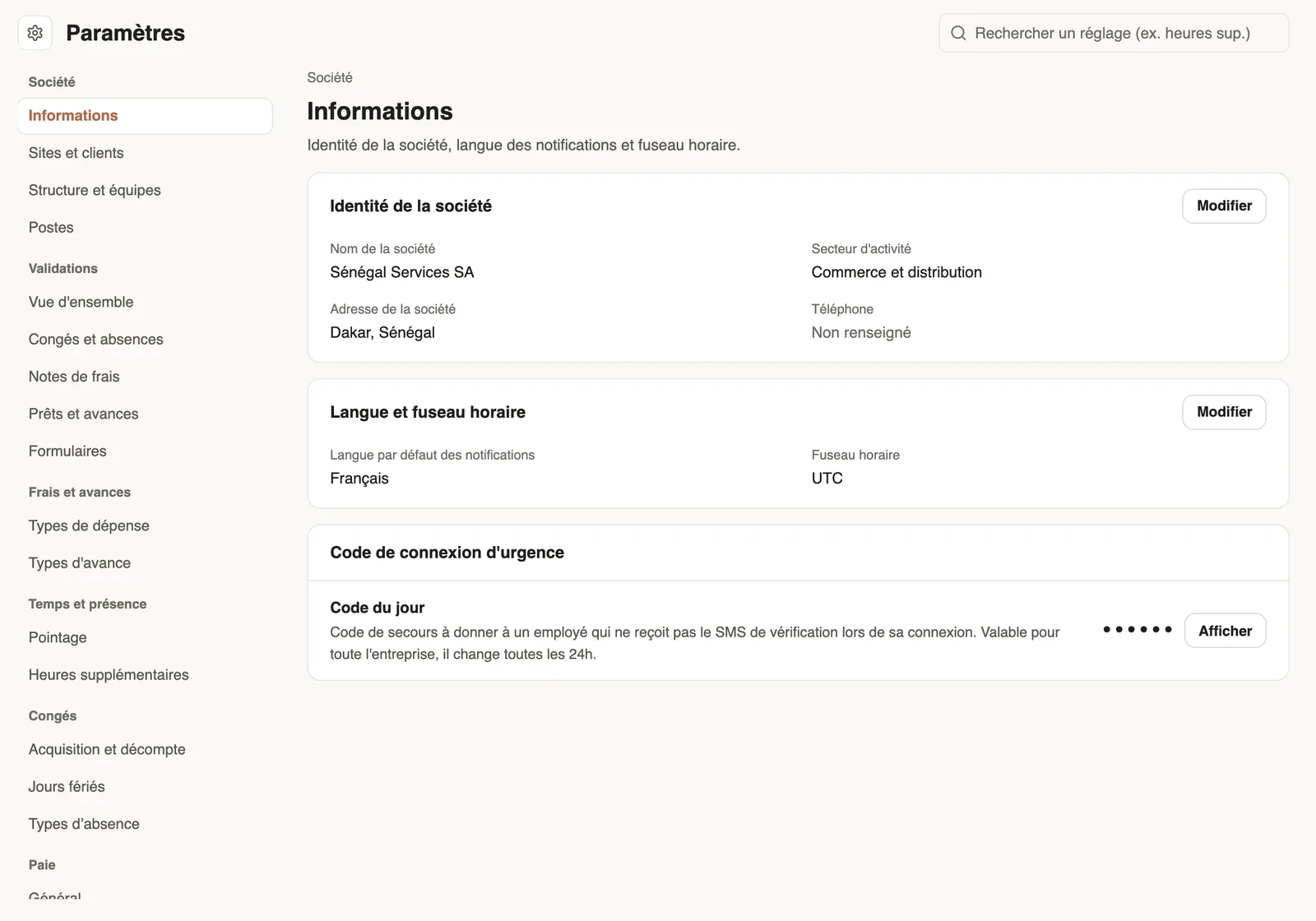
The menu
- Company: information, sites and clients, structure and teams (with the branches), jobs.
- Approvals: the approval circuits. Expenses and advances: expense types and advance types.
- Time and attendance: time clock and overtime, lateness deduction, QR badges. Leave: accrual and counting, public holidays, absence types.
- Payroll: payroll settings. People: custom fields. Account: subscription.
Good to know
- Search a setting, at the top right, finds a setting by its name (for example "overtime").
- Under each setting, Used by says which screen relies on it. Each block has its Edit button, then Save section.
- Who can open settings: module access.
Go further
Your subscription and paymentsIn Weplanify, see your plan and your next billing date, change your plan, and find the history of your payments and your invoices in one place.Have your agents' QR badges madeIn Weplanify, give your badge supplier a single link to download the clock-in QR codes of all your agents, without exporting them one by one.Branches: agencies and payroll countriesIn Weplanify, a branch is an agency of the company: its country decides the payroll rules applied to its employees; create one for each country.Declare your clientsIn Weplanify, create your clients to attach to them the sites where your teams work for them, with their contact and their accounting account.The emergency login codeIn Weplanify, help out an employee who does not receive the mobile app sign-in text message with today's code, valid across the whole company.Set leave accrual and countingIn Weplanify, set how many leave days each employee earns per month and how leave is counted: Monday to Saturday or Monday to Friday working days.Company information, language and time zoneIn Weplanify, update the company's name, sector, address and phone number, the language used for notifications and the company's own time zone.Manage public holidaysIn Weplanify, check the year's list of public holidays, say whether they are paid rest days, and add the days that are specific to your company.Payroll settingsIn Weplanify, the Payroll group of settings gathers payroll setup, paid leave handling, contributions, pay elements and the accounting export.Manage jobs and sub-jobsIn Weplanify, create the list of jobs with their colour and their sub-jobs: they are used on employee records, for day labourers and in the planning.Deduct lateness from the salaryIn Weplanify, turn the month's accumulated lateness into unpaid days, with a monthly tolerance granted before anything is deducted from the salary.Create and set up a siteIn Weplanify, declare your workplaces, their geolocation clock-in area, their time zone and their own overtime rules, one site at a time here.Structure the company: divisions, departments, teamsIn Weplanify, describe how the company is organised in levels (division, department, team) with a manager for each one and the level it reports to.Set up the time clock and overtimeIn Weplanify, allow several clock-ins per day, set the length of a working day and set up overtime tracking for the whole company in one place.Configure an approval circuitIn Weplanify, build the approval steps of a leave request, an expense, an advance or a form: the order, the name, the approver and when each step applies.Create an expense typeIn Weplanify, an expense type (fuel, meals, road tolls) decides who pays, how the amount is computed, what must be attached and who approves it.Absence typesIn Weplanify, each absence type says whether it is paid, unpaid or deducted from the leave balance: it is the type that decides the effect on payroll.Add your own fields to the employee recordIn Weplanify, add to every employee record the information that is specific to your business: uniform size, driving licence, blood group, etc.A manager's access by module: none, view or manageIn Weplanify, a manager only opens the chosen modules, for the employees of their groups: View to consult, Manage to create, edit and approve.Create your Weplanify workspace with the wizardIn Weplanify, the setup wizard creates your company in five steps: company, business and jobs, working hours, modules, then getting started.