
Spot incomplete staff files
In Weplanify, Staff files show for each employee where their contract, ID document, collections and documents to sign stand, in a single row.
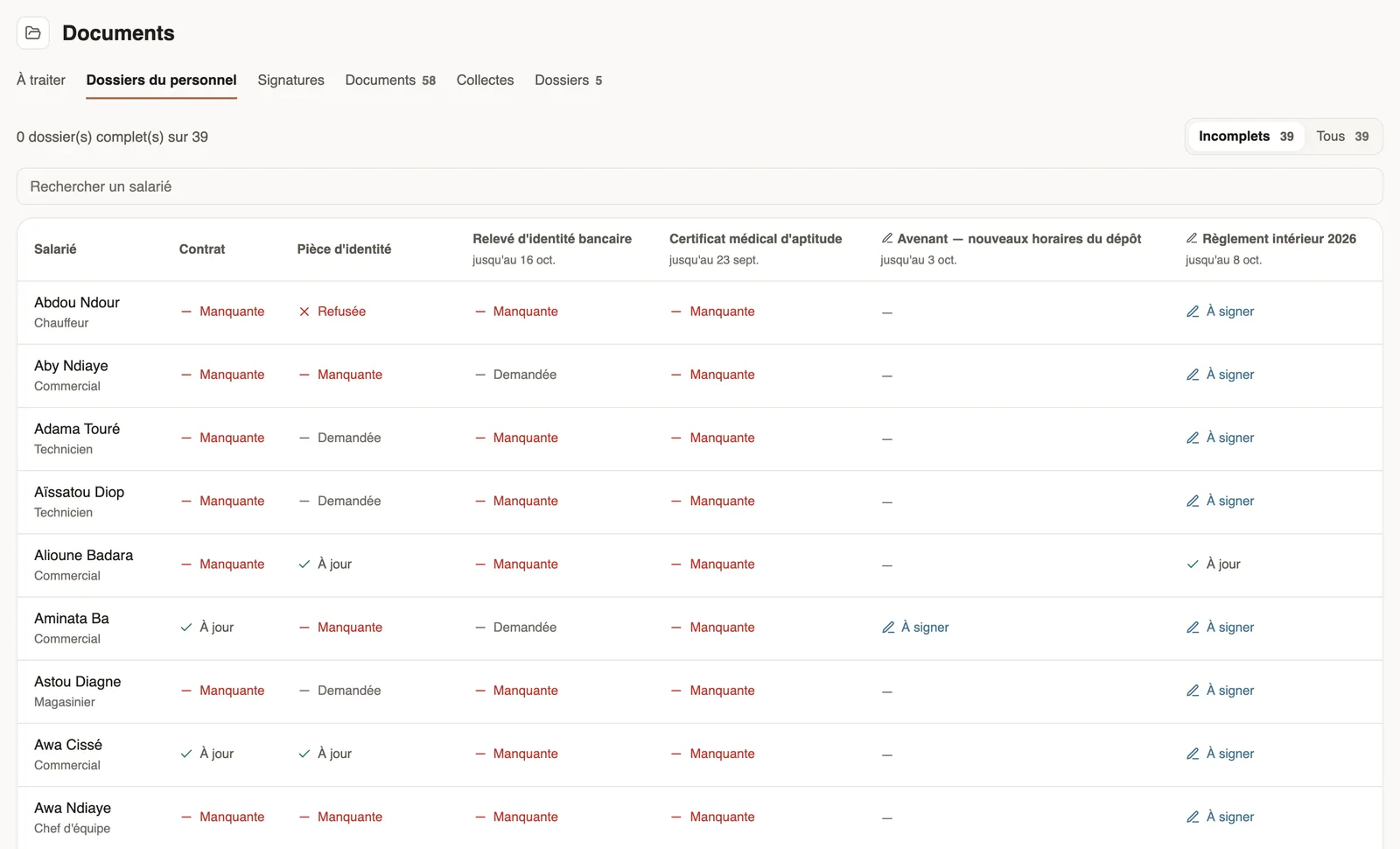
In Weplanify, the Staff files tab answers "who is missing what?" at a glance: one row per employee, one column per expected paper.
Steps
- Open People → Documents, Staff files tab.
- Read the summary at the top ("complete files out of …") and choose Incomplete or All.
- Type a name in Search an employee to find a person.
- Click a row to open the employee's documents and complete the file.
The columns
- Contract and Identity document: always there, they read the documents of that type filed on the record.
- One column per recent collection, with its deadline.
- One column per document recently sent for signature, marked with a pen.
The states of a cell
- Up to date, Expiring soon, Expired: the paper is on file (see statuses).
- Requested: a collection is running; To check: the paper was uploaded and waits for your decision; Refused: it was refused.
- Missing: nothing on file, or the deadline has passed.
- To sign: the document waits for the employee's signature; a dash means the employee is not concerned.
Go further
An employee's documentsIn Weplanify, the Documents section of the employee record gathers their papers by type: contract, ID document, certificates and signed copies.Request a document from your employees (collection)In Weplanify, a collection requests the same paper (ID card, bank details, medical certificate…) from a group of employees, with a deadline to meet.Send a document for signature in four stepsIn Weplanify, sending a PDF for signature takes four steps: the document, the signers, where each one signs, then a final check before you send it.Document statuses and expiryIn Weplanify, understand the Valid, Expiring soon and Expired statuses of a document, and those of a paper requested by collection: To upload, To check.HR documents in WeplanifyIn Weplanify, the Documents module files HR papers, spots incomplete staff files, gets PDFs signed and collects documents from your employees.Add a documentIn Weplanify, add a file with its name, its type, the employee concerned, its expiry date and whether the employee may download it from the app.Follow the signatures of a request and send remindersIn Weplanify, the detail of a request shows where each signer stands, copies their signing link, reminds late signers and opens the signed document.