
The employee record
In Weplanify, the employee record brings together everything about a person in five tabs, with sections that you edit one at a time, separately.
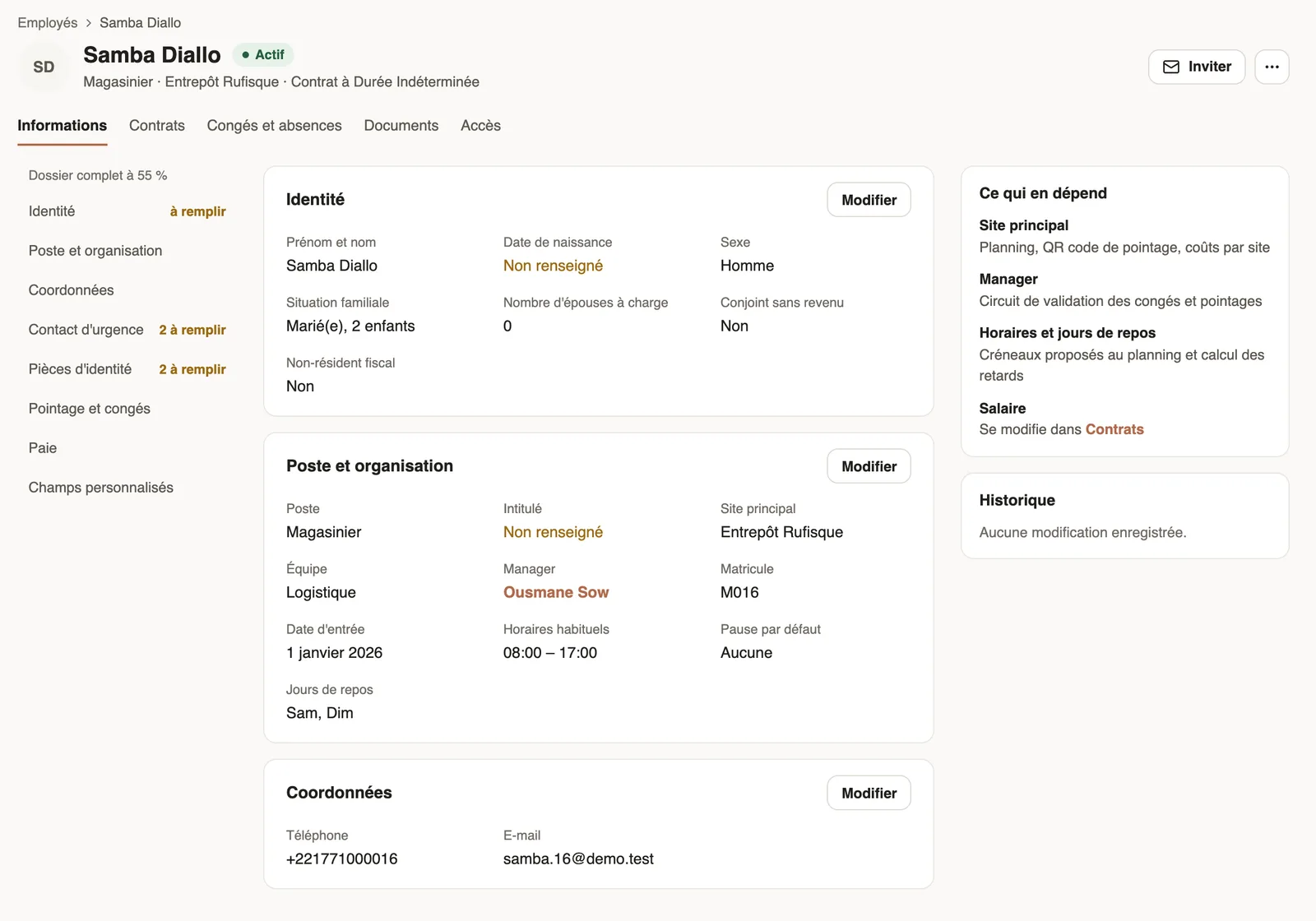
In Weplanify, the record opens when you click an employee. At the top: their name, status, job, site and contract.
The tabs
- Information: identity, position and organization, contact details, emergency contact, identity documents, time tracking and leave, payroll and custom fields.
- Contracts: the contracts, with payroll access. Leave and absences: their leave counter.
- Documents: their documents. Access: the app, their role and access.
Good to know
- Each section has its Edit button, then Save section. "Record … % complete" and the "to fill in" notes show what is missing.
- What depends on it recalls the effect of the site, the manager and the hours; History keeps the changes.
- The ⋯ button offers Show QR code (their badge), Manage fields and Delete; Invite opens the web to them.
Go further
An employee's clock-in settingsIn Weplanify, the Time tracking and leave section of the record sets how the employee clocks in and what, for them alone, differs from company rules.An employee's family and payroll situationIn Weplanify, the record keeps an employee's family situation, social security numbers and bank details, which every payroll run takes into account.Add your own fields to the employee recordIn Weplanify, add to every employee record the information that is specific to your business: uniform size, driving licence, blood group, etc.A contract's statuses: suspend, terminate, activateIn Weplanify, the record's Contracts tab shows the running contract and its history, and what each action changes for the employee's payroll.Leave balancesIn Weplanify, each employee has a leave counter: earned since the return date, taken, and available balance, shown on their record and in the report.An employee's documentsIn Weplanify, the Documents section of the employee record gathers their papers by type: contract, ID document, certificates and signed copies.See who uses the app and cut someone's accessIn Weplanify, see for each employee whether they use the mobile app, send them the link, or cut their access without touching their record at all.Give an employee a role and accessIn Weplanify, make an employee a manager or an administrator from the Access tab of their record: role, groups they manage and what they can do.Invite an employee to the web versionIn Weplanify, invite an employee, often a manager, to the web version: they receive an email link to create their password and then sign in.Have your agents' QR badges madeIn Weplanify, give your badge supplier a single link to download the clock-in QR codes of all your agents, without exporting them one by one.Manage jobs and sub-jobsIn Weplanify, create the list of jobs with their colour and their sub-jobs: they are used on employee records, for day labourers and in the planning.Structure the company: divisions, departments, teamsIn Weplanify, describe how the company is organised in levels (division, department, team) with a manager for each one and the level it reports to.A manager's access by module: none, view or manageIn Weplanify, a manager only opens the chosen modules, for the employees of their groups: View to consult, Manage to create, edit and approve.Employee, manager, administrator: who sees what in WeplanifyIn Weplanify, each person has a role that sets what they see: their own data, the employees of the groups they manage, or the whole company at once.Manage your employees in WeplanifyIn Weplanify, each employee has a record used everywhere: planning, time clock, leave and payroll. Here is how to create it and keep it up to date.Search and filter the employee listIn Weplanify, the employee list can be searched by name, filtered by group or criterion, shown as a table or as cards, and it also lists the managers.Choose how an employee clocks inIn Weplanify, each employee clocks in one way only, chosen on their record: by scanning the QR code, by geolocation or by facial recognition.Choose a substitute and people in copyIn Weplanify, a substitute approves instead of an absent, silent or missing approver; people in copy follow every request and decision without approving.Choose who approves a step of the circuitIn Weplanify, choose who approves a step: the manager, the head of a site or a department, specific people, or a different person depending on rules.