
Ask for payroll to be switched on
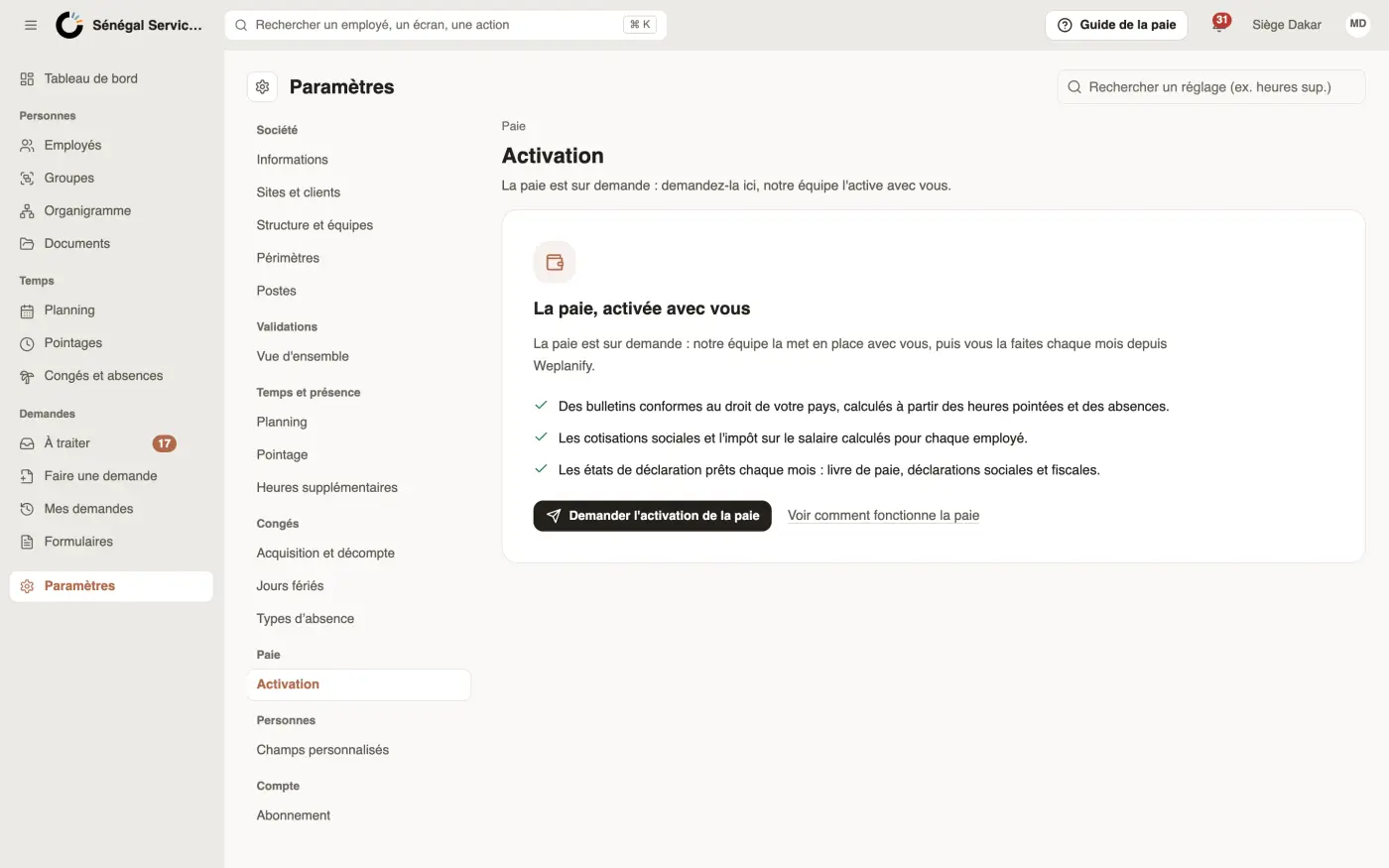
In Weplanify, payroll is on request: an administrator asks for it from the settings, then our team sets it up and switches it on together with you.
In Weplanify, payroll is not switched on in one click: an administrator asks for it, then the Weplanify team sets it up with you (contracts, contributions, first month) and switches it on. Payroll, costs and day labourers are switched on together.
Steps
- Open Settings → Payroll → Activation.
- Click Ask for payroll to be switched on.
- Add a message if you wish: how many employees, how you run payroll today.
- Click Send the request: you receive a confirmation by e-mail, and the page shows Request sent on…
- Our team contacts you and switches it on with you. You then receive the e-mail Payroll is switched on, and the monthly payroll shows in the menu.
Good to know
- Only an administrator can ask; the others read Your administrator can ask for it to be switched on.
- If the request is not accepted, the page shows our answer and Ask again. To talk about it: [email protected].
- Once payroll is switched on, the person who asked receives payroll access if nobody in the company holds it yet.
- Payroll is part of the « HR + payroll + costs » plan of the subscription: our team tells you if a plan change is needed.
- The whole payroll documentation stays readable before payroll is switched on.
Go further
Follow the company's expensesIn Weplanify, the Expenses screen gathers purchases paid by the company and costs advanced by employees: to approve, to reimburse and to pay.Manage day labourers: arrivals, days and paymentsIn Weplanify, follow the workers paid by the day: need announced, arrivals on site, validated day, then payment in cash or by mobile money too.Follow the monthly payroll step by stepIn Weplanify, the Monthly payroll page shows where payroll stands: the next step, what is left to settle, the provisional figures and the five steps.Give an employee a role and accessIn Weplanify, make an employee a manager or an administrator from the Access tab of their record: role, groups they manage and what they can do.Your subscription and paymentsIn Weplanify, see your plan and your next billing date, change your plan, and find the history of your payments and your invoices in one place.Payroll in WeplanifyIn Weplanify, the monthly payroll is prepared in five steps, from time, absences and variable elements up to the payslips, the payment and the closing.Payroll settingsIn Weplanify, the Payroll group of settings gathers payroll setup, paid leave handling, contributions, pay elements and the accounting export.Find your way in Weplanify: menu and top barIn Weplanify, the left menu sorts the screens into four sections, and the top bar gathers the search, the help, the notifications and your account.