
Approve, refuse or send a request back for changes
In Weplanify, open a request waiting for you, discuss it if needed, then approve it, refuse it or ask its author to change it before deciding again.
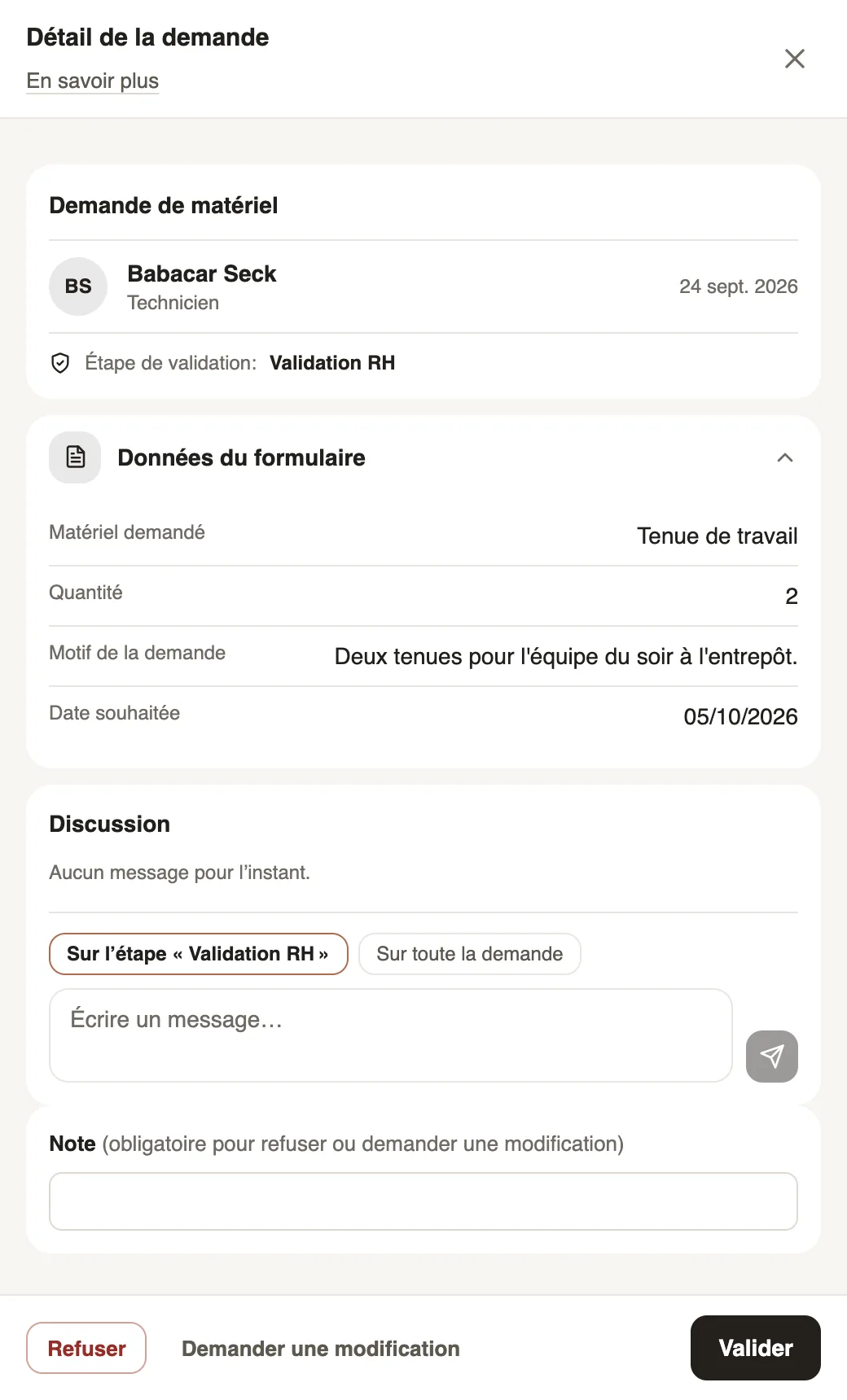
In Weplanify, a request waiting for your decision opens from Requests → To handle or from its form's Responses tab. The panel shows the requester, the step, the answers and the discussion.
Steps
- Click the request to read its detail.
- A question? Write in Discussion, On the step or On the whole request, then send: the other participants are notified and can reply.
- Click Approve: the request moves to the next step, or is accepted.
- To Refuse, first write the reason in Note: the employee receives it.
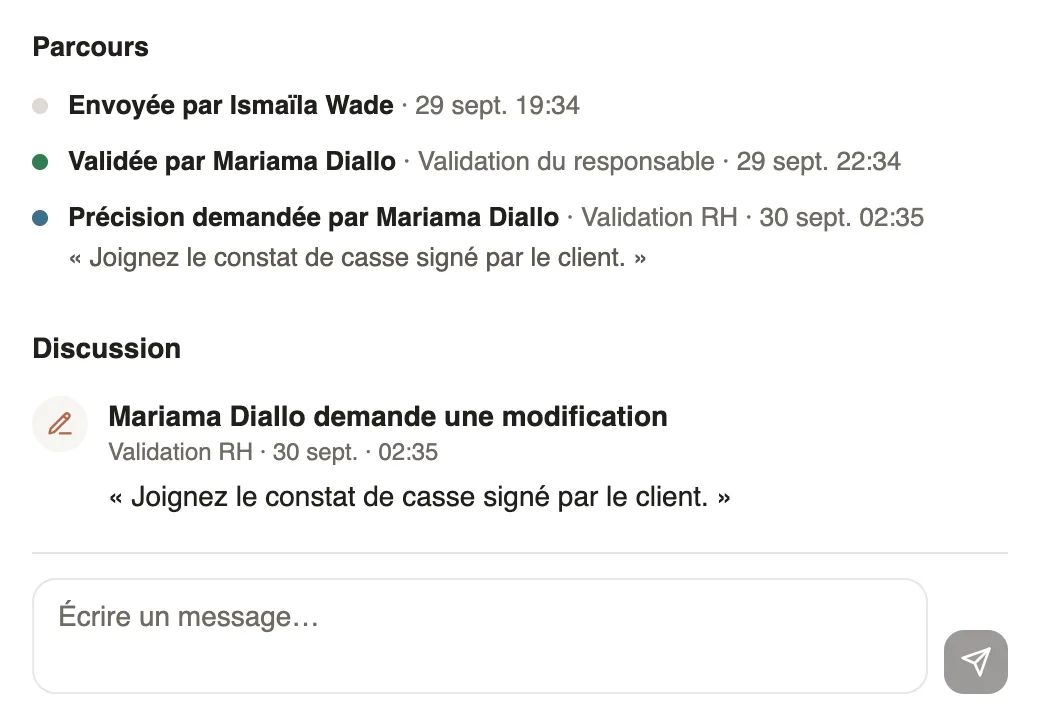
- To Ask for a change, write in Note what needs to change: the request goes back to its author.
- A mistake? Click Undo in the message: the decision is only sent after 10 seconds.
Good to know
- Once corrected and sent again, the request goes through the whole circuit again from the first step; the discussion shows what changed, before and after.
- Leave requests cannot be sent back for changes, and each step can forbid it: see what the approver can do.
- You can also answer from your phone: see approve from mobile.
Go further
Handle the requests waiting for youIn Weplanify, Requests → To handle gathers the leave, expense claims, advances and forms waiting for your decision, with the overdue ones first.Choose what the approver can do at a stepIn Weplanify, decide for each step whether the approver must give a reason to refuse and whether they can send the request back to its author for changes.Approve your team's requests on mobileIn Weplanify, managers approve, reject or send back for changes their team's requests from their phone, and discuss them with the requester.Weplanify forms: requests, reports and surveysIn Weplanify, every company form sits in a single list, sorted by category, showing what is waiting for your decision and what is running late.Receive employees' HR requestsIn Weplanify, HR requests is a category of forms (equipment, certificate, working hours) that employees find in their Make a request screen.Follow, approve and export a form's responsesIn Weplanify, a form's Responses tab sorts answers by status, opens each one on the side so you can decide, and exports everything to Excel.Handle requests from the dashboardIn Weplanify, the dashboard's To do list gathers absences, requests and clock-ins waiting for you: approve, decline or fix them without leaving the page.Request approval circuitsIn Weplanify, a leave request, an expense claim, an advance or a form answer moves from one approver to the next, following its circuit, until the decision.