
Approve or reject an absence request
In Weplanify, approve or reject an absence request from To handle or from its panel, which shows the effect on pay and on the balance before you decide.
In Weplanify, an absence request is To approve, then Approved or Rejected. You handle it in Requests → To handle, with every request waiting for you, or in the Leave and absences screen.
Steps
- Open Requests → To handle, Leave tab (or Time → Leave and absences, To approve tab).
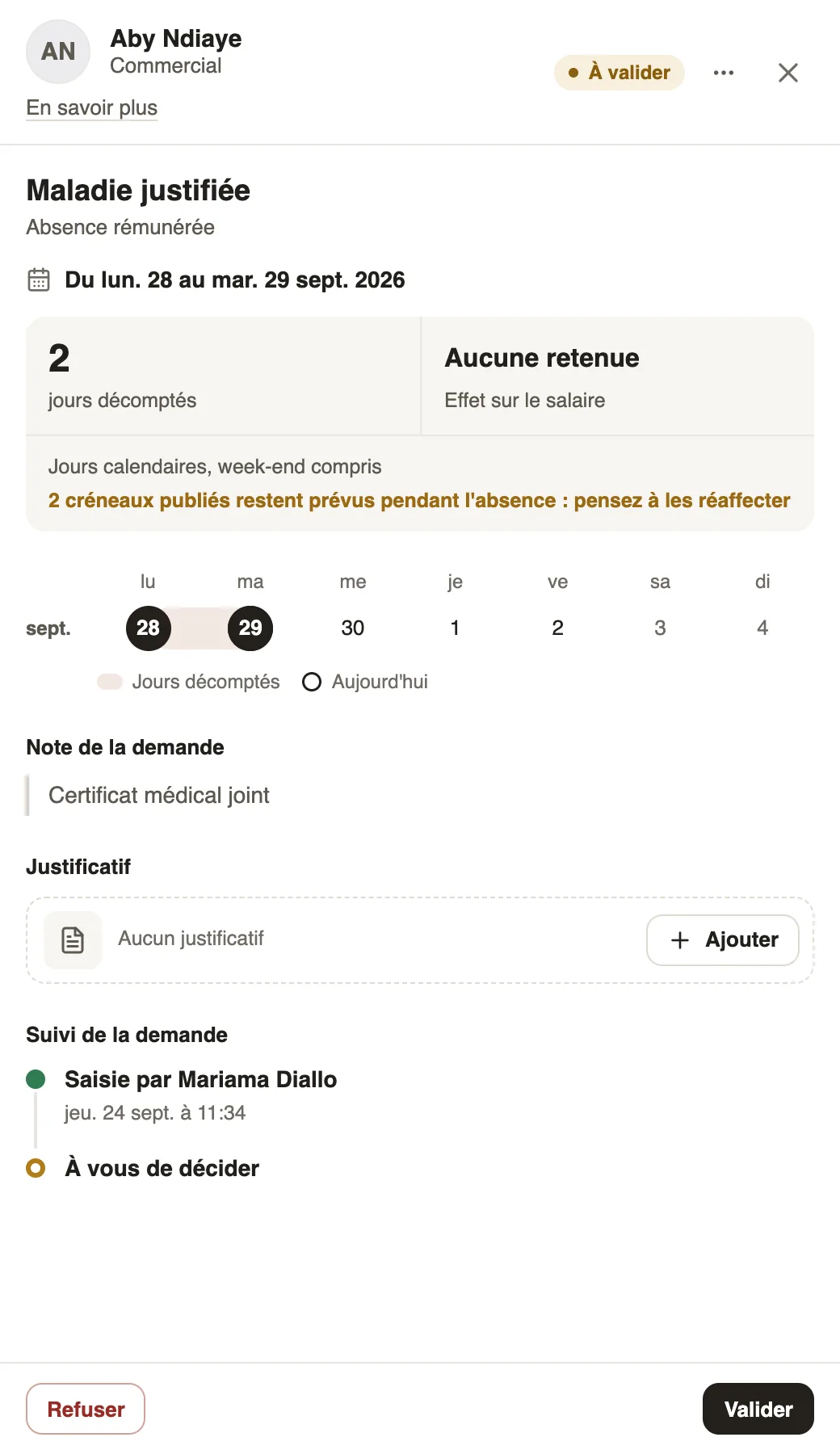
- To decide with the full picture, click the row: the panel shows the period, the days counted, the effect on pay, the note and the supporting document.
- Under Request history, "Waiting for your decision" marks your step: click Approve or Reject.
- For several leave requests, tick them in To handle, then Approve all … or Refuse with a single reason.
Good to know
- The employee is told the answer; a rejection gives them the reason. In To handle, Undo stays possible for 10 seconds.
- Only an approved absence counts: in payroll, in the time clock and in the planning alerts.
- Who receives the request depends on the leave circuit; the dashboard's To do list also shows pending absences.
Go further
Handle the requests waiting for youIn Weplanify, Requests → To handle gathers the leave, expense claims, advances and forms waiting for your decision, with the overdue ones first.Prepare the month's time and absencesIn Weplanify, the Time and absences step gives each employee's paid days, leave, absences and overtime, taken from the source chosen for their site.See who is present, late, without an exit or absentIn Weplanify, the tabs of the day's list sort employees into present, late, no exit, absent or rest day, with a count for each of the groups.The planning alertsIn Weplanify, spot before publishing the slots in conflict (leave, double booking) and the days when the minimum staffing level is not reached.Choose who approves absencesIn Weplanify, the leave circuit says who receives each absence request, in which order, under which conditions, and who stands in for an absent approver.Handle requests from the dashboardIn Weplanify, the dashboard's To do list gathers absences, requests and clock-ins waiting for you: approve, decline or fix them without leaving the page.Manage leave and absencesIn Weplanify, the Leave and absences screen gathers the whole team's requests, as a list or a calendar, with the requests to approve shown first.Create an absence or leaveIn Weplanify, enter an employee's absence or leave in three choices: who, what and when; the balance after the absence shows before you save.Prepare a departure on leaveIn Weplanify, prepare an employee's departure on leave from their record: days counted, balance, leave request and allowance, then validate the departure.Create an absence from the planningIn Weplanify, record that a scheduled employee will be absent straight from their slots, without leaving the planning or typing the dates again.