
DocumentationForms & requestsWeplanify forms: requests, reports and surveysReport and follow up incidents in the field
Report an incident from the web
In Weplanify, report an incident from your computer: what happened, the severity, the site and photos. The site manager is told right away, with no delay.
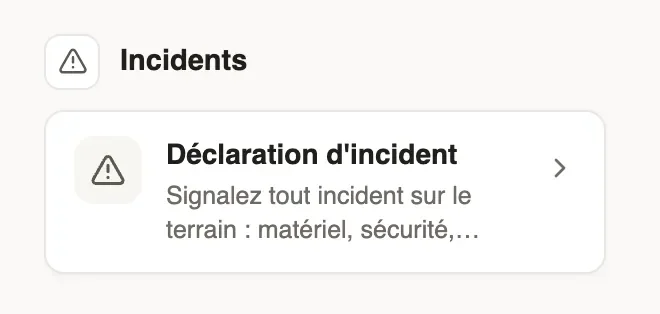
In Weplanify, any employee can report an incident from Requests → Make a request. The Report an incident button is also at the top of Requests → Incidents, for everyone who has that screen in their menu.
Steps
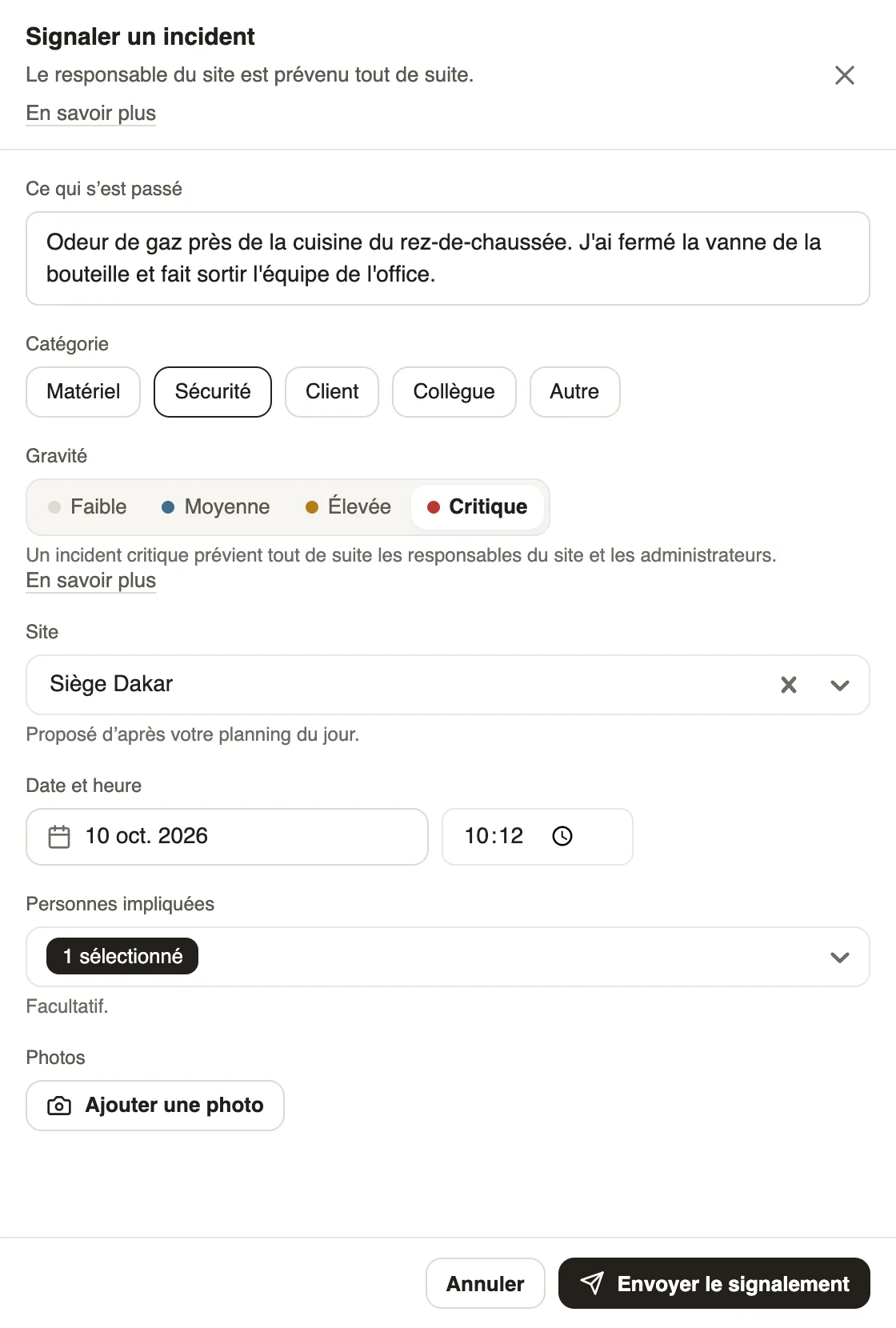
- In Make a request, click the incident reporting form, in the Incidents category. The Report an incident window opens.
- Write What happened: what you saw, where, and what has already been done.
- Choose the Category and the Severity, Medium by default.
- Check the Site, suggested from your planning of the day, and the Date and time, set to the present moment. Change them if the incident happened elsewhere or earlier.
- Add the People involved if needed and up to six photos with Add a photo, then click Send the report.
Good to know
- After sending, the incident opens: follow how it is handled in Follow-up and discussion and write there if needed. You are notified at each step.
- Choosing Critical warns the site managers and the administrators right away (critical alerts).
- If the form has the Record the location when sending option, the browser asks for your position: without it, the report is not sent.
- An incident cannot be dated in the future.
- An employee who is not a manager then lands on My reports: their incidents and where they stand. They find them again later in Requests → Incidents.
- On a phone: report from the mobile app.
Go further
Get notified of incidents and critical alertsIn Weplanify, each incident notifies the managers of its site; a critical incident also alerts the administrators right away, through a notification.Report and follow an incident on mobileIn Weplanify, the Report button of the app sends an incident in a few seconds; the manager takes charge of it and resolves it from their own phone.Make a request: leave, expense, advance or formIn Weplanify, the Make a request screen brings leave, expense claims, advances and forms together: find what you need and send your request.Report and follow up incidents in the fieldIn Weplanify, an incident is reported in a few seconds and warns the site manager, who takes charge of it and then resolves it with a short note.