
Report and follow up incidents in the field
In Weplanify, an incident is reported in a few seconds and warns the site manager, who takes charge of it and then resolves it with a short note.
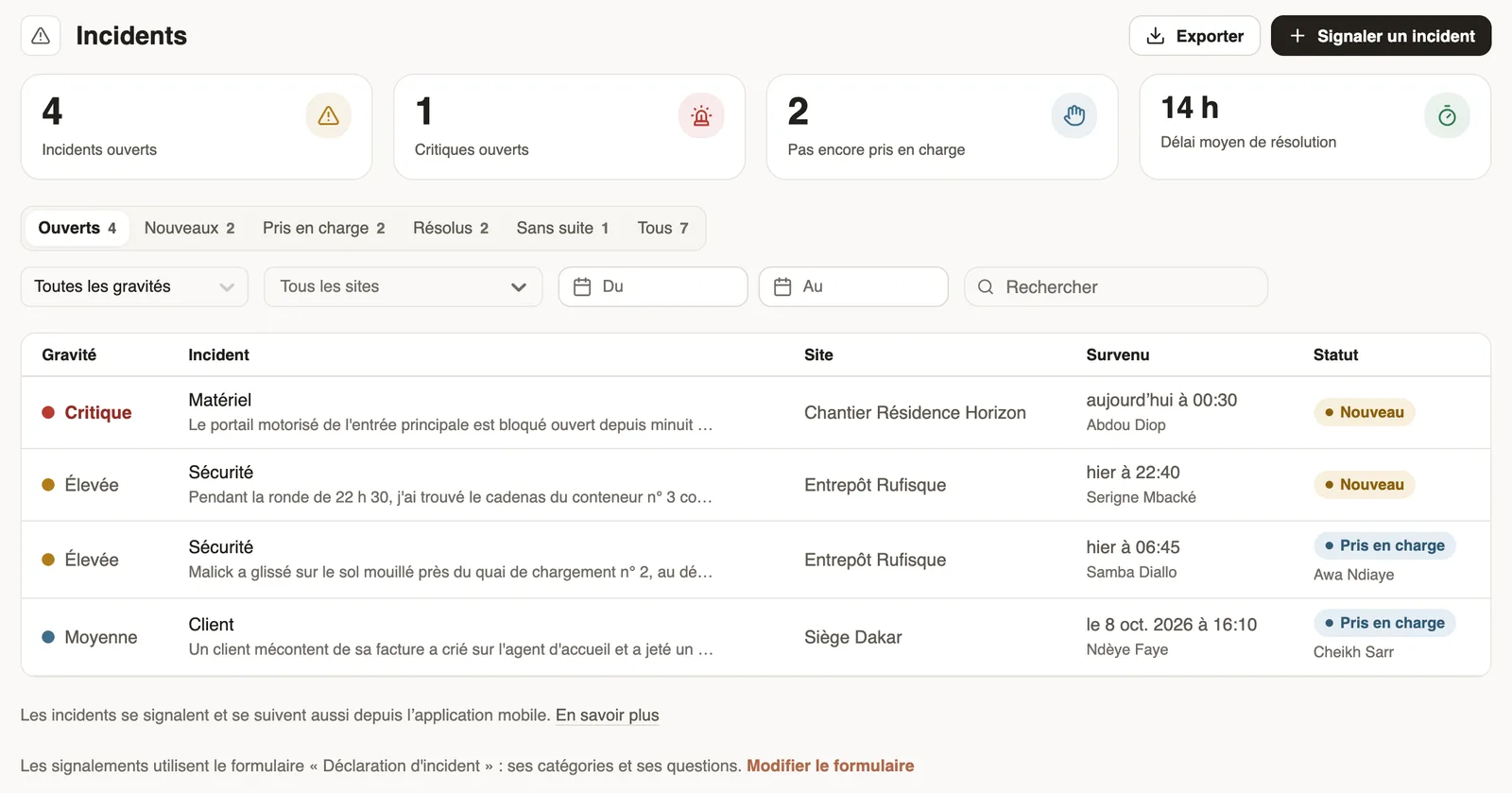
In Weplanify, an incident is something that happens in the field and has to be dealt with: a leak, a fall, a breakdown, a theft, an aggressive client. It is never approved or rejected: someone takes charge of it, then resolves it. Everything is followed in Requests → Incidents.
Steps
- An employee reports the incident: what happened, the category, the severity, the site, the time and photos. On a phone, it is the Report button of the mobile app.
- The incident is New and the site managers are told (who is told).
- A manager clicks Take charge or assigns it to someone: the incident becomes Taken in charge (take charge or assign).
- Once the problem is fixed, they set it to Resolved with a note of what was done, or Closed without action with a reason: false alarm, duplicate (resolve or close).
Good to know
- Four severities: Low, Medium, High and Critical. A critical incident also warns the administrators, right away.
- Who sees what: the administrator sees every incident; a manager sees those of the sites they supervise and those reported by their team; an employee sees their own reports and, in Assigned to me, the incidents handed to them.
- Site managers, and employees who reported an incident or were handed one, have Requests → Incidents in their menu.
- Each incident has its Follow-up and discussion thread: the steps and the messages between the reporter and the people handling it.
- Reports go through the incident reporting form of the Incidents category, created with the first report, with no approval circuit. The choices of its incident type question become the categories.
- Sort, filter and export: the Incidents screen.
Go further
Get notified of incidents and critical alertsIn Weplanify, each incident notifies the managers of its site; a critical incident also alerts the administrators right away, through a notification.Filter and export the incident listIn Weplanify, the Incidents screen shows open and most serious incidents first, with its indicators, its filters by site or by date and an Excel export.Take charge of an incident or assign itIn Weplanify, a manager takes charge of an incident or assigns it to an employee, corrects its details and talks with the reporter in the follow-up thread.Resolve, close without action or reopen an incidentIn Weplanify, an incident ends Resolved, with a note of what was done and a photo, or Closed without action with a reason. It can be reopened at any time.Report an incident from the webIn Weplanify, report an incident from your computer: what happened, the severity, the site and photos. The site manager is told right away, with no delay.Report and follow an incident on mobileIn Weplanify, the Report button of the app sends an incident in a few seconds; the manager takes charge of it and resolves it from their own phone.Weplanify forms: requests, reports and surveysIn Weplanify, every company form sits in a single list, sorted by category, showing what is waiting for your decision and what is running late.