
DocumentationForms & requestsWeplanify forms: requests, reports and surveysAsk your teams with a survey or a quiz
Create a quiz with a score to reach
In Weplanify, create a quiz: mark the right answers, set the score to reach, the number of attempts and which attempt counts for each employee.
In Weplanify, a quiz checks that instructions are known, for example the safety rules on site. Each submission is scored automatically, as a share of right answers.
Steps
- In Requests → Forms, click New form, then A quiz.
- Choose the Workplace Safety Quiz template or Blank form, then click Create and adjust the questions.
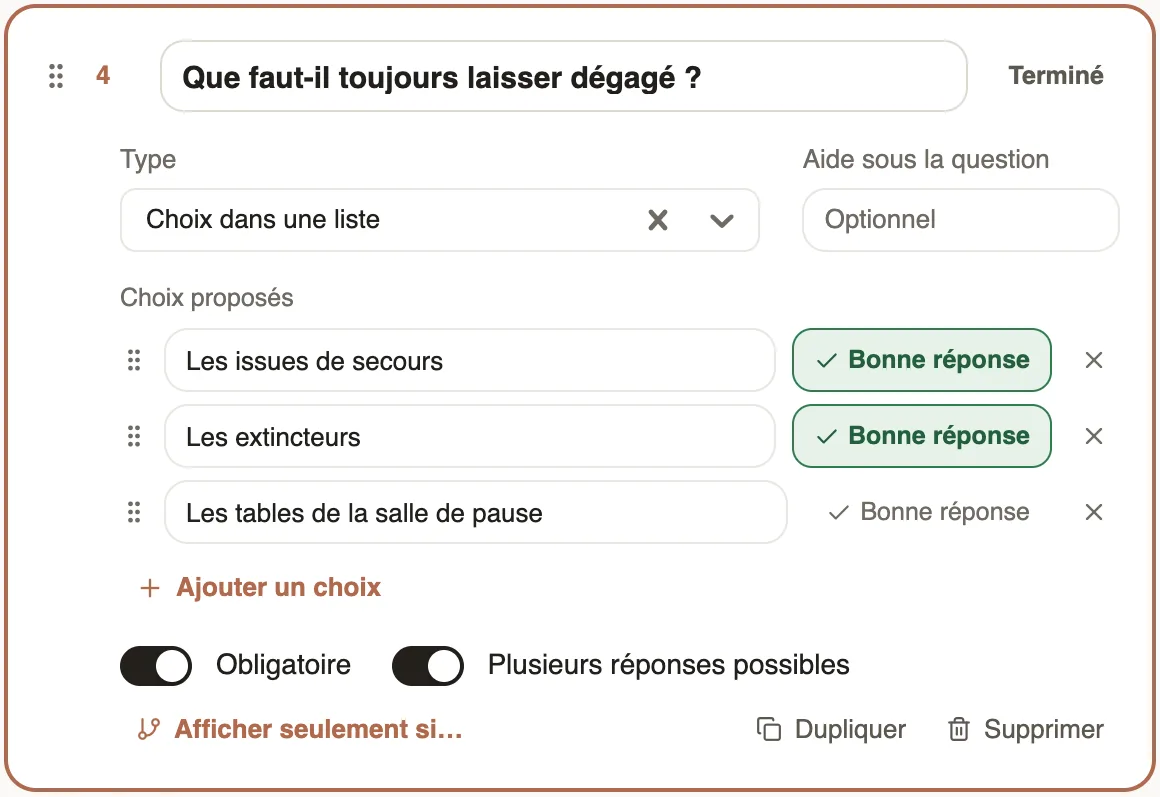
- In each Choice from a list, click Right answer next to the right option; with Several answers allowed, mark every right option.
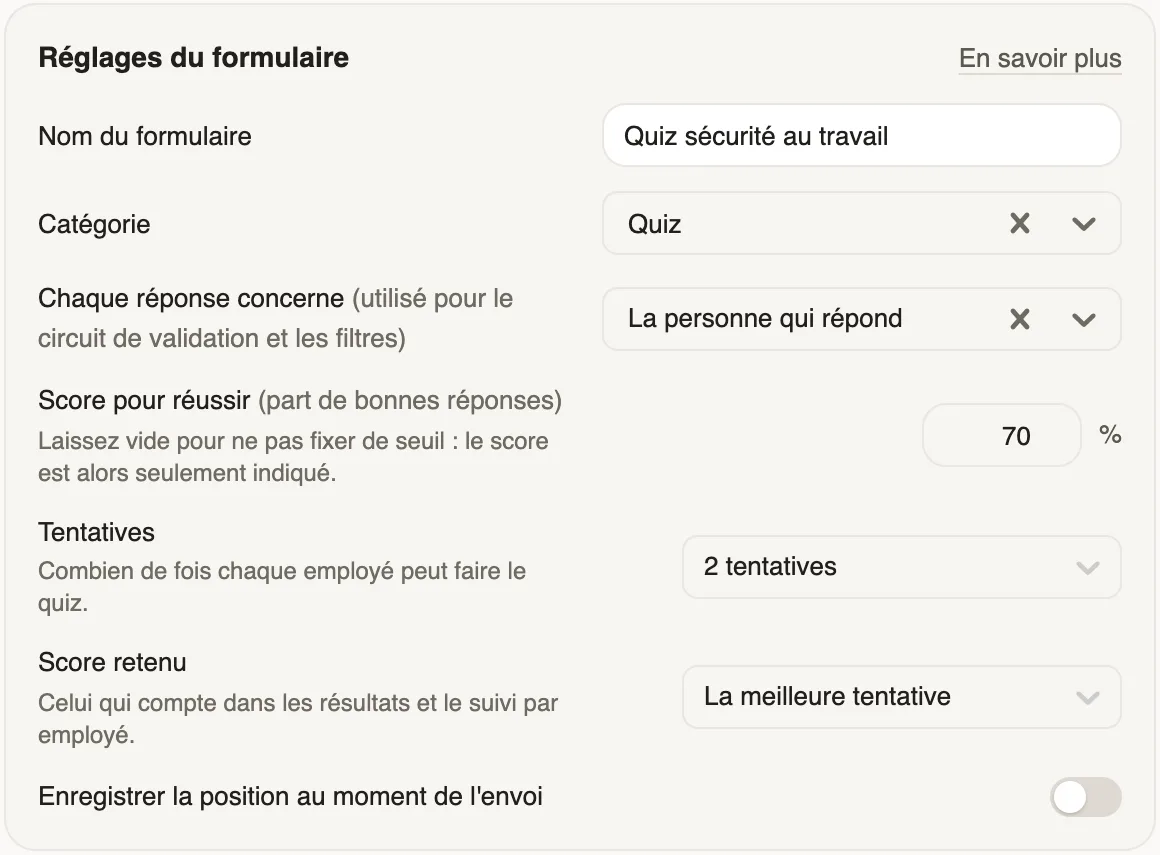
- In the form settings, enter the Score to pass (70 %, for example), the Attempts (1, 2, 3, 5 or Unlimited) and, if there are several, the Score kept: The best attempt or The last attempt.
- Click Next: sharing, choose who answers, then publish.
Good to know
- Only choice questions are scored: any other question (text, rating…) is marked not scored and does not count in the score. A choice question with no right answer is marked right answer to pick.
- A question left empty counts as wrong; for a multiple choice, exactly the right options must be ticked.
- Without a score to pass, the score is only shown: neither Passed nor Not passed.
- The score kept is the one that counts in the results and the follow-up by employee.
- In the same settings, the Category files the quiz in the forms list.
Go further
Publish a form and let employees knowIn Weplanify, publish a form and let people know: notification, New card on the home screen, poster; then close it or reopen it whenever needed.Follow the scores of a quizIn Weplanify, a quiz's Results and By employee tabs give the average score, the pass rate, the right answers per question and each employee's score.Ask your teams with a survey or a quizIn Weplanify, a survey collects your teams' views and a quiz checks what they know, with no approval step, plus results, participation and reminders.