
DocumentationForms & requestsWeplanify forms: requests, reports and surveysAsk your teams with a survey or a quiz
Follow participation and send reminders
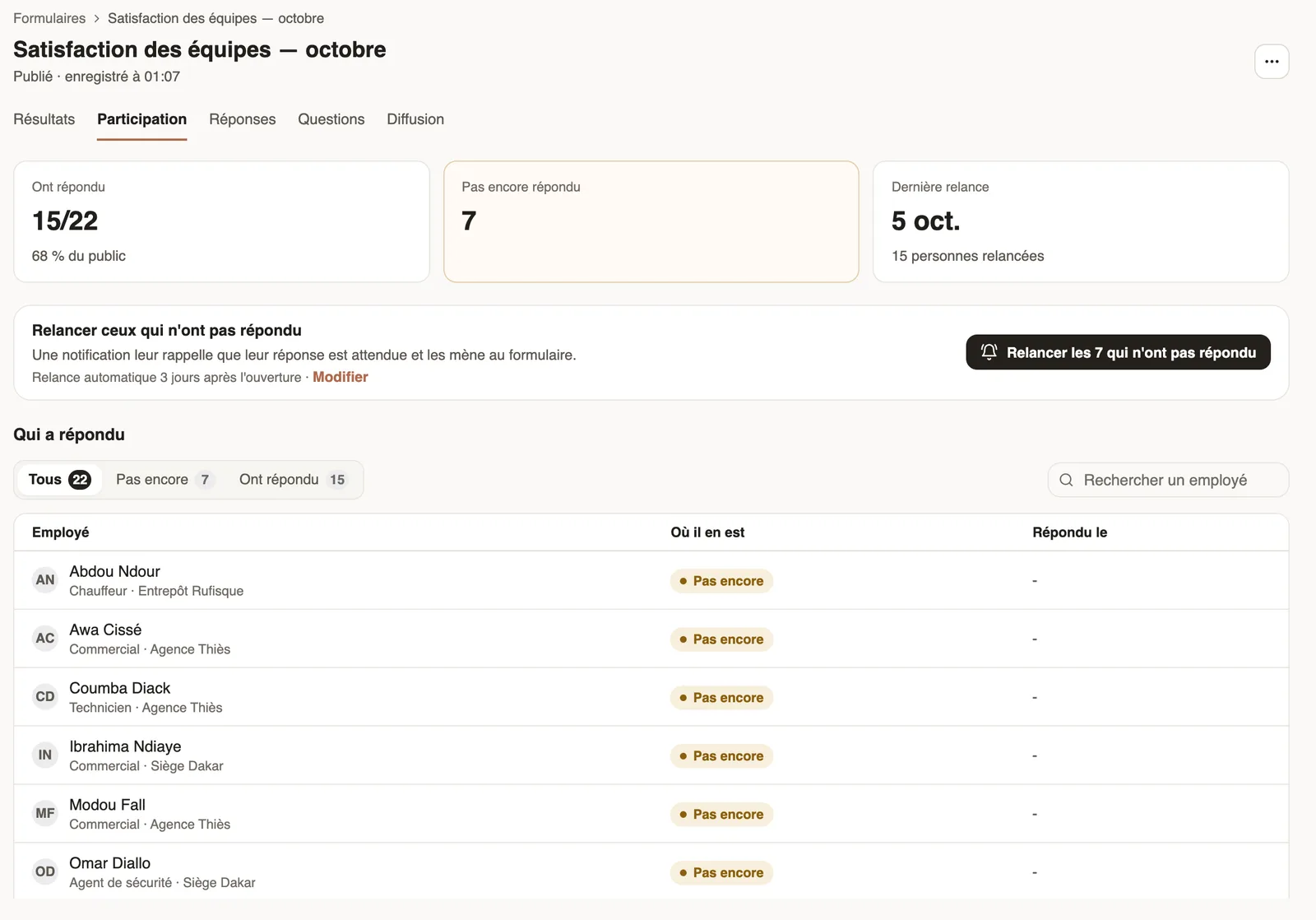
In Weplanify, a survey's Participation tab shows who has answered and reminds those who have not, in one click or automatically after a few days.
In Weplanify, a survey's Participation tab counts those who have answered and those who have not yet, with the date of the last reminder. For a quiz, the same follow-up is in the By employee tab.
Steps
- Open the survey, then the Participation tab.
- Filter the Who answered list on Not yet or Answered, or search for an employee. Each row shows Answered or Not yet, with the answer date.
- Click Remind the … who have not answered, then Remind: each of them gets a notification that takes them to the survey.
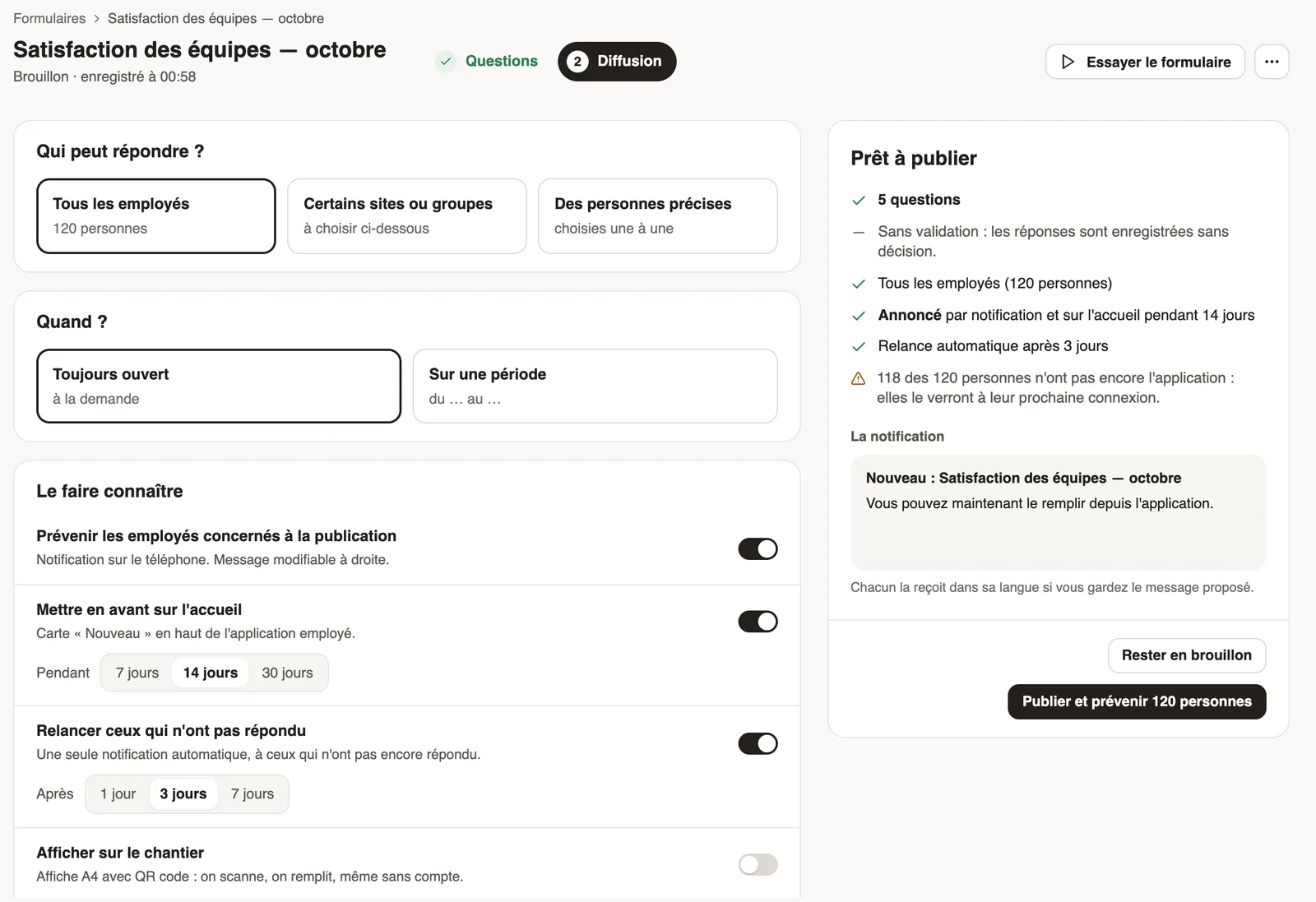
- For the automatic reminder, open the Sharing tab, keep Remind those who have not answered on, choose After 1, 3 or 7 days, then click Save changes.
Good to know
- At most one reminder every 24 hours: right after a reminder, manual or automatic, the button stays greyed out.
- The automatic reminder goes out once, a few days after opening; for a survey answered every week or every month, once per period.
- Anonymous survey: only numbers are shown, never a list; the reminder still goes to those who have not answered, without you knowing who.
- A closed survey cannot be reminded: reopen it first.
Go further
Ask your teams with a survey or a quizIn Weplanify, a survey collects your teams' views and a quiz checks what they know, with no approval step, plus results, participation and reminders.Follow the scores of a quizIn Weplanify, a quiz's Results and By employee tabs give the average score, the pass rate, the right answers per question and each employee's score.Create a one-off or monthly surveyIn Weplanify, create a survey from a template, choose whether each person answers once, every week or every month, and whether answers are anonymous.