
DocumentationForms & requestsWeplanify forms: requests, reports and surveysAsk your teams with a survey or a quiz
Answer a survey or a quiz
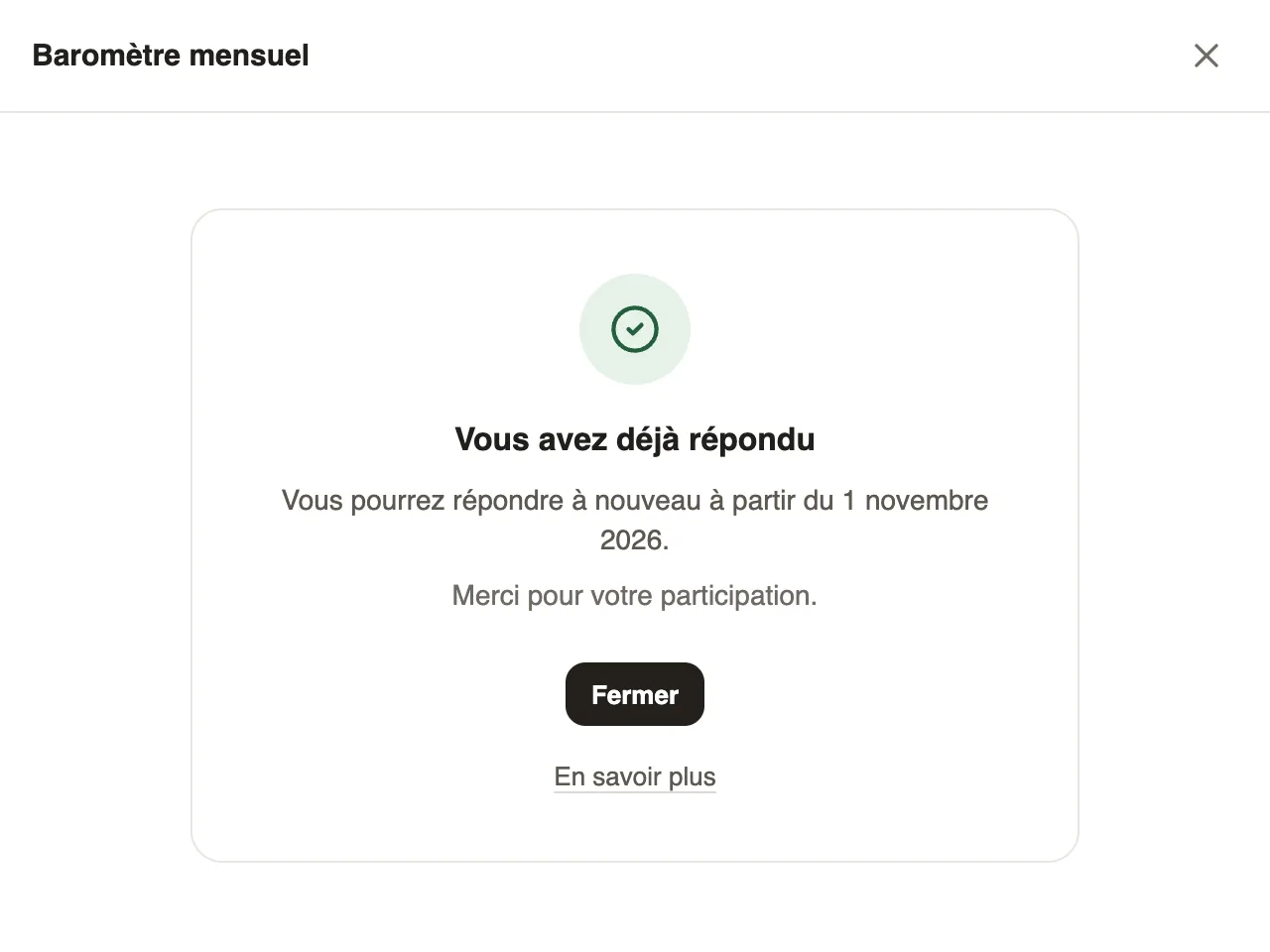
In Weplanify, employees answer from Make a request; they see whether they have already answered, when they can answer again and their quiz attempts left.
In Weplanify, the surveys and quizzes open to an employee appear in Make a request, in their category; featured ones show at the top, marked New, with the Answer button.
Steps
- Open Make a request (make a request), then click the survey or the quiz.
- Answer the questions, then click Submit (Submit quiz for a quiz).
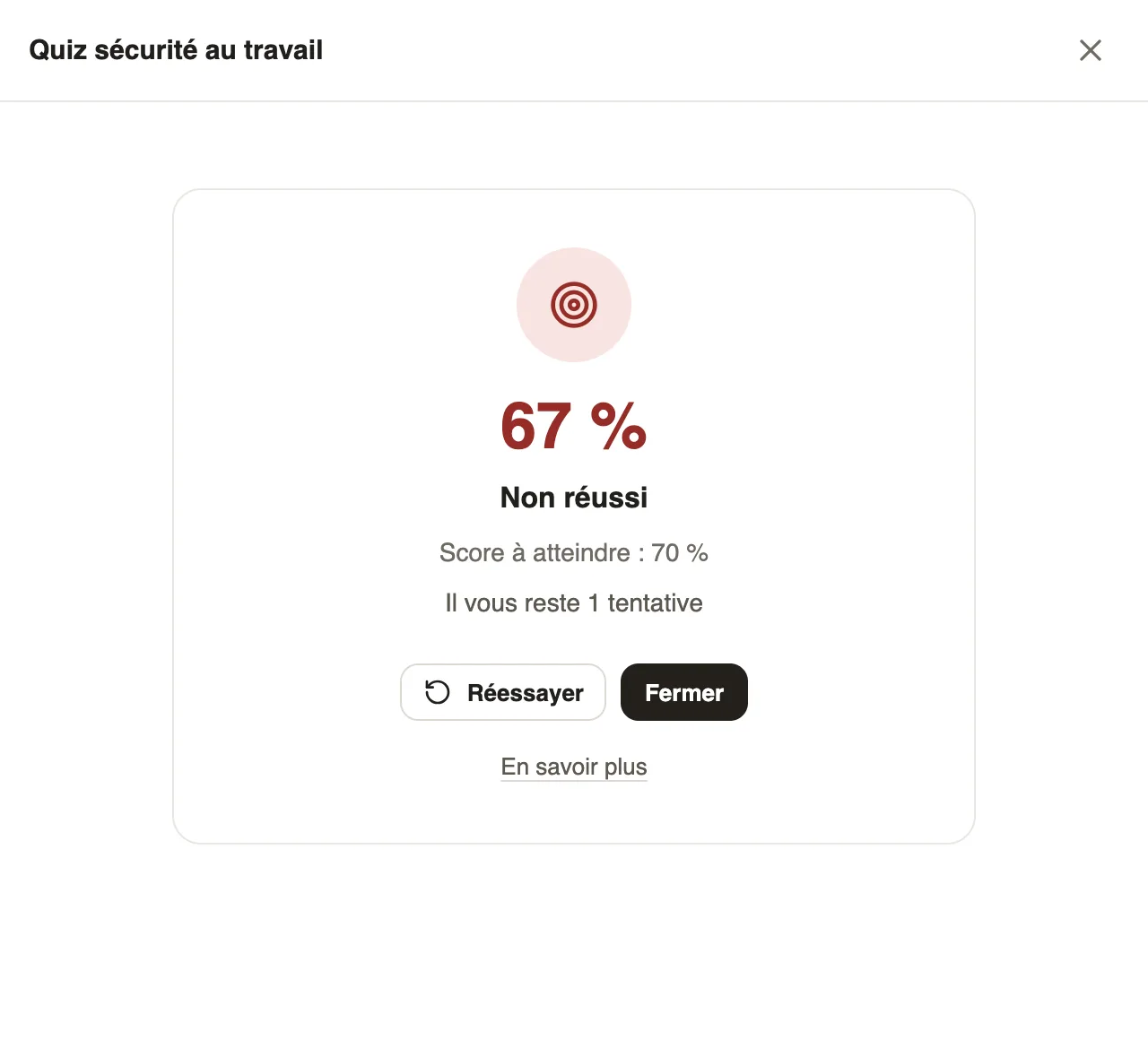
- For a quiz, the score shows straight away: Passed! or Not passed, with the score to reach and the attempts left. Click Try again for a new attempt.
Good to know
- A survey filled in is marked Already answered and leaves the top of the list; opened again, it shows You have already answered and, if it comes back every week or every month, the date from which to answer again.
- A quiz shows You have … attempts left before starting; when none are left, it is marked No attempt left.
- A passed quiz is marked Passed; taken but not passed yet, Already taken.
- For an anonymous survey, a banner reminds that nobody will know who answered.
Go further
Make a request: leave, expense, advance or formIn Weplanify, the Make a request screen brings leave, expense claims, advances and forms together: find what you need and send your request.Ask your teams with a survey or a quizIn Weplanify, a survey collects your teams' views and a quiz checks what they know, with no approval step, plus results, participation and reminders.