
DocumentationForms & requestsWeplanify forms: requests, reports and surveysAsk your teams with a survey or a quiz
Follow the scores of a quiz
In Weplanify, a quiz's Results and By employee tabs give the average score, the pass rate, the right answers per question and each employee's score.
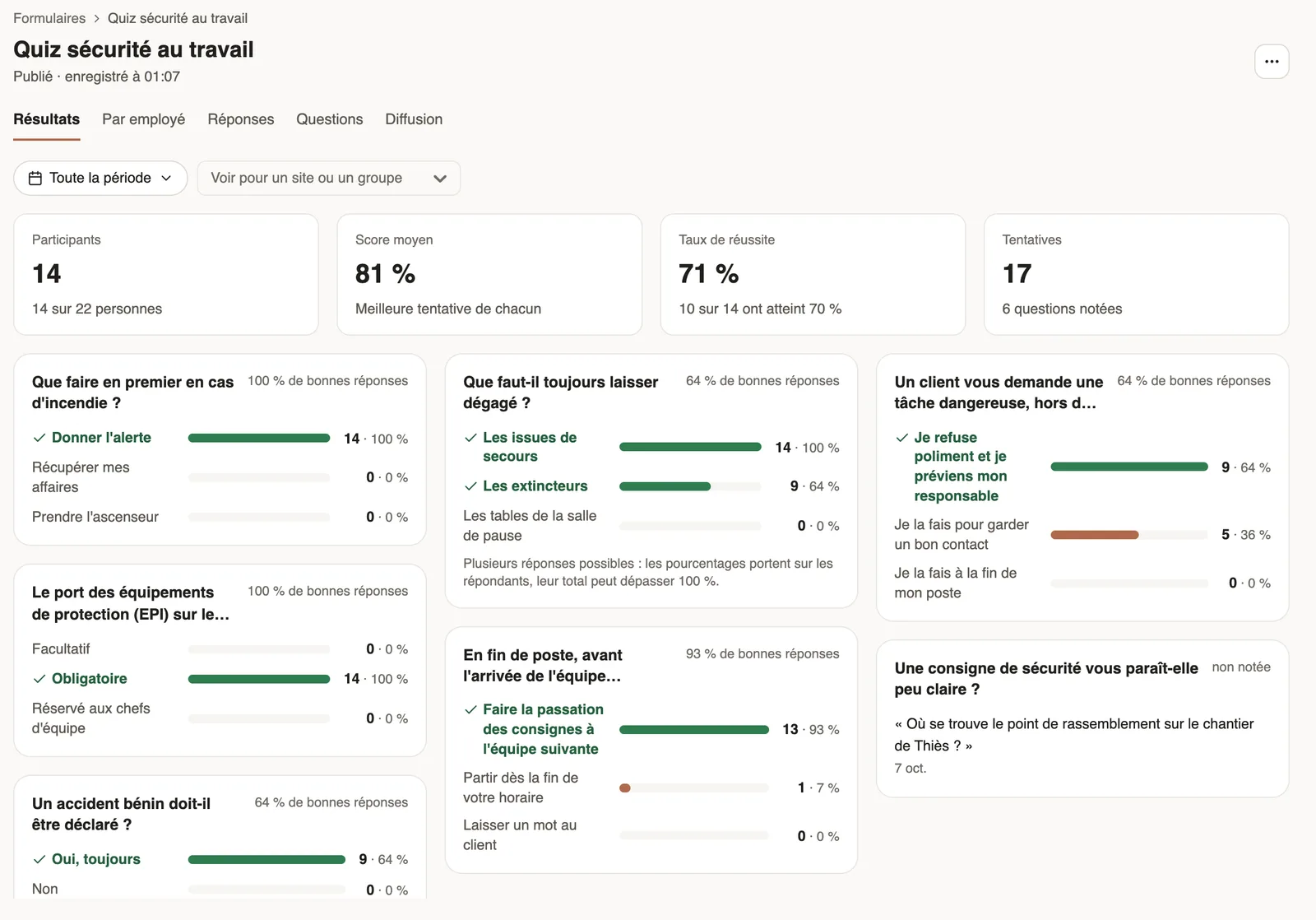
In Weplanify, a live quiz opens on Results: participants, average score, pass rate and attempts, then, for each question, the share of right answers with the right option highlighted.
Steps
- In Requests → Forms, open the quiz: the Results tab shows.
- Spot the questions with the fewest right answers: those are the instructions to remind your teams of.
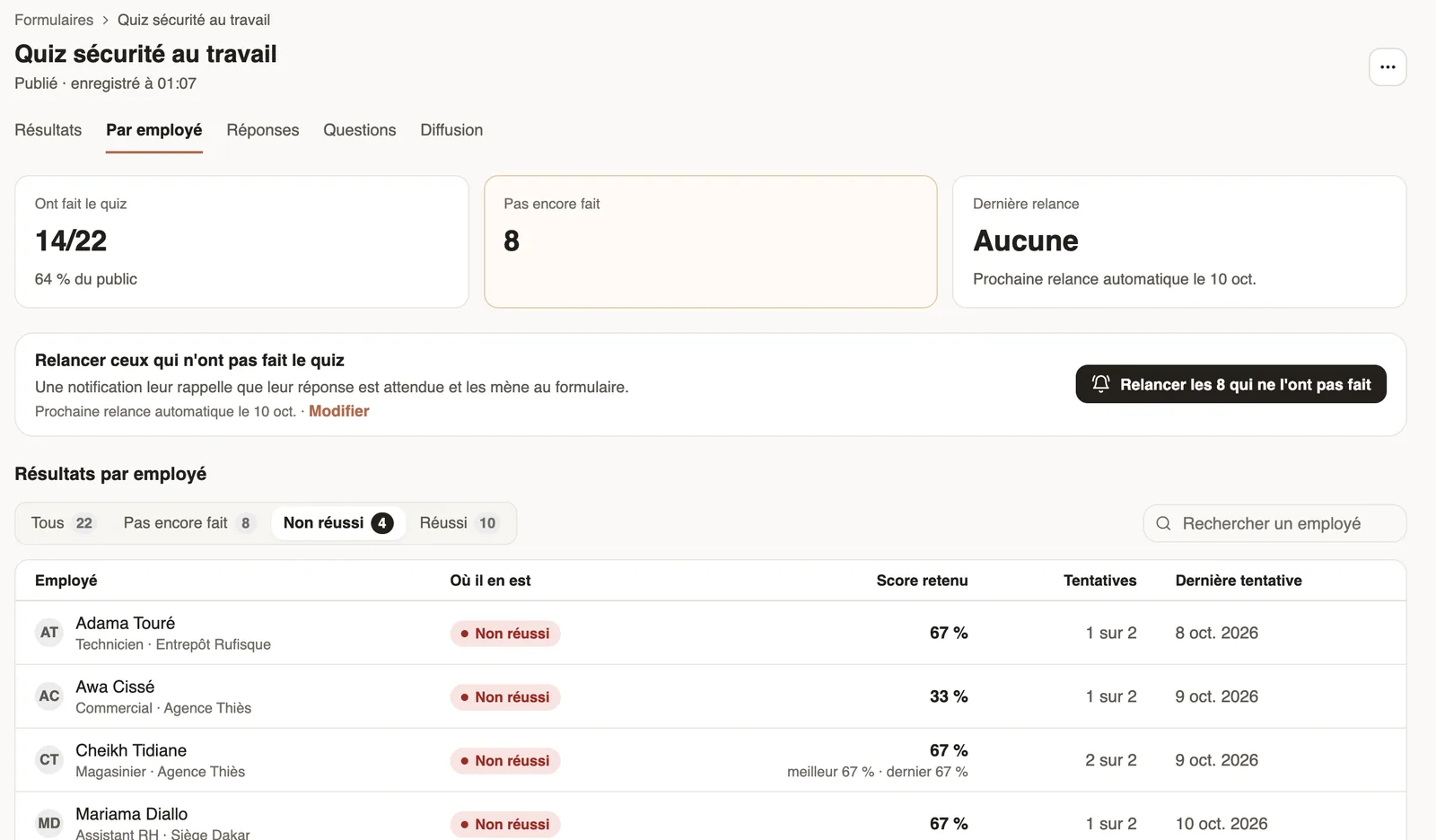
- Open the By employee tab and filter on Not taken yet, Not passed or Passed.
- Click a row to open the response: the score, then each question marked Right answer or Wrong answer, with the expected answer.
- For those who have not taken it, click Remind the … who have not taken it (reminders).
Good to know
- Each employee counts once, with their score kept (best or last attempt); after several attempts, their best and last scores show under the score.
- Without a score to pass, the status is simply Taken.
- The Responses tab lists each attempt with its Result column; the export includes the score and the result (export the responses).
- A response's panel speaks of attempts: it shows which attempt of the year it is and the employee's other attempts on this quiz.
Go further
Follow participation and send remindersIn Weplanify, a survey's Participation tab shows who has answered and reminds those who have not, in one click or automatically after a few days.Follow, approve and export a form's responsesIn Weplanify, a form's Responses tab sorts answers by status, opens each one on the side so you can decide, and exports everything to Excel.Ask your teams with a survey or a quizIn Weplanify, a survey collects your teams' views and a quiz checks what they know, with no approval step, plus results, participation and reminders.Create a quiz with a score to reachIn Weplanify, create a quiz: mark the right answers, set the score to reach, the number of attempts and which attempt counts for each employee.