
Add your own fields to the employee record
In Weplanify, add to every employee record the information that is specific to your business: uniform size, driving licence, blood group, etc.
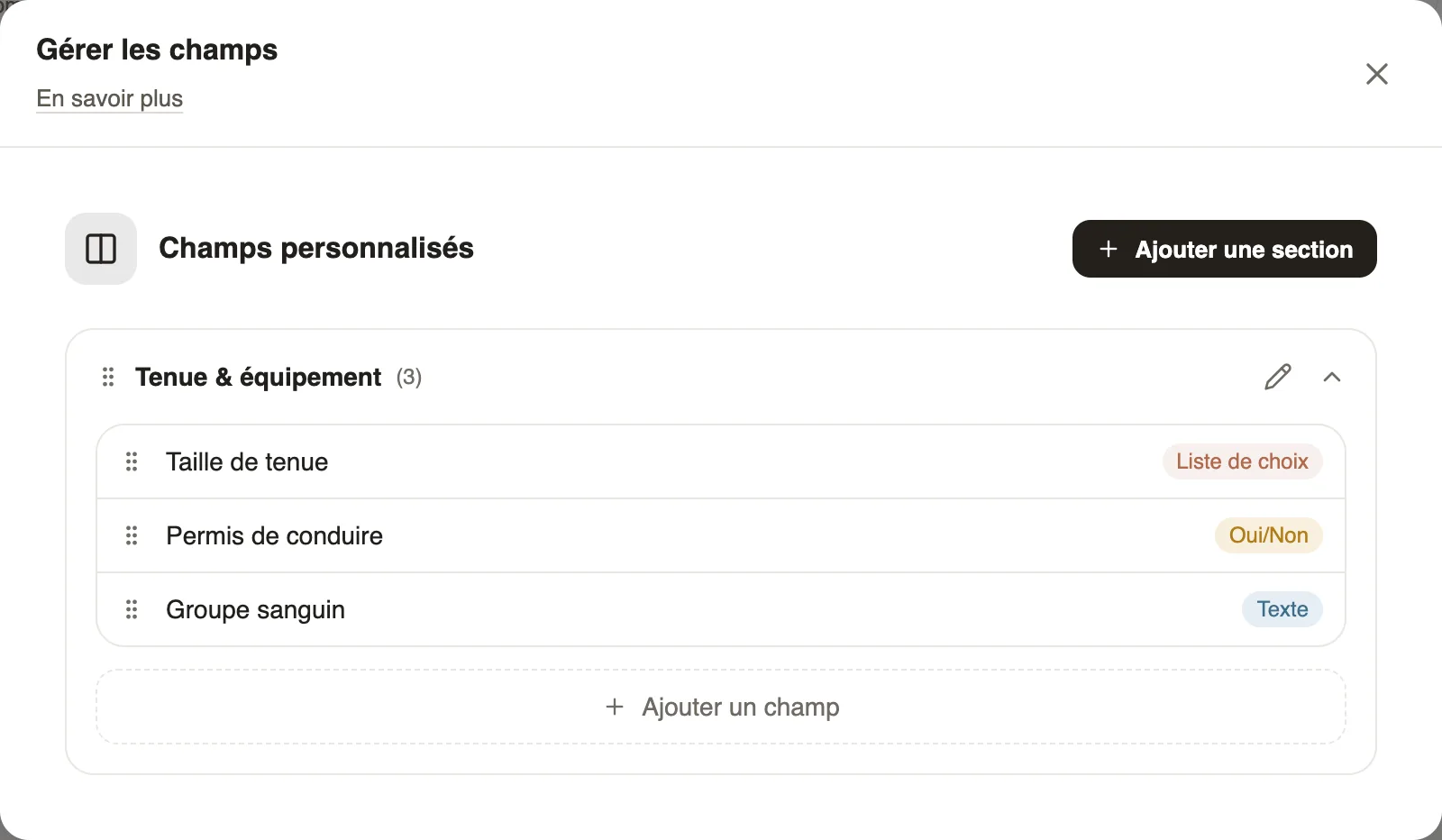
In Weplanify, custom fields complete the employee record; they appear in the Custom fields section of the Information tab.
Steps
- On an employee record, open the ⋯ menu then Manage fields.
- Click Add section (for example "Uniform & equipment").
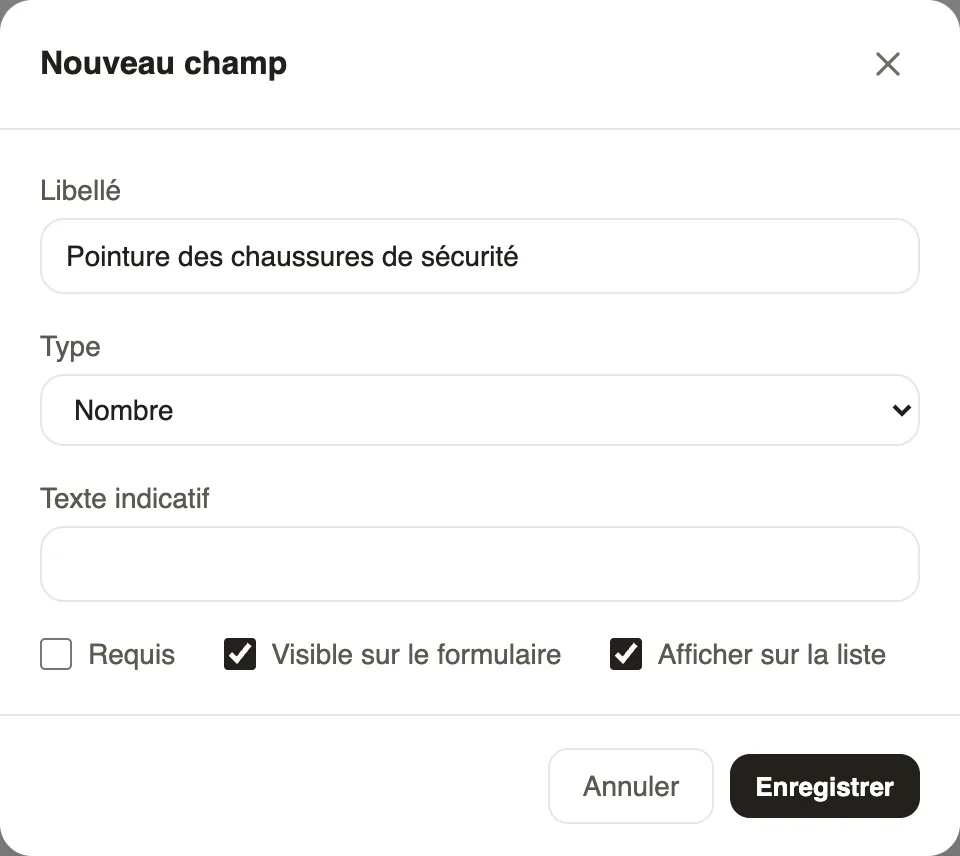
- In the section, click Add a field: label, type (text, number, date, yes/no, list of choices) and placeholder.
- Tick Required, Visible on form or Show on list, then Save.
Good to know
- Fields apply to every record; each record fills them in with Edit.
- Drag sections and fields to change their order.
- With "Show on list", the field can become a column of the employee list.
Go further
Search and filter the employee listIn Weplanify, the employee list can be searched by name, filtered by group or criterion, shown as a table or as cards, and it also lists the managers.Your company settings in WeplanifyIn Weplanify, settings are sorted by theme in a menu on the left: company, approvals, expenses, time and attendance, leave, payroll and account.The employee recordIn Weplanify, the employee record brings together everything about a person in five tabs, with sections that you edit one at a time, separately.