
Edit or delete several employees at once
In Weplanify, tick several employees to give them all the same value at once (site, job, team, working hours…) or to delete them all together.
In Weplanify, multiple selection in the employee list saves you from reopening each record for the same change.
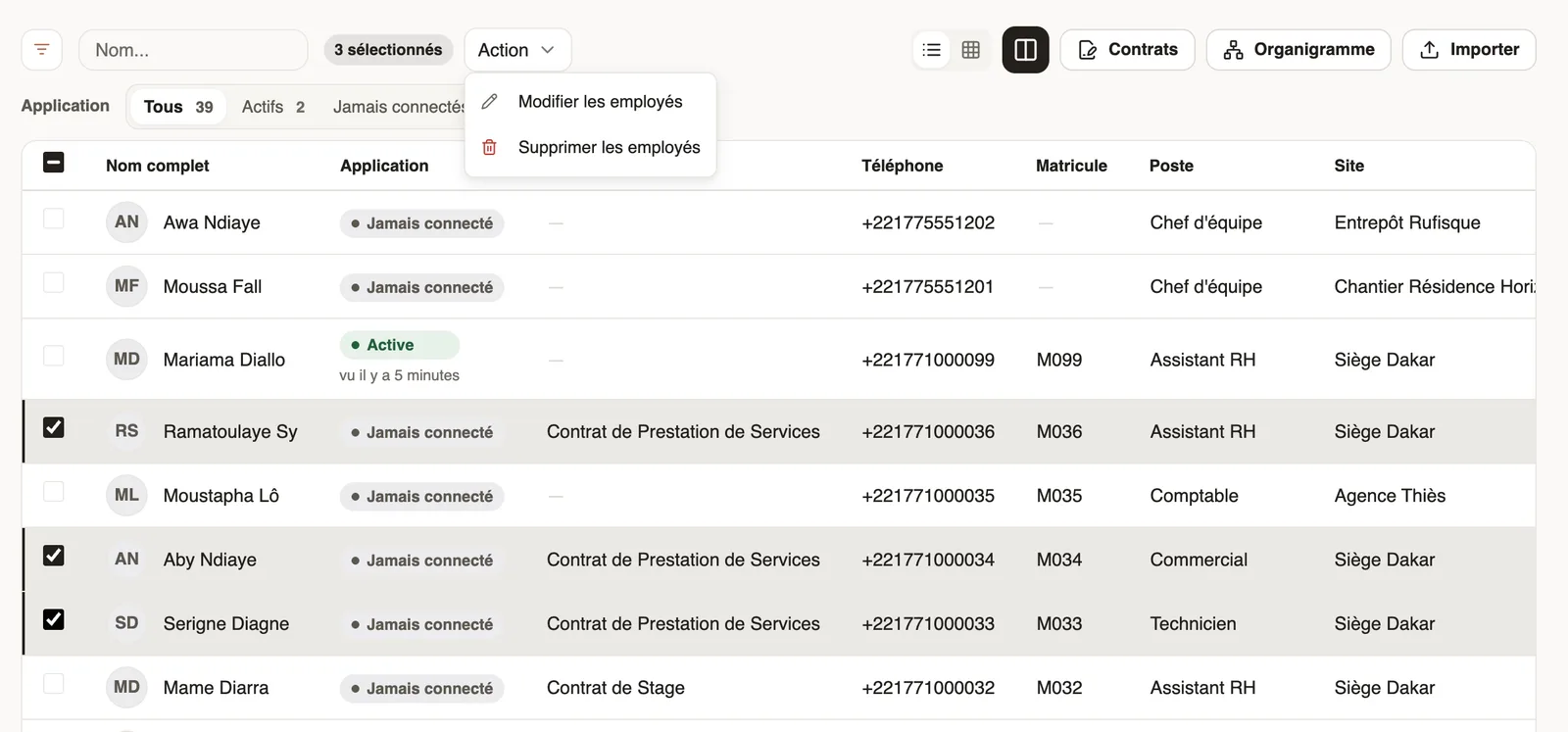
Steps
- In the list, tick the employees concerned: the "… selected" counter shows.
- Open the Action menu and choose Edit employees.
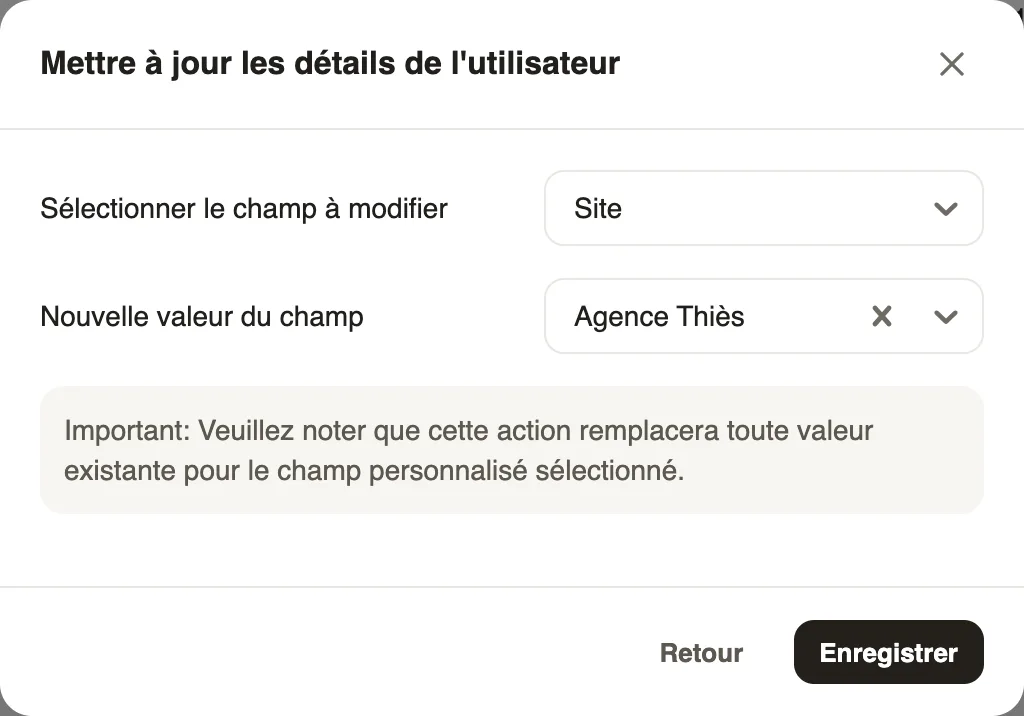
- In Select field to edit, choose the field (site, job, team, manager, hours, clock-in type…), then the New field value.
- Click Save.
Good to know
- The new value replaces the old one for every ticked employee.
- Name, phone, staff number and email are not edited in bulk.
- Delete employees, in the same menu, removes the selection (delete an employee).
Go further
Delete an employee who has left the companyIn Weplanify, deleting an employee removes their record from the lists and cuts their sign-in, while keeping the history of their time, leave and pay.Search and filter the employee listIn Weplanify, the employee list can be searched by name, filtered by group or criterion, shown as a table or as cards, and it also lists the managers.