
Follow the monthly payroll step by step
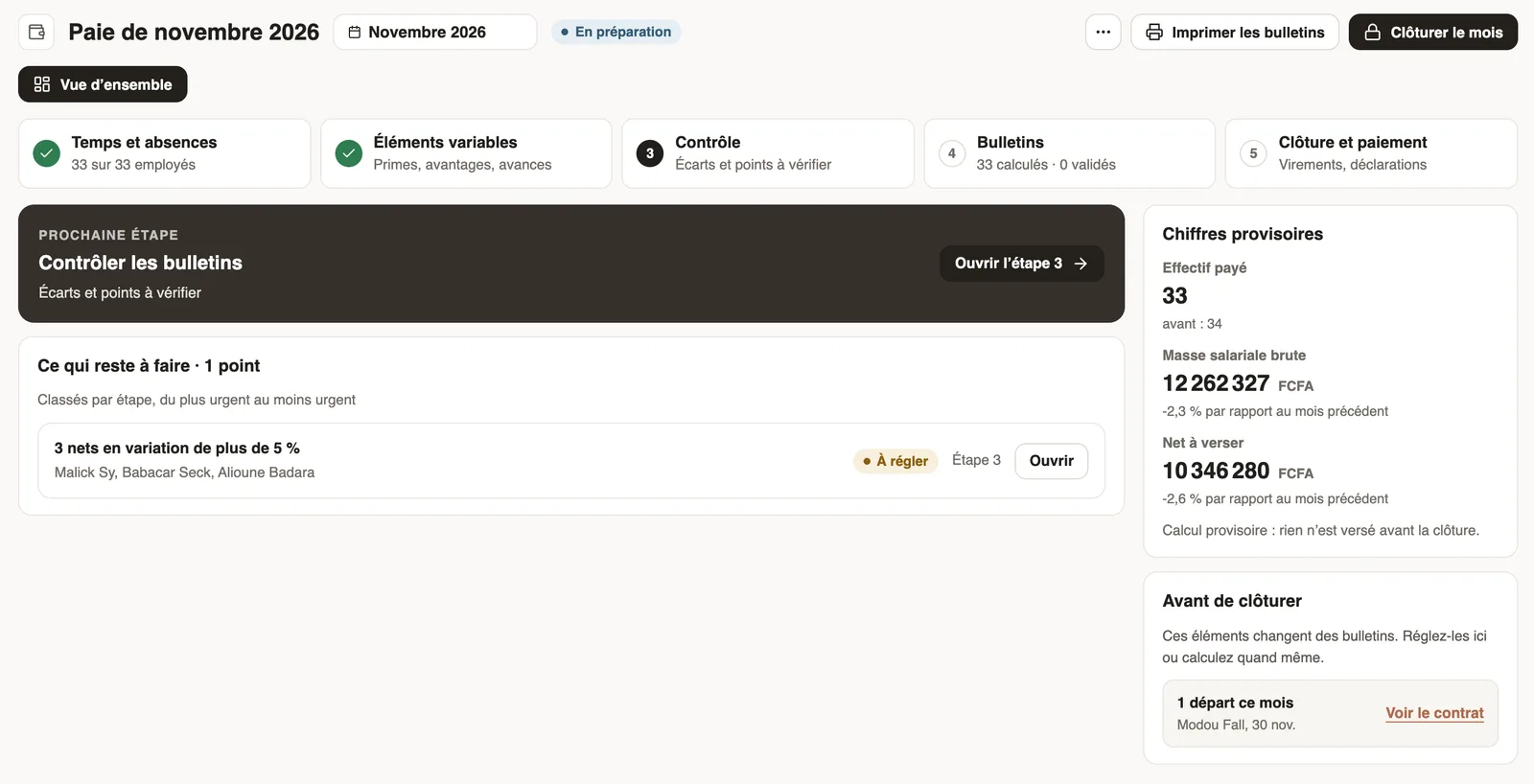
In Weplanify, the Monthly payroll page shows where payroll stands: the next step, what is left to settle, the provisional figures and the five steps.
In Weplanify, the Monthly payroll page guides the payroll month from start to finish. Its overview says what to do next.
Steps
- Open Payroll and costs → Monthly payroll and choose the month at the top of the screen.
- Read the Overview: the next step, what is left to do (sorted from most to least urgent), the Provisional figures and what changes payslips Before closing (departures, arrivals…).
- Click a step card to open it: Time and absences, Variable elements, Control, Payslips, Closing and payment.
- A green tick marks a finished step; the number on the next card shows where you are.
Good to know
- The pill shows the month's state: In preparation, then Approved once the month is closed; a closed month is read-only.
- While the month is in preparation, the figures are provisional: nothing is paid before the closing.
- Only one payroll is open at a time; the next month is prepared automatically at closing.
Go further
Prepare the month's time and absencesIn Weplanify, the Time and absences step gives each employee's paid days, leave, absences and overtime, taken from the source chosen for their site.Check the month's variable elementsIn Weplanify, the Variable elements step sums up the bonuses, benefits in kind, advance deductions and expense claims that will be on the month's payslips.Control payroll before approving payslipsIn Weplanify, the Control step lists what can make a payslip wrong: blocking points, variations to check and information, with the cause of each change.Check, approve and print payslipsIn Weplanify, the Payslips step shows the month's payslips: totals, each person's gross and net, preview, recompute, approval and printing in one PDF.Close the month, pay salaries and declareIn Weplanify, closing locks the payroll month, publishes payslips to employees and prepares the next month; the step then helps you pay and declare.Declare a departure on leave or a final departureIn Weplanify, declare a departure on leave or a final departure from the employee's record, Contracts tab, so that payroll prepares what is due to them.Prepare a departure on leaveIn Weplanify, prepare an employee's departure on leave from their record: days counted, balance, leave request and allowance, then validate the departure.Follow the monthly payroll from the dashboardIn Weplanify, the dashboard Payroll card shows where the month's payroll stands, step by step, what blocks the payslips and the time left before closing.