
Configure an approval circuit
In Weplanify, build the approval steps of a leave request, an expense, an advance or a form: the order, the name, the approver and when each step applies.
In Weplanify, each request type has its circuit: each form, leave and absences, each expense type, advances and loans. The editor is the same everywhere; only the place where you open it changes.
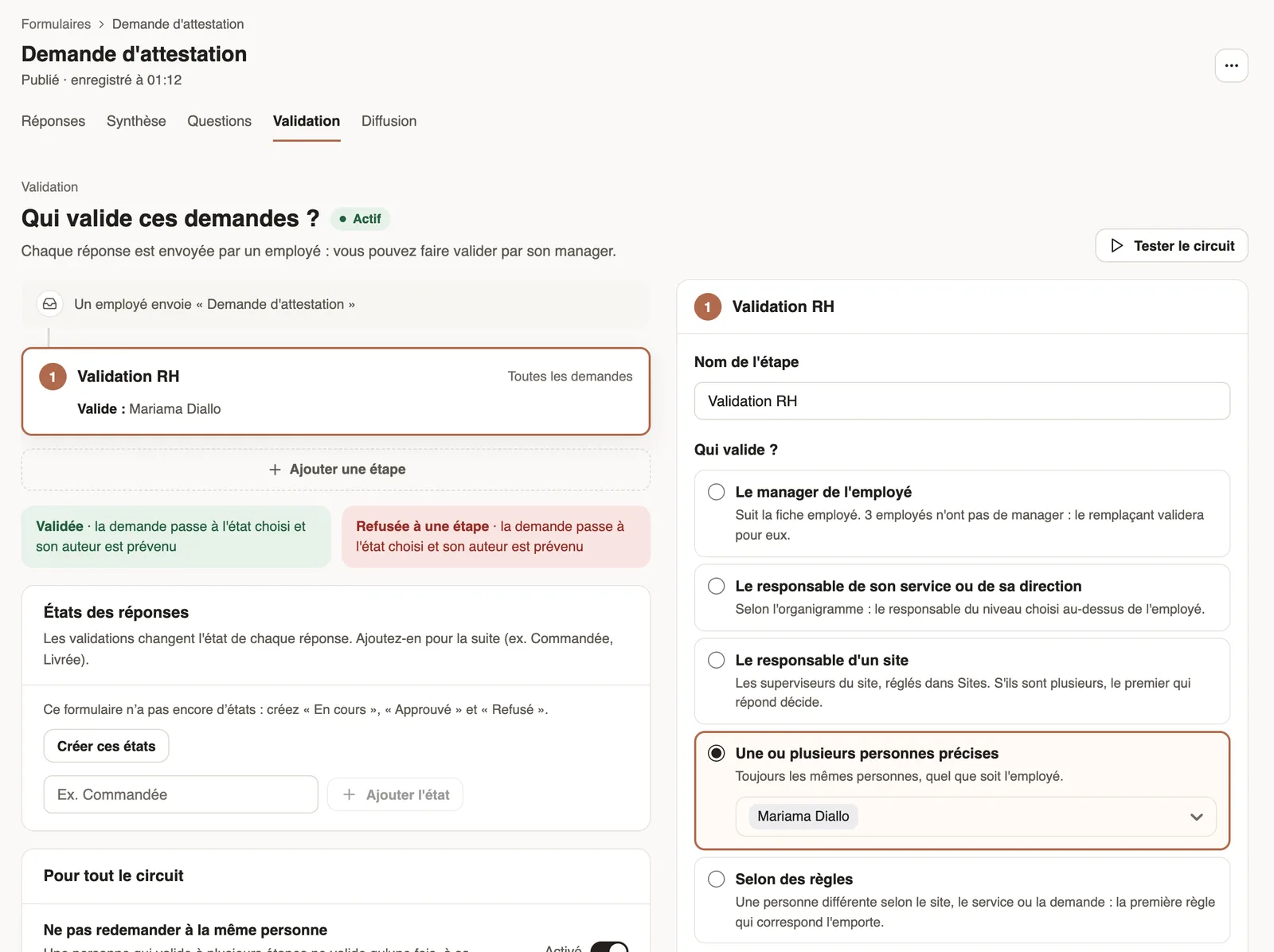
Steps
- Open the circuit. For a form: Requests → Forms, the form, Validation tab. For leave: Leave and absences, Leave settings menu → Approval circuit. For expense claims and advances: Settings → Approvals.
- Without a circuit, start from a template, for example Manager only, or click Add a step.
- Click a step: fill in the Step name and choose who approves.
- If needed, set When this step applies (duration, absence type, amount…), If nobody answers and What the approver can do.
- Click Save in the bottom bar.
Good to know
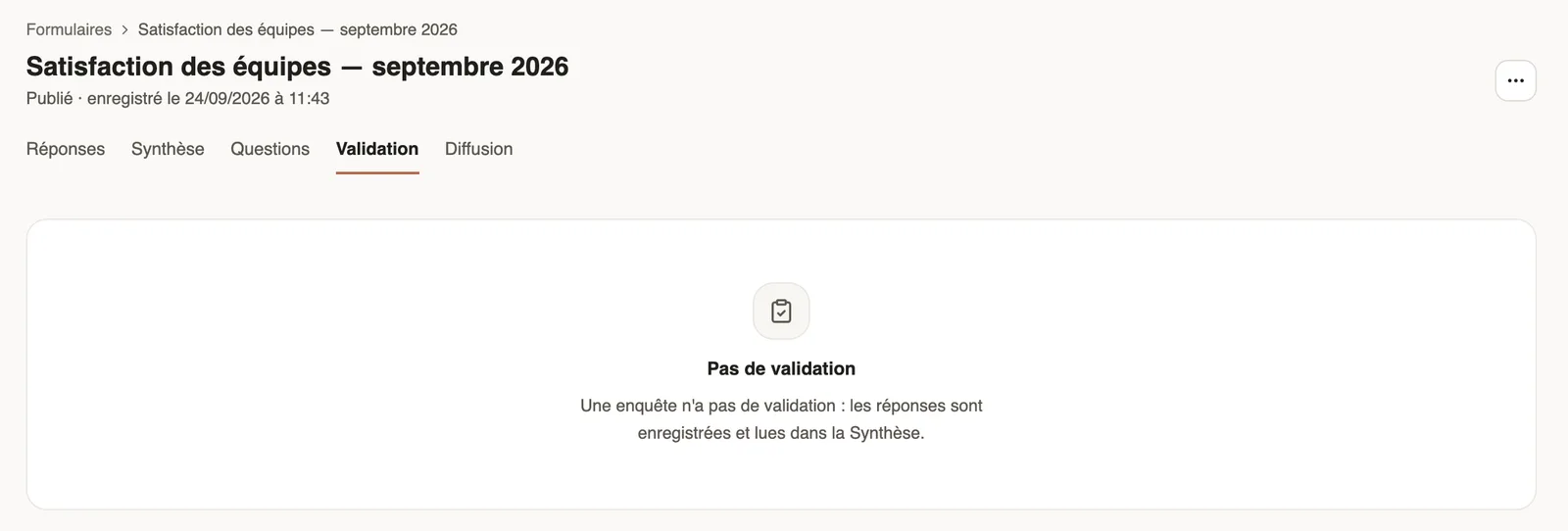
- Surveys, quizzes and anonymous forms have no circuit: their Validation tab says so in one sentence. An application has no Validation tab: it follows the recruitment board.
- Steps follow one another in order; a step that does not apply is skipped. Final decision: an approval at this step closes the request. Requesters never approve their own request.
- As long as you have not saved, Cancel puts the circuit back as it was. For the state shown after each answer: answer states.
Go further
Choose what the approver can do at a stepIn Weplanify, decide for each step whether the approver must give a reason to refuse and whether they can send the request back to its author for changes.Remind an approver who does not answerIn Weplanify, automatically remind a silent approver, then hand the request to the substitute or move on to the next step after a delay you choose.Choose a substitute and people in copyIn Weplanify, a substitute approves instead of an absent, silent or missing approver; people in copy follow every request and decision without approving.Choose who approves a step of the circuitIn Weplanify, choose who approves a step: the manager, the head of a site or a department, specific people, or a different person depending on rules.Choose an answer's state after each approvalIn Weplanify, each form answer has a state (In progress, Granted, Refused…) that changes with each approval; add your own states, such as Ordered.Test an approval circuit before using itIn Weplanify, pick an employee and describe a request (duration, site, amount) to see, step by step, who will approve it, without sending anything.Choose who approves absencesIn Weplanify, the leave circuit says who receives each absence request, in which order, under which conditions, and who stands in for an absent approver.Approve your team's requests on mobileIn Weplanify, managers approve, reject or send back for changes their team's requests from their phone, and discuss them with the requester.Your company settings in WeplanifyIn Weplanify, settings are sorted by theme in a menu on the left: company, approvals, expenses, time and attendance, leave, payroll and account.Structure the company: divisions, departments, teamsIn Weplanify, describe how the company is organised in levels (division, department, team) with a manager for each one and the level it reports to.Create an expense typeIn Weplanify, an expense type (fuel, meals, road tolls) decides who pays, how the amount is computed, what must be attached and who approves it.Create a form and add its questionsIn Weplanify, create a form from your need and a ready-made template, then adjust its questions while the phone preview shows what employees see.Receive employees' HR requestsIn Weplanify, HR requests is a category of forms (equipment, certificate, working hours) that employees find in their Make a request screen.Handle requests from the dashboardIn Weplanify, the dashboard's To do list gathers absences, requests and clock-ins waiting for you: approve, decline or fix them without leaving the page.Request approval circuitsIn Weplanify, a leave request, an expense claim, an advance or a form answer moves from one approver to the next, following its circuit, until the decision.Submit an advance request for another employeeIn Weplanify, let a manager or a timekeeper submit an advance or loan request on an employee's behalf; the request then follows the usual circuit.