
An employee's hours, days off and overtime
In Weplanify, the usual hours on the record serve as the reference on days when the employee has neither a shift in the planning nor a standard week.
In Weplanify, usual hours are set in the Position and organization section of the record, under Hours and days off.
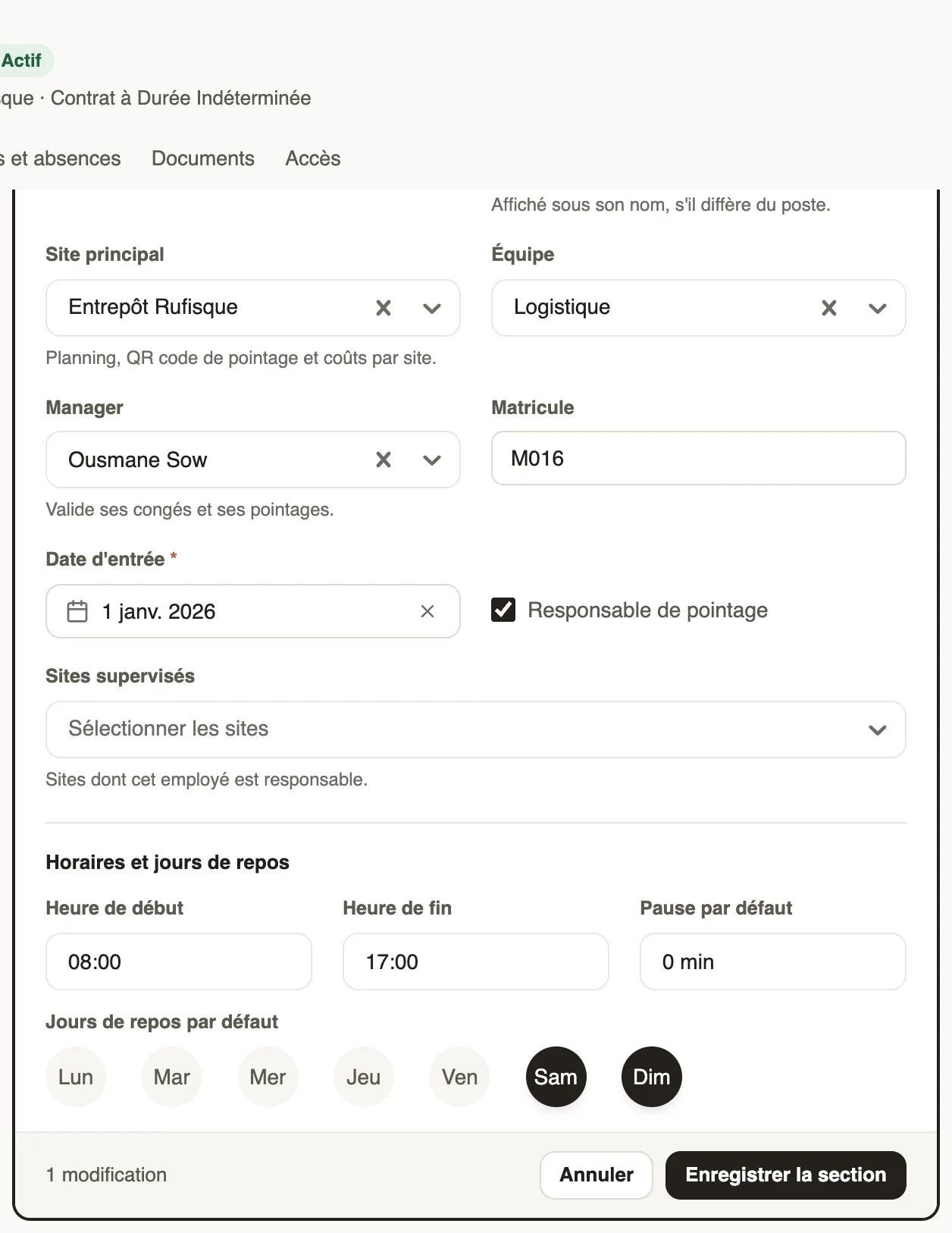
Steps
- On the record, click Edit in Position and organization.
- Set the Start time, the End time and the Default break.
- Choose their Default rest days: a shifted day off (Tuesday, Wednesday…) is set here.
- Click Save section.
Good to know
- Overtime, public holidays and multiple clock-ins, if they differ from the company: Time tracking and leave section, which also offers the Recurring schedule button (recurring planning).
- These hours decide whether they are expected on a day without a schedule (today's attendance).
- As soon as they have shifts in the planning, those are what counts.
Go further
An employee's clock-in settingsIn Weplanify, the Time tracking and leave section of the record sets how the employee clocks in and what, for them alone, differs from company rules.The usual week (recurring planning)In Weplanify, an employee's usual week comes back on its own every week, shifted days off included, without typing the same slots over again.See who has arrived today from the dashboardIn Weplanify, the dashboard's Attendance today card counts live, shift by shift, the employees who have already arrived out of all those expected.The team planningIn Weplanify, the planning says who works, when and where, week after week; the slots stay as drafts until you publish them to your employees.How lateness, missing time and overtime are computedIn Weplanify, each clocked day is compared with the planned slot: here is where lateness, missing time, time worked and overtime all come from.