
Export the payroll accounting entry
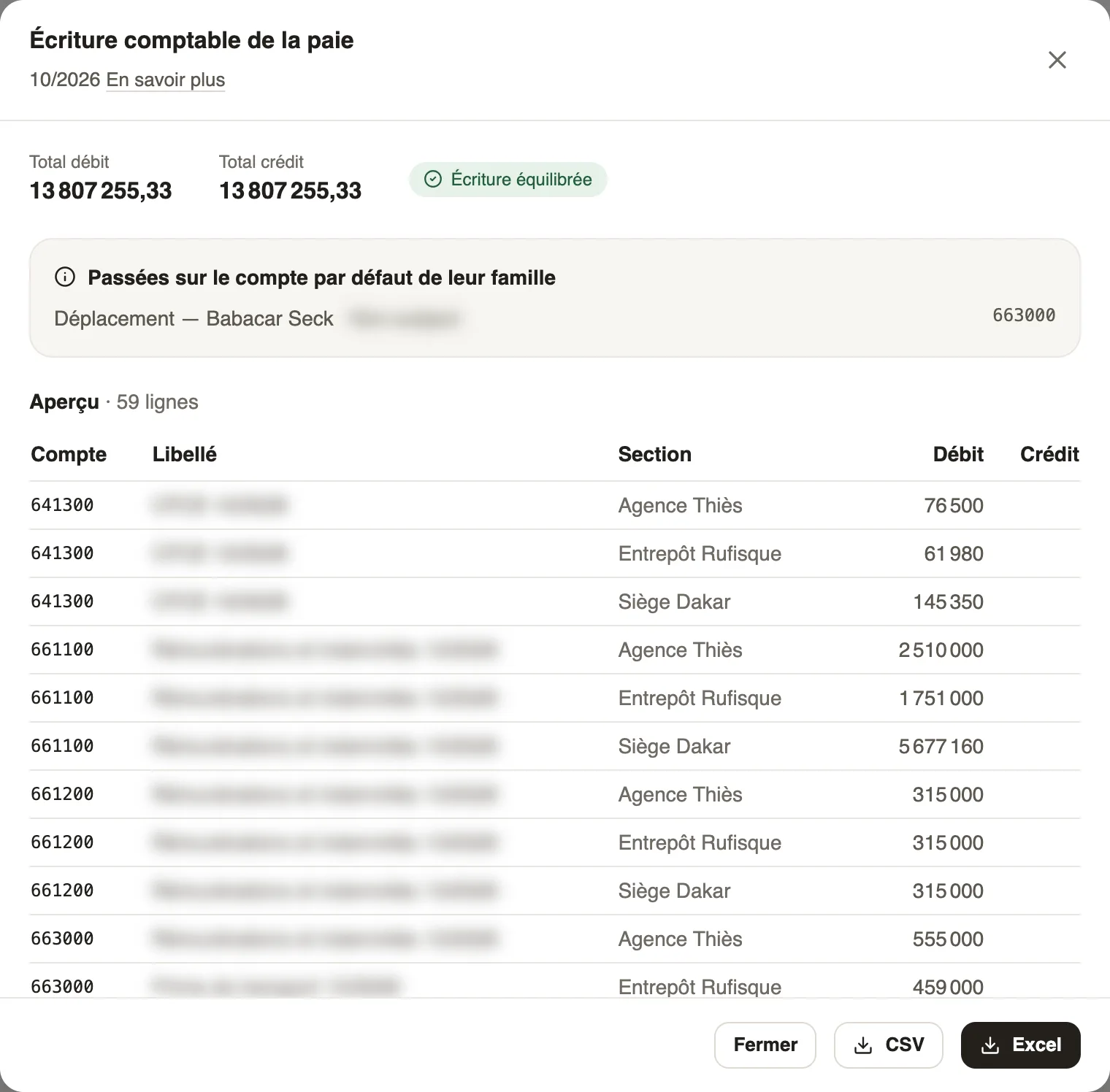
In Weplanify, download a month's payroll accounting entry in Excel or CSV, balanced, with an account per employee and the analytical section per site.
In Weplanify, the payroll accounting entry takes all the month's payslips, ready to import into your accounting software.
Steps
- In Payroll and costs → Monthly payroll, pick the month, open the … menu then Accounting entry (or the button of the Closing and payment step).
- Check the totals: the entry must be balanced (total debit = total credit).
- Read the lines posted to their family's default account: add a more precise account if needed (accounting accounts).
- Download the file in Excel or CSV.
What the file contains
- One line per account, with the payroll journal, the month's end date, the reference, the label, the debit and the credit.
- Net pay and loan repayments on one line per employee, with their staff number as third-party account.
- Charges split by analytical section: each employee's site (sites).
Good to know
- Preferably export a closed month: its payslips will not change any more.
- The CSV uses semicolons and fixed headers: your import template stays valid from one month to the next.
- Expenses paid by the company have their own entry, in costs.
Go further
Close the month, pay salaries and declareIn Weplanify, closing locks the payroll month, publishes payslips to employees and prepares the next month; the step then helps you pay and declare.Set up payroll accounting accountsIn Weplanify, choose the accounting account of each payroll line to produce a balanced payroll entry, ready to import into your accounting software.Create and set up a siteIn Weplanify, declare your workplaces, their geolocation clock-in area, their time zone and their own overtime rules, one site at a time here.Follow the company's expensesIn Weplanify, the Expenses screen gathers purchases paid by the company and costs advanced by employees: to approve, to reimburse and to pay.Payroll in WeplanifyIn Weplanify, the monthly payroll is prepared in five steps, from time, absences and variable elements up to the payslips, the payment and the closing.Set up the company's payrollIn Weplanify, payroll settings are in Settings → Payroll: installation, leave, contributions, control bounds and the accounts used by the accounting export.