
Choose who signs a document and in which order
In Weplanify, have a document signed by employees, a whole group or someone outside the company, one after the other or each on their own copy.
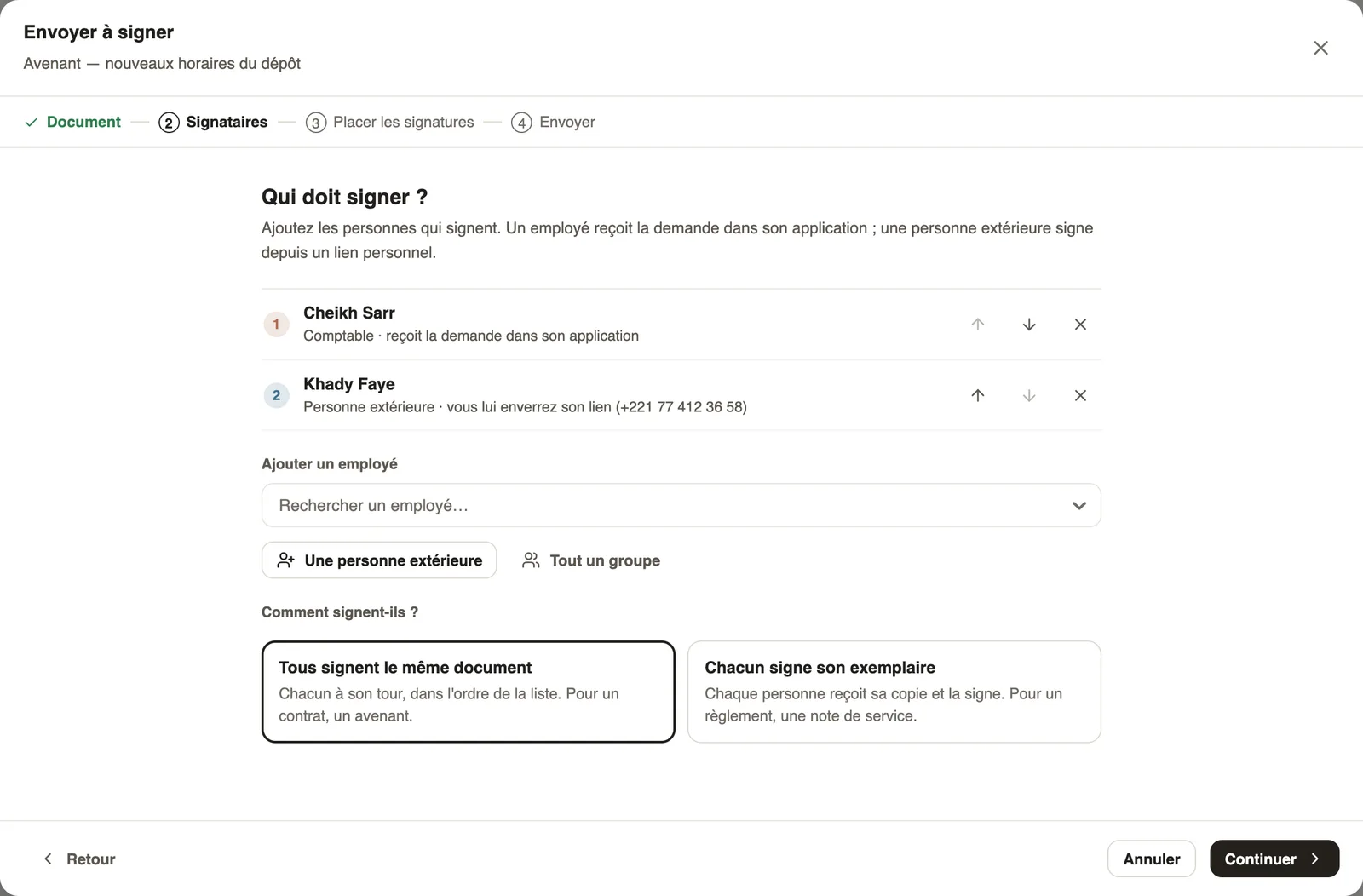
In Weplanify, the Signers step of the Send for signature window answers two questions: who signs, and how.
Steps
- For an employee, type their name in Add an employee and pick them in the list.
- For a whole team, click A whole group and choose a group: each of its members gets the document.
- For someone who is not in Weplanify, click Someone outside the company, fill in Full name, then an Email or a Phone, and click Add.
- With several signers, choose under How do they sign?: Everyone signs the same document or Each signs their own copy.
- For a document signed by several people, order them with the arrows: the first in the list signs first. Click Continue.
Good to know
- Everyone signs the same document: one PDF, signed one after the other, for example a contract or an amendment. Each person signs after the previous one.
- Each signs their own copy: everyone gets their own copy, for example for internal rules or a staff memo. With a group, this mode always applies.
- An employee gets the request in their app. Someone outside the company signs from their personal link: with an email, they get it automatically; with a phone only, you copy their link and send it to them.
- The cross at the end of a row removes the person from the request.
- Next step: place the signatures.
Go further
Create and manage employee groupsIn Weplanify, a group brings employees together for planning, forms, approvals, bonuses and documents, and it also sets a manager's own scope.Sign a document from a personal linkIn Weplanify, each signer has a personal link: they read the document, sign with a finger or the mouse, or decline, with no account and even on a phone.Place the signatures on the pages of the PDFIn Weplanify, place each signer's Signature, Name and Date fields on the PDF, with one colour per person, before the document is sent out for signing.Send a document for signature in four stepsIn Weplanify, sending a PDF for signature takes four steps: the document, the signers, where each one signs, then a final check before you send it.