
Follow employment contracts
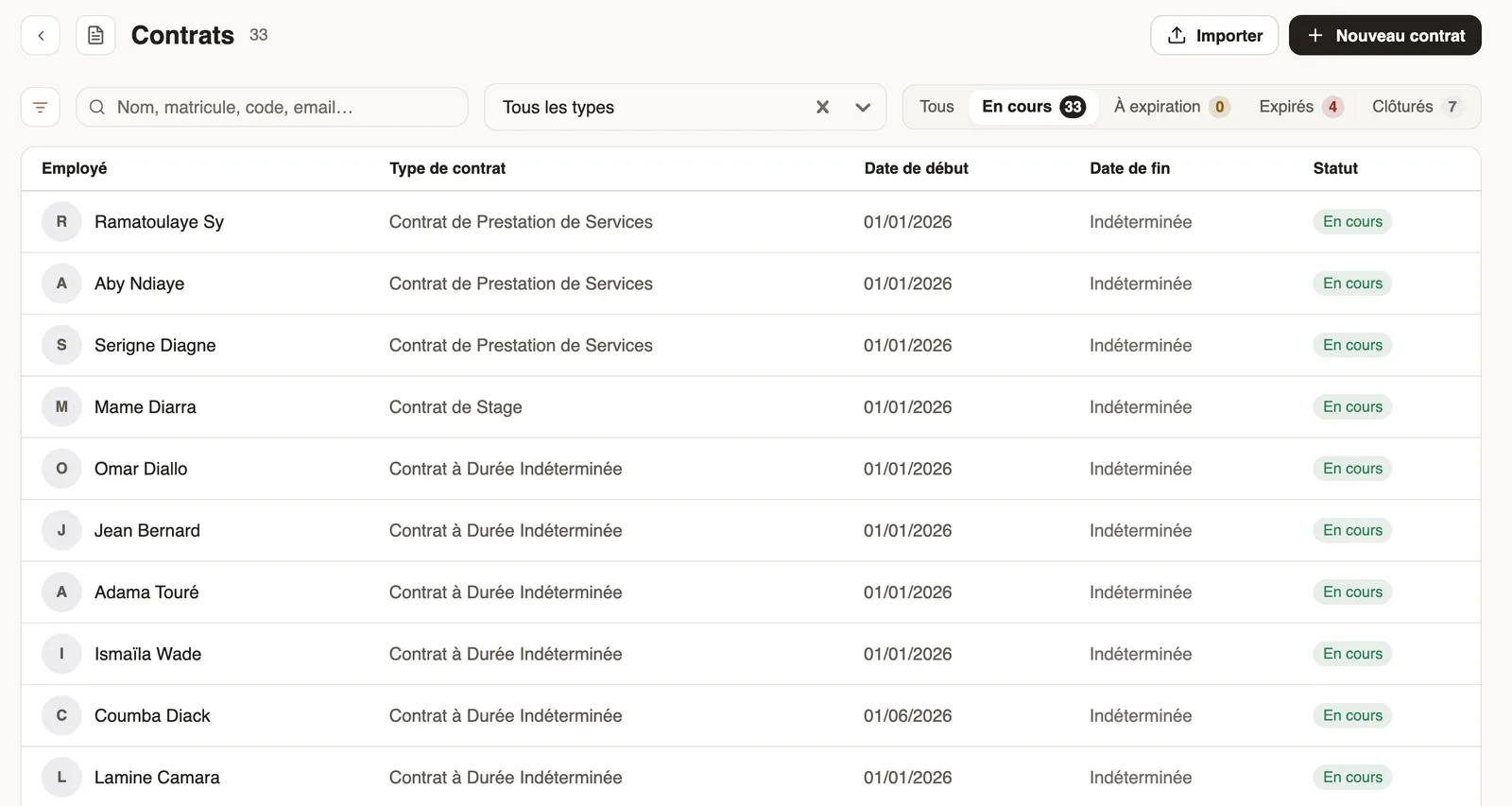
In Weplanify, the Contracts page lists every employee's contracts, spots those nearing their end date and lets you create or import new ones.
In Weplanify, the Contracts page gathers the whole company's contracts; it is reserved for people with payroll access.
Steps
- In Employees, click Contracts.
- Search by name, staff number, code or email, filter by type, then choose a tab: All, Open, Expiring (ending within 60 days), Expired, Closed.
- Click a row to open the Contracts tab of the record.
- To create one: New contract, choose the employee ("For which employee?"), Continue, then fill in the contract.
Good to know
- Import loads contracts from Excel (import wizard).
- A contract's states: suspend, terminate, activate.
Go further
Create or edit an employment contractIn Weplanify, record an employee's contract and pay so that they are included in payroll; only one contract can be running for them at a time.Import an Excel file into WeplanifyIn Weplanify, the import wizard goes through four steps, file, mapping, check and import, and writes nothing into your data before the very last one.A contract's statuses: suspend, terminate, activateIn Weplanify, the record's Contracts tab shows the running contract and its history, and what each action changes for the employee's payroll.The dashboard Getting started listIn Weplanify, the dashboard Getting started list shows what is left to do to get going, and each of its lines ticks itself once the step is done.Manage your employees in WeplanifyIn Weplanify, each employee has a record used everywhere: planning, time clock, leave and payroll. Here is how to create it and keep it up to date.