
DocumentationEmployees
Manage your employees in Weplanify
In Weplanify, each employee has a record used everywhere: planning, time clock, leave and payroll. Here is how to create it and keep it up to date.
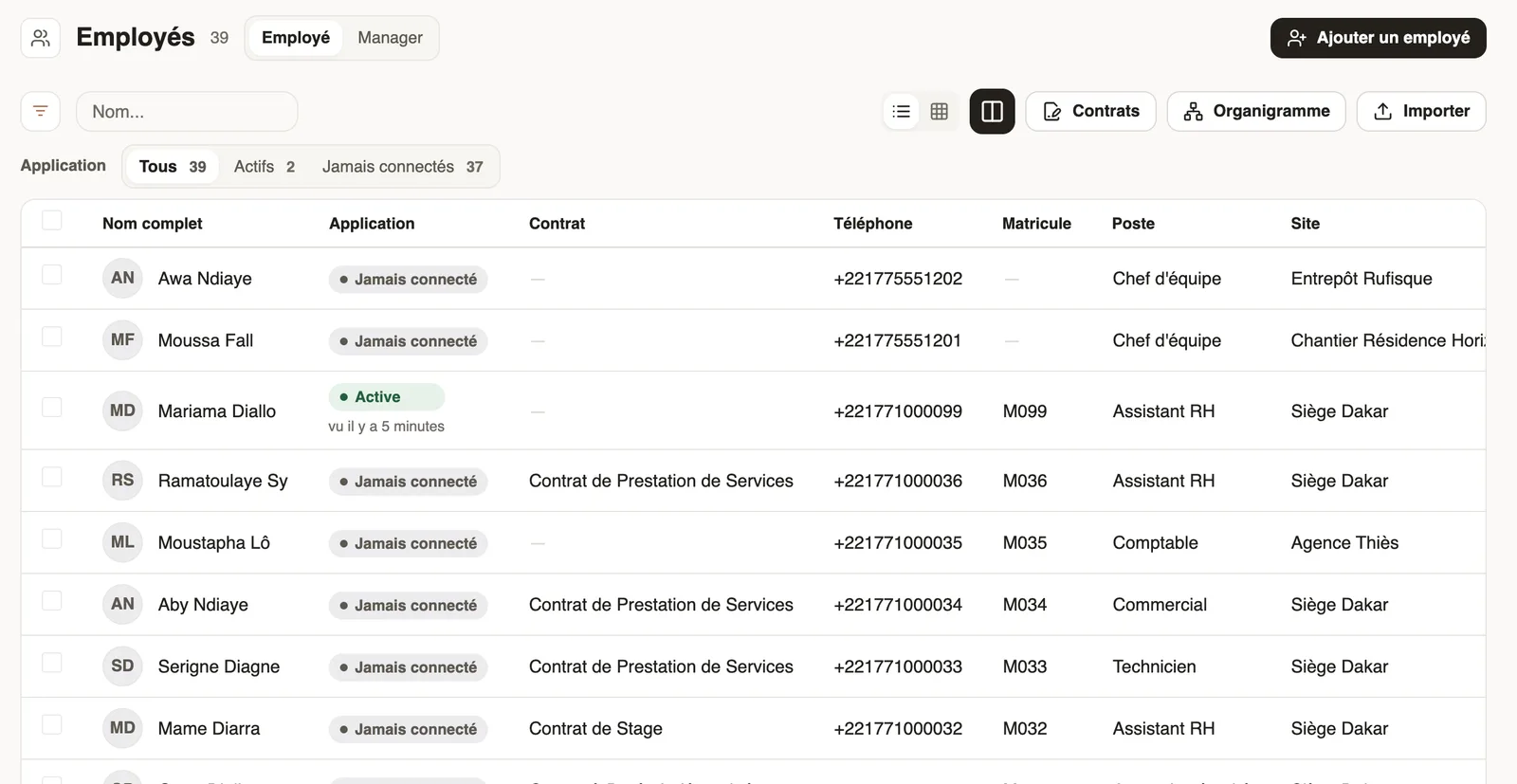
In Weplanify, employees are managed from the People → Employees menu. Each person's record feeds the planning, the time clock, leave, requests and payroll.
Steps
- Prepare your jobs and your sites.
- Add employees, one by one or by importing them from Excel.
- Complete their record: hours, time clock, payroll, and their contract.
- Gather them into groups and give managers their access.
Good to know
- Find your employees in the list or in the org chart.
- The App column tells who uses the mobile app (who uses the app).
- Contracts are only visible to people with payroll access.
Go further
Give an employee a role and accessIn Weplanify, make an employee a manager or an administrator from the Access tab of their record: role, groups they manage and what they can do.See who uses the app and cut someone's accessIn Weplanify, see for each employee whether they use the mobile app, send them the link, or cut their access without touching their record at all.Add your own fields to the employee recordIn Weplanify, add to every employee record the information that is specific to your business: uniform size, driving licence, blood group, etc.Follow employment contractsIn Weplanify, the Contracts page lists every employee's contracts, spots those nearing their end date and lets you create or import new ones.Create or edit an employment contractIn Weplanify, record an employee's contract and pay so that they are included in payroll; only one contract can be running for them at a time.A contract's statuses: suspend, terminate, activateIn Weplanify, the record's Contracts tab shows the running contract and its history, and what each action changes for the employee's payroll.Add an employee in WeplanifyIn Weplanify, an employee is created in four short steps; the name and phone number are enough, the rest can be completed later on their record.The employee recordIn Weplanify, the employee record brings together everything about a person in five tabs, with sections that you edit one at a time, separately.An employee's family and payroll situationIn Weplanify, the record keeps an employee's family situation, social security numbers and bank details, which every payroll run takes into account.An employee's clock-in settingsIn Weplanify, the Time tracking and leave section of the record sets how the employee clocks in and what, for them alone, differs from company rules.An employee's hours, days off and overtimeIn Weplanify, the usual hours on the record serve as the reference on days when the employee has neither a shift in the planning nor a standard week.Create and manage employee groupsIn Weplanify, a group brings employees together for planning, forms, approvals, bonuses and documents, and it also sets a manager's own scope.Import your employees from ExcelIn Weplanify, create or update dozens of employees at once from an Excel or CSV file, each of them being recognised by their own phone number.Invite an employee to the web versionIn Weplanify, invite an employee, often a manager, to the web version: they receive an email link to create their password and then sign in.Search and filter the employee listIn Weplanify, the employee list can be searched by name, filtered by group or criterion, shown as a table or as cards, and it also lists the managers.Edit or delete several employees at onceIn Weplanify, tick several employees to give them all the same value at once (site, job, team, working hours…) or to delete them all together.The company org chartIn Weplanify, the org chart shows who reports to whom, by manager, by team or by site, and lets you change a person's manager in a single click.Delete an employee who has left the companyIn Weplanify, deleting an employee removes their record from the lists and cuts their sign-in, while keeping the history of their time, leave and pay.Manage jobs and sub-jobsIn Weplanify, create the list of jobs with their colour and their sub-jobs: they are used on employee records, for day labourers and in the planning.Create and set up a siteIn Weplanify, declare your workplaces, their geolocation clock-in area, their time zone and their own overtime rules, one site at a time here.