
See the checklists not filled in on time
In Weplanify, the Frequency tab lists over 90 days the checklists not filled in or filled in late, site by site, with the person who was to fill them in.
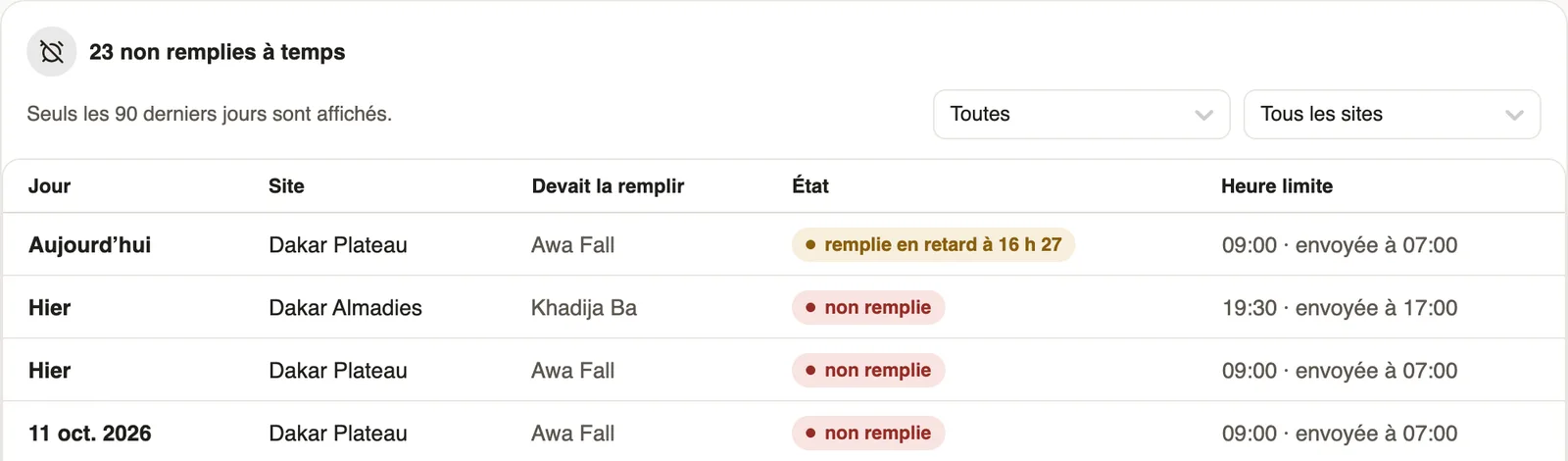
In Weplanify, the Frequency tab of a report or checklist shows, under Not filled in on time, each day a site did not fill it in before the time limit, over the last 90 days.
Steps
- Open the form, Frequency tab, and scroll down to Not filled in on time: the title gives their number.
- Read each row: the Day, the Site, who Was to fill it in, the State and the Time limit, followed by the time it was sent.
- Sort with the state filter: All, Not filled in or Filled in late.
- When several sites are late, choose one in All sites to see only that one.
- To read an answer that arrived late, go to the Responses tab and filter by site (the responses).
Good to know
- not filled in: no answer that day. filled in late at 16:27: the answer arrived after the time limit; if it arrived on another day, its date is shown.
- Without a time limit, the column reads During the day and the checklist only counts from the next day.
- A site manager only sees their sites; the administrator sees all of them.
- The Reports and checklists card of Forms counts those never filled in, not those filled in late.
- To set the time limit: make a checklist come back.
Go further
Follow, approve and export a form's responsesIn Weplanify, a form's Responses tab sorts answers by status or by site, opens each one on the side so you can decide, and exports them to Excel or to PDF.Make a checklist come back every day on a siteIn Weplanify, the Frequency tab makes a report or a checklist come back on a site, every day or on some days, at the time and for the people you choose.Field reports and checklistsIn Weplanify, reports and checklists bring news from the field: they come back every day on your sites, show what was missed and can open an incident.Fill in a site checklistIn Weplanify, the employee fills in a checklist on site: they choose the site, answer Yes or No to each point, add a photo, sign it and then send the answer.Read the summary of a form's responsesIn Weplanify, a form's Summary tab sums up its answers: key figures, one card per question and the approval steps where requests are waiting.