
Close the month, pay salaries and declare
In Weplanify, closing locks the payroll month, publishes payslips to employees and prepares the next month; the step then helps you pay and declare.
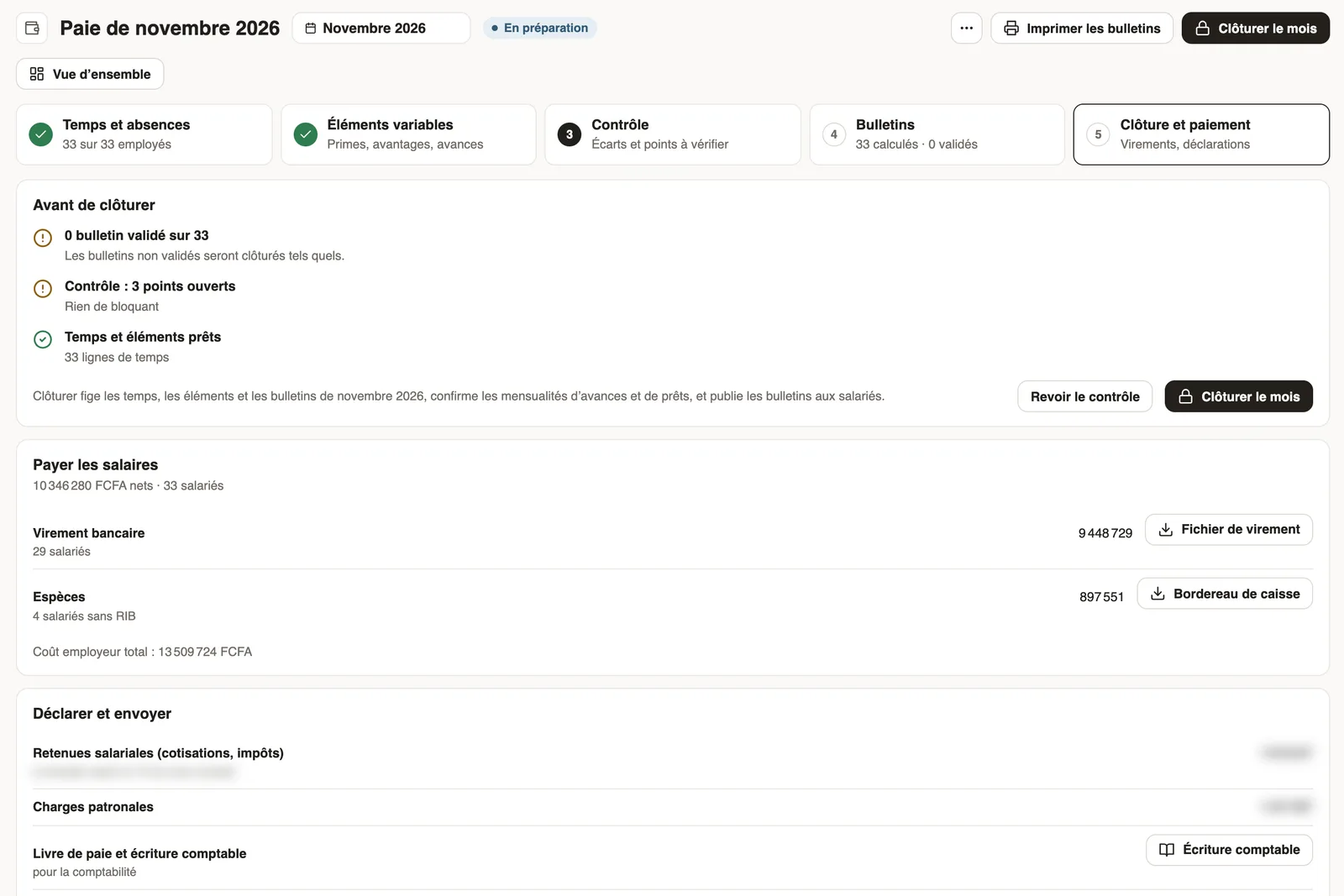
In Weplanify, the Closing and payment step is the last of the month: it sums up what is left, locks payroll, then prepares transfers and declarations.
Steps
- Read Before closing: approved payslips, open control points, time and elements ready.
- Click Close month, type the month's name to confirm, then validate.
- In Pay the salaries, download the Transfer file for the bank and the Cash slip for employees paid in cash.
- In Declare and send, find the deductions (contributions, taxes) and employer charges to pay over, the payroll ledger and the accounting entry.

Good to know
- Closing locks time, elements and payslips, confirms advance and loan instalments and publishes payslips in the mobile app.
- It is final: an error found later is corrected on the next month's payslip, with a back-pay or a deduction in the variable elements.
- Payment deadlines depend on your country's rule.
- The month's figures feed the payroll statements and the annual statement.
Go further
Export the payroll accounting entryIn Weplanify, download a month's payroll accounting entry in Excel or CSV, balanced, with an account per employee and the analytical section per site.Documents and payslips on mobileUpload the documents HR requests from the Weplanify app, follow their review and find your payslips.Check the month's variable elementsIn Weplanify, the Variable elements step sums up the bonuses, benefits in kind, advance deductions and expense claims that will be on the month's payslips.Produce a payroll statementIn Weplanify, payroll statements sum up the month's payslips for the bank, social bodies, the tax office and your archives, with an Excel export.Prepare the annual salary statementIn Weplanify, the annual statement gives each employee's totals for the year, taken from approved payslips, ready for the year-end declaration.Correct or cancel an expenseIn Weplanify, edit an expense while its payroll is open, or cancel it in full or in part: it stays in the history and in the entries, offset.Payroll in WeplanifyIn Weplanify, the monthly payroll is prepared in five steps, from time, absences and variable elements up to the payslips, the payment and the closing.Grant an advance or a loanIn Weplanify, grant a salary advance or a loan repaid every month by a deduction on the payslip, and see its effect on the employee's pay right away.Check, approve and print payslipsIn Weplanify, the Payslips step shows the month's payslips: totals, each person's gross and net, preview, recompute, approval and printing in one PDF.Set safeguards on payroll amountsIn Weplanify, get an alert when a computed amount falls outside a set range, and block the payroll closing until it is corrected, if you need to.Follow the monthly payroll step by stepIn Weplanify, the Monthly payroll page shows where payroll stands: the next step, what is left to settle, the provisional figures and the five steps.The dashboard Costs cardIn Weplanify, the dashboard Costs card gives the payroll's employer cost, the change from the previous period, what explains it and the cost of each site.Follow the monthly payroll from the dashboardIn Weplanify, the dashboard Payroll card shows where the month's payroll stands, step by step, what blocks the payslips and the time left before closing.