
Create and launch an annual review campaign
In Weplanify, a campaign asks each manager to evaluate their team: choose who, the period and the deadline, check the draft, then launch it.
In Weplanify, a campaign is created as a draft: nothing is sent before the launch. Each person goes to their manager, the one on their record.
Steps
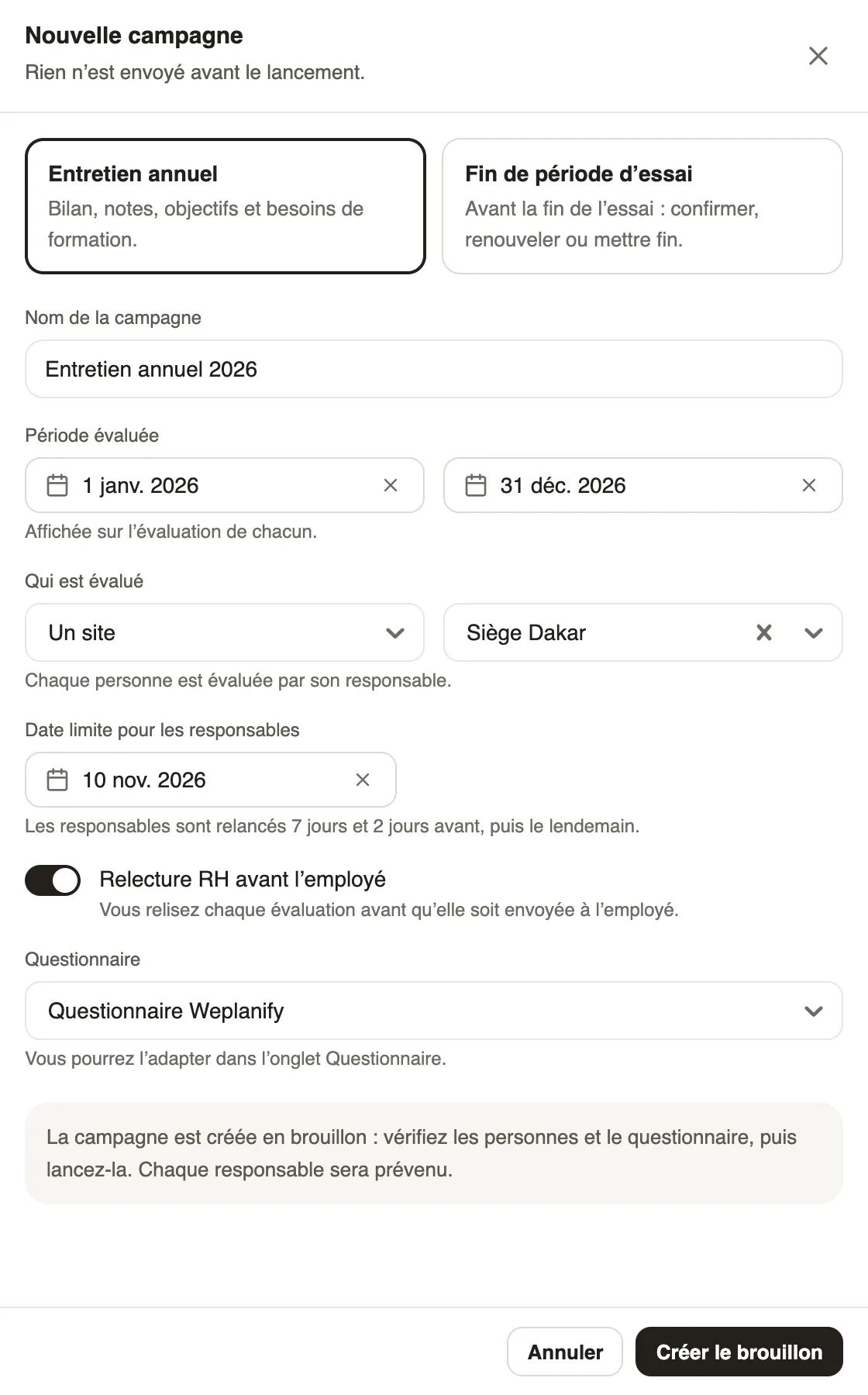
- In Requests → Evaluations, click New campaign.
- Choose Annual review, or End of trial period for the trials ending between two dates, and check the Campaign name.
- Set the Evaluated period, Who is evaluated (Everyone, One site or One group) and the Deadline for managers.
- Leave HR review before the employee on to review each evaluation before the employee, and choose the Questionnaire if offered.
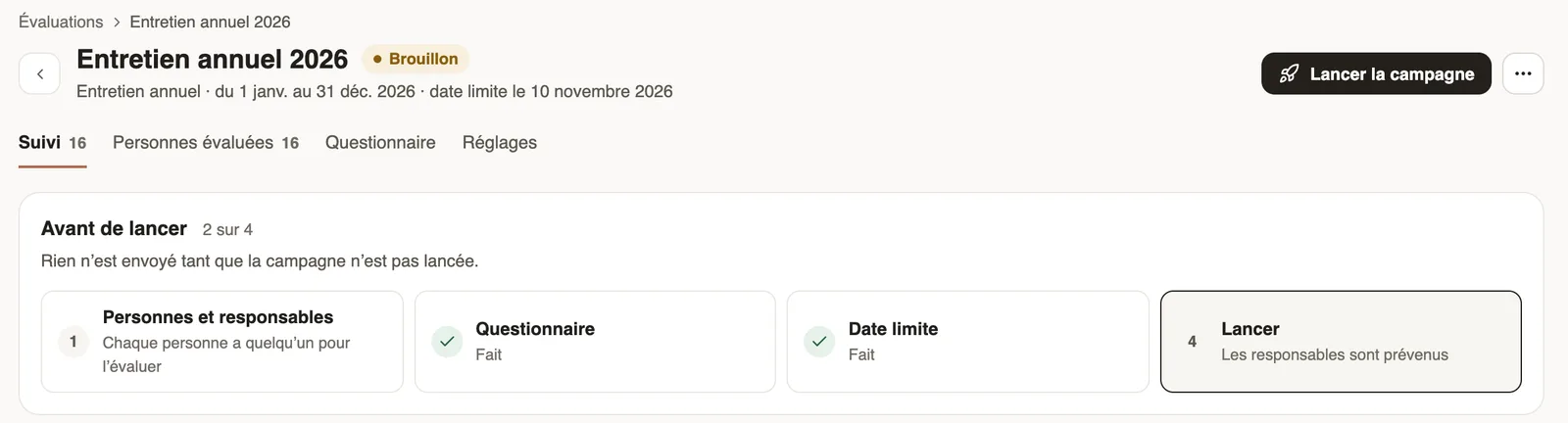
- Click Create the draft, then follow Before launching: people and managers, questionnaire, deadline.
- Click Launch the campaign and confirm: each manager is told.
Good to know
- The launch is refused while someone has no manager.
- Managers are reminded 7 days and 2 days before the deadline, then the day after.
- Once the campaign is launched, the list is no longer recomputed: add or remove people one by one.
- Settings changes the name, dates and review; the ⋯ menu offers Close the campaign or, while no evaluation is filled in, Delete the campaign.
Go further
Choose who is evaluated and by whomIn Weplanify, the Evaluated people tab of a campaign shows who evaluates whom: change the manager, add someone or remove a person from the list.Adapt the questionnaire of a campaignIn Weplanify, each campaign starts from a ready-made questionnaire: add, edit or reorder its questions until the first evaluation is filled in.Follow trial ends and annual reviewsIn Weplanify, the Evaluations module follows the ends of trial periods and runs annual reviews, from the manager who evaluates to the employee.Follow the ends of trial periodsIn Weplanify, each end of trial period written on a contract arrives on its own in the follow-up, with an evaluation asked from the manager in time.