
Adapt the questionnaire of a campaign
In Weplanify, each campaign starts from a ready-made questionnaire: add, edit or reorder its questions until the first evaluation is filled in.
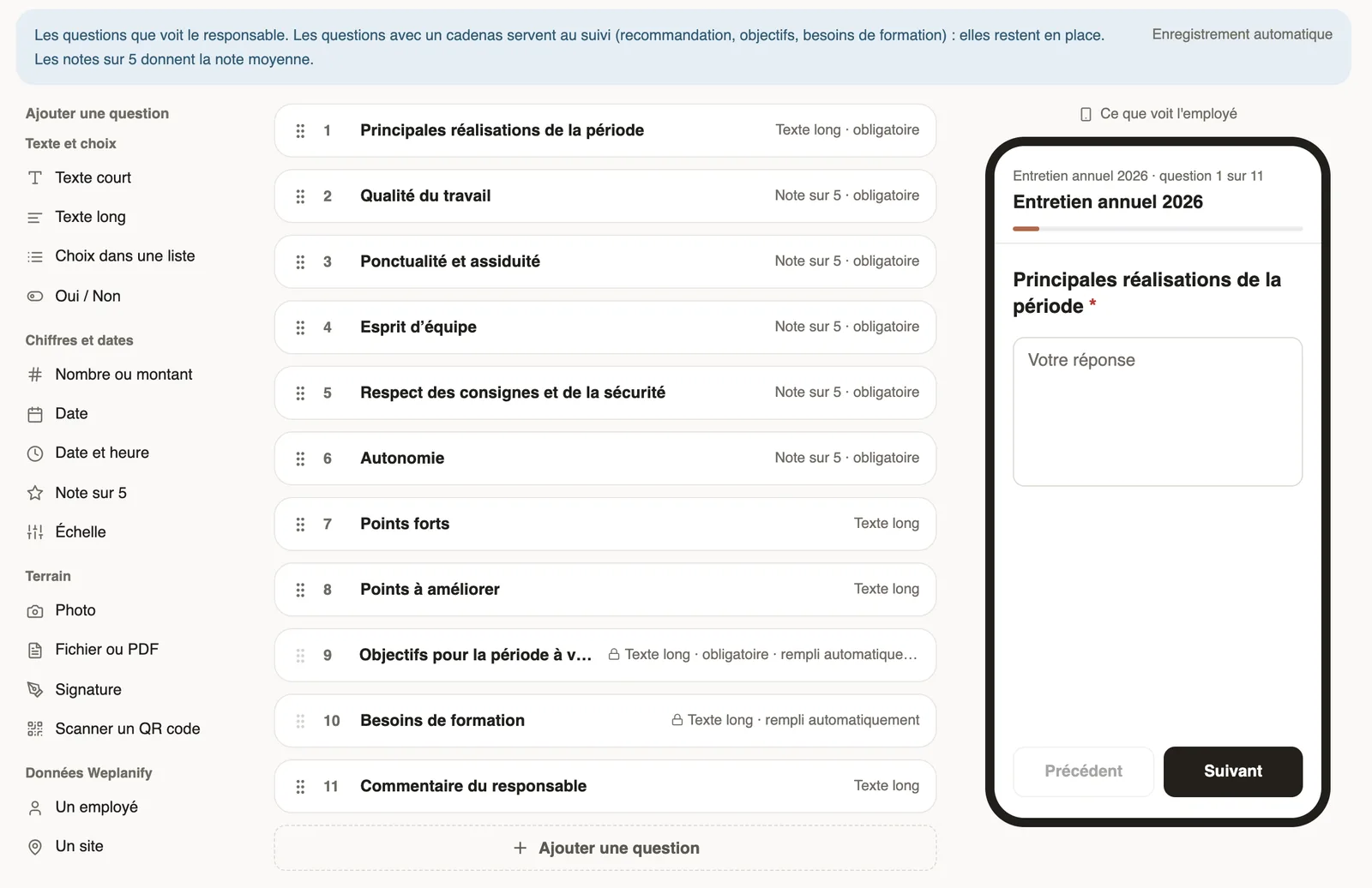
In Weplanify, an annual review gets the Weplanify questionnaire: achievements, five ratings out of 5, strengths and points to improve, objectives, training needs and a comment. An end of trial has its own, with the manager's recommendation.
Steps
- Open the campaign, Questionnaire tab.
- Click a question to edit it, or drag it to change the order.
- To add a question, click a type in Add a question (Long text, Rating out of 5, Choice from a list…).
- Every change saves itself: the time of the last save shows at the top right.
Good to know
- Questions with a lock (objectives, training needs, recommendation) feed the follow-up and the employee record: they stay in place.
- Ratings out of 5 give the average rating of the evaluation.
- As soon as an evaluation is filled in, the questionnaire no longer changes, so answers stay comparable.
- When creating a campaign, Questionnaire lets you reuse the one of an earlier campaign.
- The preview on the right shows the evaluation as the manager fills it in.
Go further
Create and launch an annual review campaignIn Weplanify, a campaign asks each manager to evaluate their team: choose who, the period and the deadline, check the draft, then launch it.The Evaluations tab of the employee recordIn Weplanify, the Evaluations tab of the record gathers an employee’s current trial period, last rating, latest objectives and evaluation history.