
Fill in an evaluation as a manager
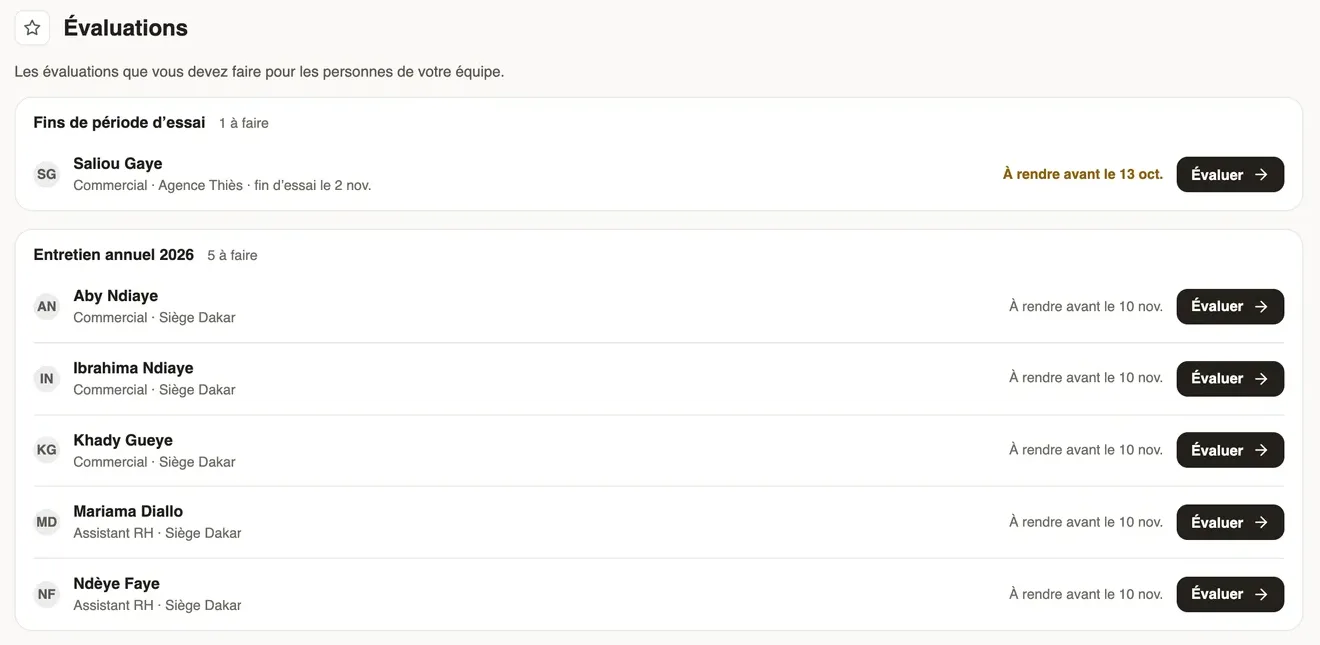
In Weplanify, a manager finds in Evaluations the people of their team to evaluate, with their job, their site and the deadline for each one.
In Weplanify, a manager is told when a campaign is launched or a trial end comes near. Requests → Evaluations lists what they have to do, grouped by campaign.
Steps
- Open Requests → Evaluations, or the notification received.
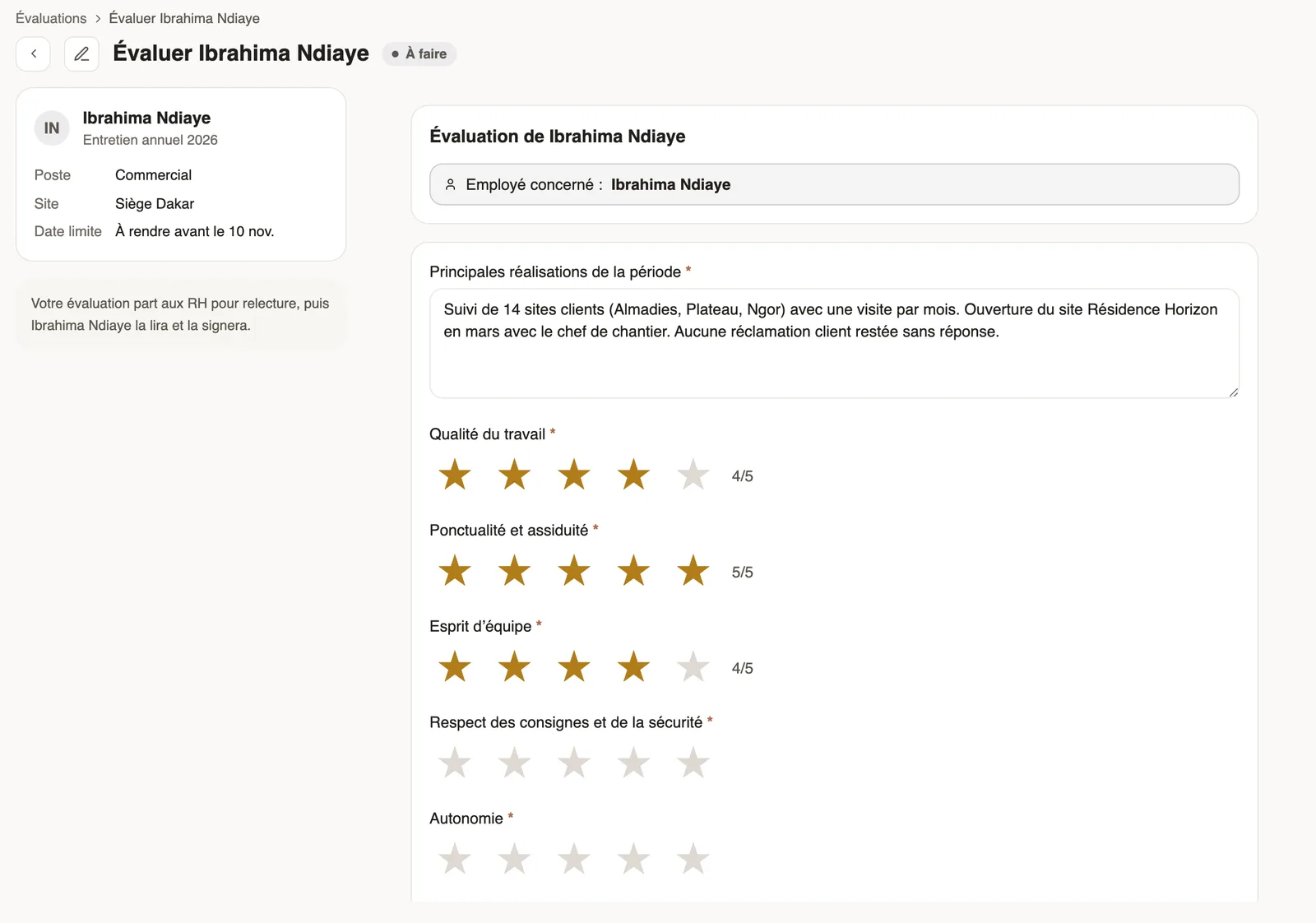
- Click Evaluate next to the person.
- On the left, check the job, the site, the deadline and, if any, the objectives set last time.
- Answer the questions: a click on the stars gives the rating out of 5; questions marked with an asterisk are required.
- Click Submit: the evaluation goes to HR, or straight to the employee if the campaign has no review.
Good to know
- For an end of trial, also choose your recommendation: Confirm, Renew the trial or End the trial. HR then decides.
- Past the deadline, the row shows "Deadline passed". You are reminded before.
- An evaluation sent back by HR comes back in the list, with your answers to complete.
- The Evaluations menu shows for managers; a person without the manager role who is given an evaluation opens it from their notification.