
Prepare a certificate of employment or a salary certificate
In Weplanify, the certificate of employment or salary certificate is drafted from the record, contract and company: read it, then approve the request with it.
In Weplanify, when an employee asks for a certificate of employment or a salary certificate, the person who gives the last approval no longer has to write it: Prepare the certificate drafts it from the employee record, their contract and the company information.
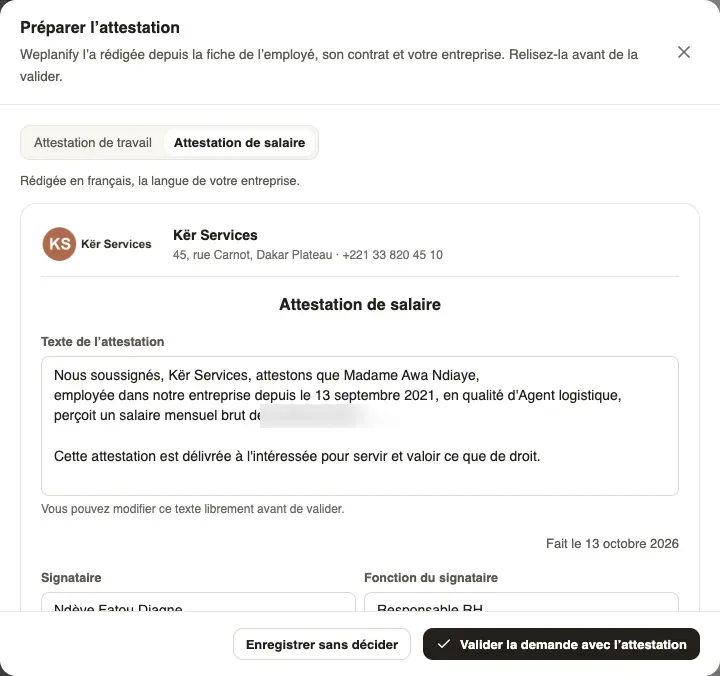
Steps
- Open the certificate request, from Requests → To review or the HR requests home, then click Prepare the certificate in Document to hand over.
- Weplanify picks Certificate of employment or Salary certificate from the employee's answer; switch it with one click if needed.
- Read the To check before you approve box: it lists what is missing (contract, start date, position, salary, company address or logo, signatory). Open the settings leads to the company information.
- Read the Certificate text and change it freely. Check Signed by and Signatory's position, filled with your name and position.
- Click Approve the request with the certificate: the PDF is attached and your step approved in one click. Save without deciding attaches the PDF, which will leave on approval.
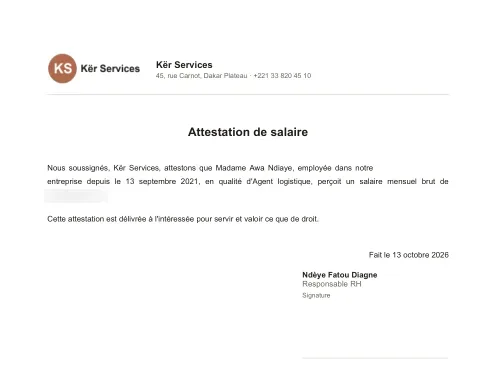
Good to know
- The certificate is written in the company's default language, French or English, chosen in Settings → Information. The logo is added there too.
- The salary certificate uses the gross monthly salary from the contract; if it is missing, add the amount in the text. For an employee who has left, the text switches to the past tense with their start and end dates.
- The PDF ends with the date ("Issued on …"), the signatory's name and position and a Signature space.
- A request already approved shows Approve the certificate: the PDF goes straight to the employee, with a notification and an e-mail.
- Only the certificate of employment and the salary certificate are drafted. A copy of a contract, a payslip or the end-of-contract work certificate are uploaded (see hand over the requested document).
Go further
Company information, logo, language and time zoneIn Weplanify, update the company's name, sector, address, phone number and logo, the language used for notifications, the time zone and the currency.Hand over the requested document to the employeeIn Weplanify, the circuit's last step prepares or uploads the requested document: it reaches the employee on approval, never if the request is refused.Receive employees' HR requestsIn Weplanify, the HR requests home lists your employees' requests, those to decide first, with the document handed over, then what they can ask for.