
Check, approve and print payslips
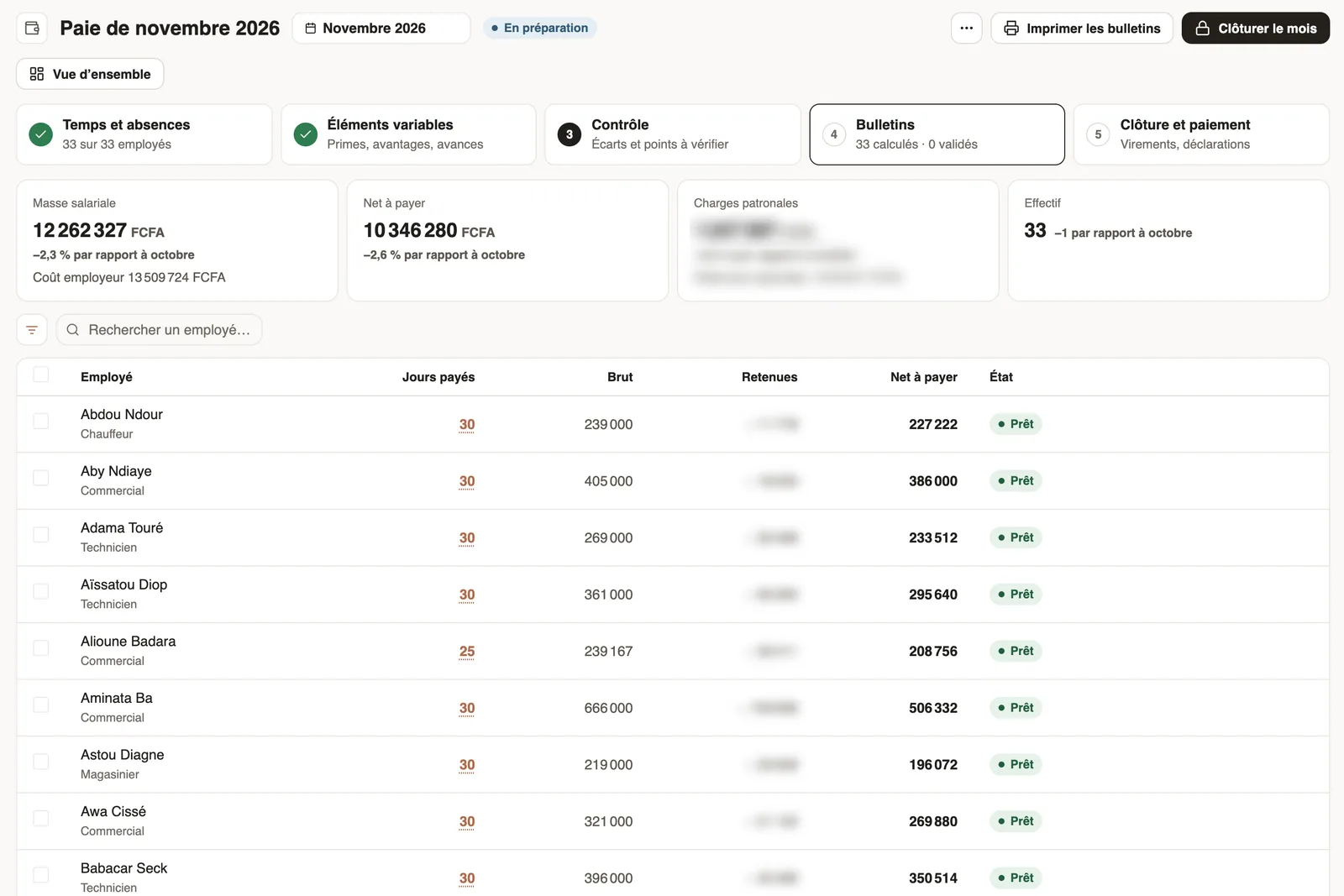
In Weplanify, the Payslips step shows the month's payslips: totals, each person's gross and net, preview, recompute, approval and printing in one PDF.
In Weplanify, the Payslips step computes payslips with the rules of each employee's country and shows them next to the list.
Steps
- In the monthly payroll, open the Payslips step.
- Read the totals: payroll, net to pay, employer charges, headcount, and the change from last month.
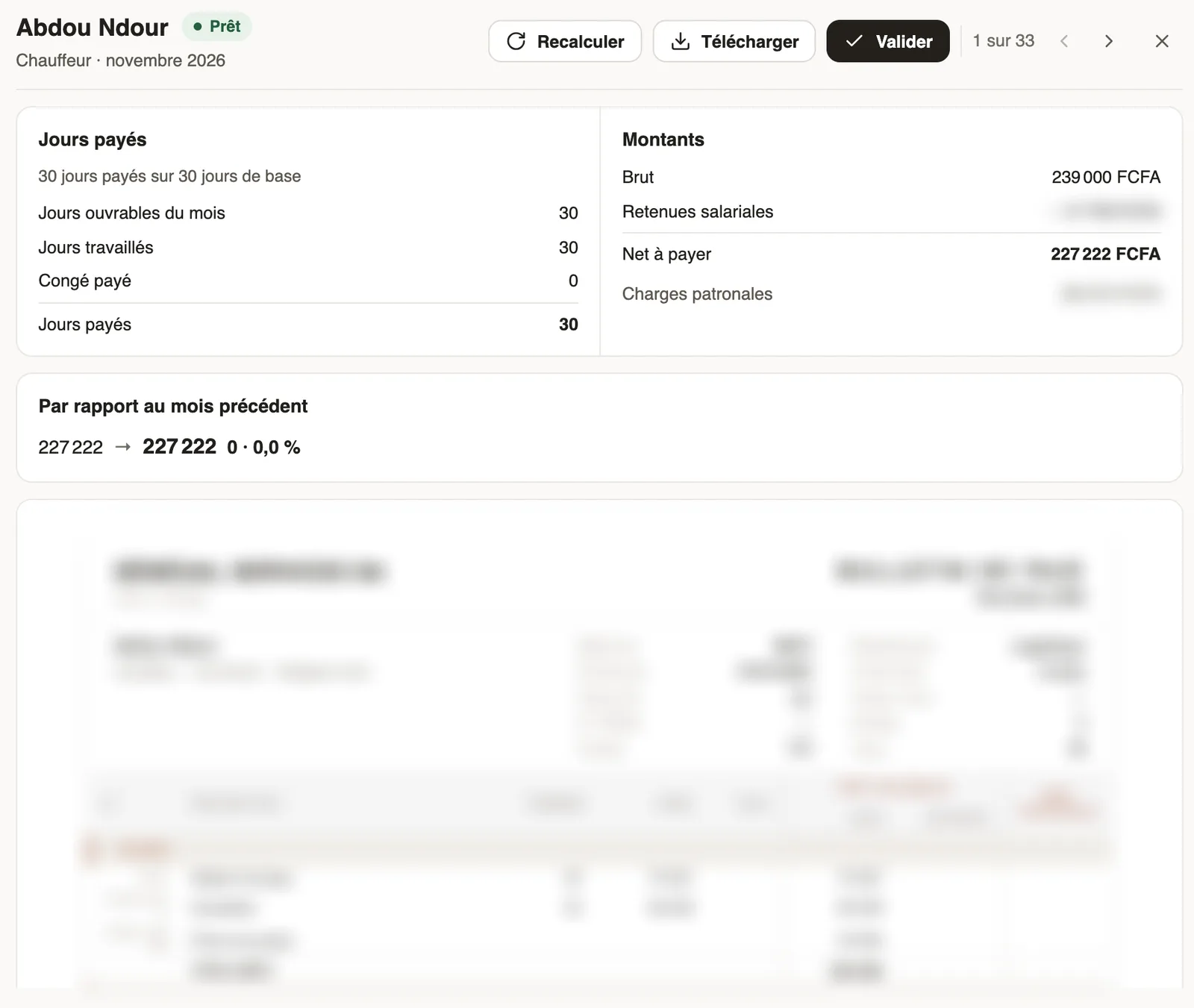
- Click an employee: their payslip opens, with paid days, amounts and the change from last month.
- Click Recompute after a correction, Download for the PDF, or Approve when it is right; the arrows move to the next one.
- To print everything, click Print payslips at the top of the page: one single PDF.
Go further
Close the month, pay salaries and declareIn Weplanify, closing locks the payroll month, publishes payslips to employees and prepares the next month; the step then helps you pay and declare.Documents and payslips on mobileUpload the documents HR requests from the Weplanify app, follow their review and find your payslips.Analyse costs by site, job or departmentIn Weplanify, the cost analysis adds up the month's salaries, day labourers and expenses, then splits them by site, by job or by department, month by month.Payroll in WeplanifyIn Weplanify, the monthly payroll is prepared in five steps, from time, absences and variable elements up to the payslips, the payment and the closing.Follow the monthly payroll step by stepIn Weplanify, the Monthly payroll page shows where payroll stands: the next step, what is left to settle, the provisional figures and the five steps.Create a bonus, a benefit or a deductionIn Weplanify, create a bonus in five questions: what it is, how much, for whom, when, and whether it is subject to taxes and to contributions.Choose where paid days come from: time tracking, schedule or full monthIn Weplanify, the source rule says, site by site, whether paid days come from time tracking, the schedule or the full month, and what to do without data.Check the month's variable elementsIn Weplanify, the Variable elements step sums up the bonuses, benefits in kind, advance deductions and expense claims that will be on the month's payslips.Follow the monthly payroll from the dashboardIn Weplanify, the dashboard Payroll card shows where the month's payroll stands, step by step, what blocks the payslips and the time left before closing.