
An employee's clock-in settings
In Weplanify, the Time tracking and leave section of the record sets how the employee clocks in and what, for them alone, differs from company rules.
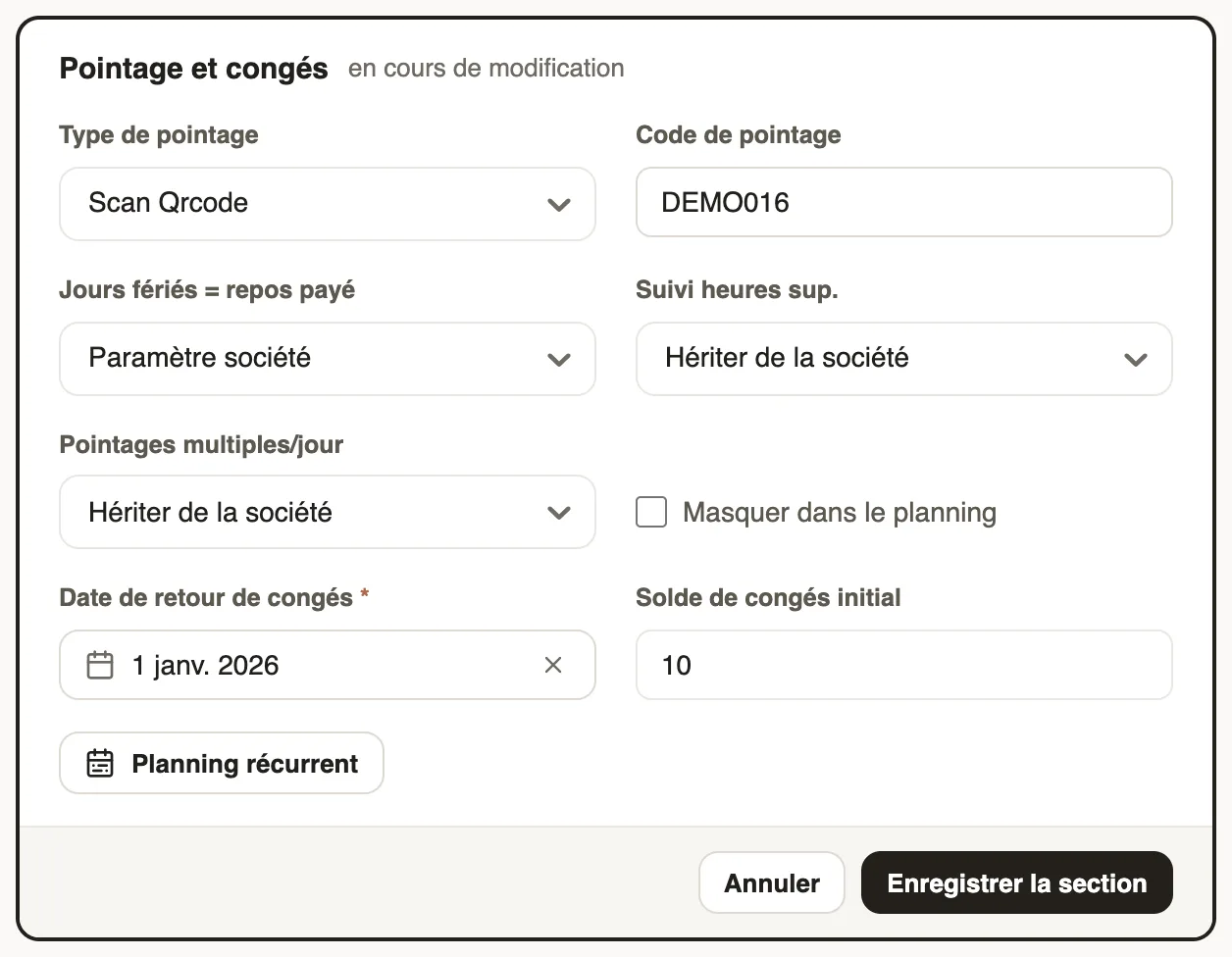
In Weplanify, the Time tracking and leave section of the Information tab sets how the employee clocks in. By default, they follow the company settings.
Steps
- On the record, click Edit in Time tracking and leave.
- Choose the Attendance type: QR code scan, facial recognition or geolocation; check the Attendance code of their badge.
- If needed, change for them alone: paid public holidays, overtime tracking, multiple daily clock-ins (otherwise "Inherit from company").
- Tick Hide in schedule for someone who must not appear there, then Save section.
Good to know
- For them to clock others in from their phone, tick Attendance manager in Position and organization and choose their Supervised sites (clocking in for others).
- Show QR code, in the record's ⋯ menu, gives their badge to print.
- Overview: clock-in methods.
Go further
Clocking in with facial recognitionIn Weplanify, facial recognition compares the photo taken at clock-in with the employee's profile photo; here is what to do when the check fails.Clock in your site's employees (timekeeper)Let a site manager mark expected employees present or absent on their site from the Weplanify app.Choose how an employee clocks inIn Weplanify, each employee clocks in one way only, chosen on their record: by scanning the QR code, by geolocation or by facial recognition.Clock in from your phoneClock in and out with the Weplanify app, by geolocation on site or by scanning the QR code posted at the workstation.Turn a phone into a clock-in terminalLet several employees clock in on a single Weplanify phone or tablet, by QR badge or facial recognition.Manage public holidaysIn Weplanify, check the year's list of public holidays, say whether they are paid rest days, and add the days that are specific to your company.Set up the time clock and overtimeIn Weplanify, allow several clock-ins per day, set the length of a working day and set up overtime tracking for the whole company in one place.The employee recordIn Weplanify, the employee record brings together everything about a person in five tabs, with sections that you edit one at a time, separately.An employee's hours, days off and overtimeIn Weplanify, the usual hours on the record serve as the reference on days when the employee has neither a shift in the planning nor a standard week.Finish the day labourers' day in the eveningIn Weplanify, the site manager finishes the day in the evening: who left early, who was absent. The day then becomes ready to be validated too.Turn on overtime trackingIn Weplanify, turn on overtime counting, then set the weekly threshold, the way overtime hours are approved, and the range of the night hours.