
Import your employees from Excel
In Weplanify, create or update dozens of employees at once from an Excel or CSV file, each of them being recognised by their own phone number.
In Weplanify, the employee import creates new records and updates those that already exist.
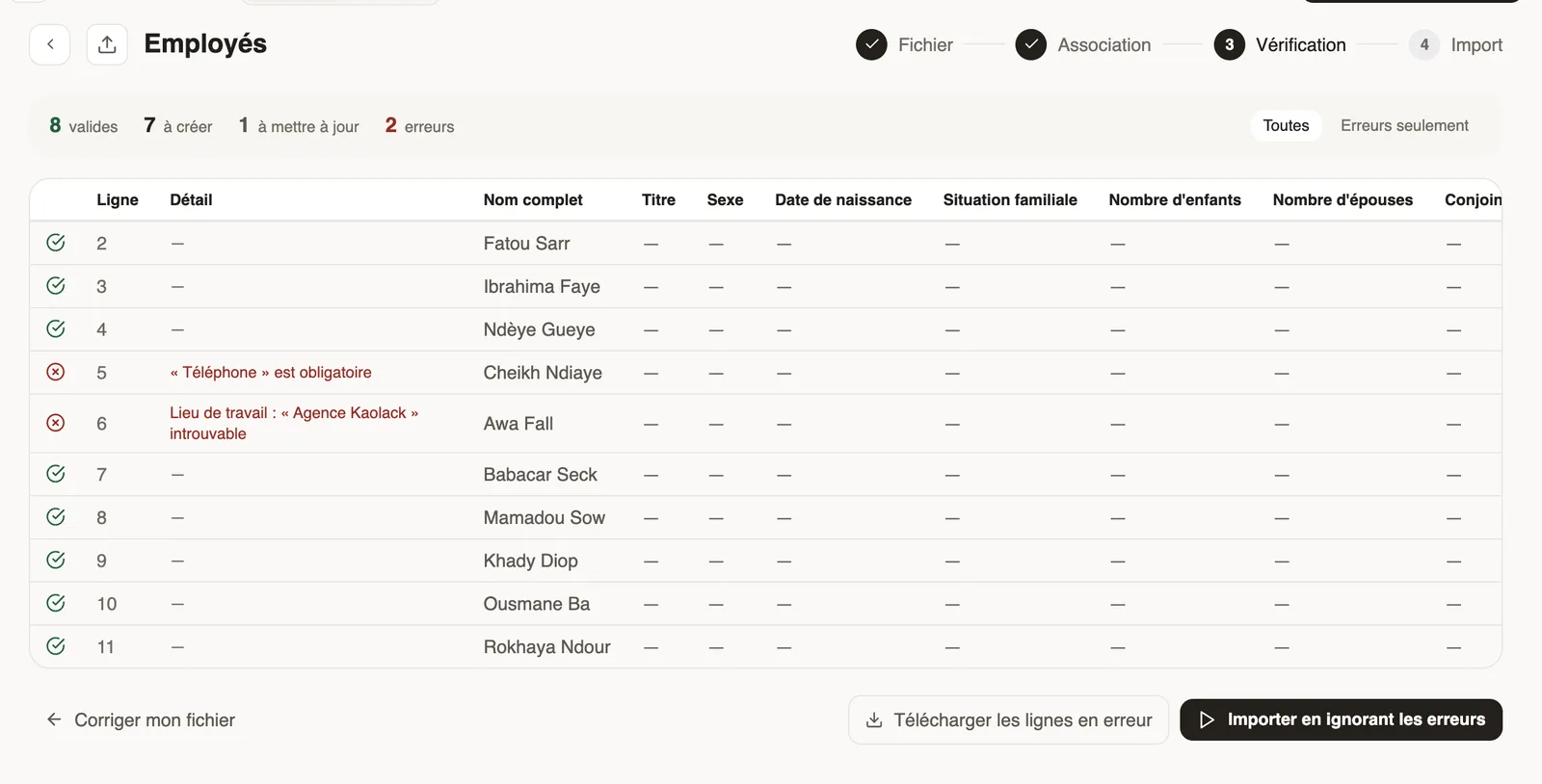
Steps
- In Employees, click Import, then Download template.
- Fill in one row per employee: full name and phone are required; add staff number, job, site, team, manager, hiring date, hours…
- Drop the file and follow the import wizard: mapping, check, import.
Good to know
- The phone number is the key: a known number updates the record instead of creating one ("to update").
- Job, site and team are found by their name: create them first (jobs, sites, departments). An unknown site is flagged as an error.
- Payroll fields can only be imported with payroll access.
Go further
Import an Excel file into WeplanifyIn Weplanify, the import wizard goes through four steps, file, mapping, check and import, and writes nothing into your data before the very last one.Manage jobs and sub-jobsIn Weplanify, create the list of jobs with their colour and their sub-jobs: they are used on employee records, for day labourers and in the planning.Create and set up a siteIn Weplanify, declare your workplaces, their geolocation clock-in area, their time zone and their own overtime rules, one site at a time here.Structure the company: divisions, departments, teamsIn Weplanify, describe how the company is organised in levels (division, department, team) with a manager for each one and the level it reports to.Getting started with WeplanifyIn Weplanify, the web is for managers and the mobile app is for employees: here is where to start, from creating the account to the first published schedule.Try Weplanify with sample dataIn Weplanify, start with samples: fictitious employees, schedules, clock-ins and requests to try everything out, then remove them all with one click.The dashboard Getting started listIn Weplanify, the dashboard Getting started list shows what is left to do to get going, and each of its lines ticks itself once the step is done.Manage your employees in WeplanifyIn Weplanify, each employee has a record used everywhere: planning, time clock, leave and payroll. Here is how to create it and keep it up to date.Add an employee in WeplanifyIn Weplanify, an employee is created in four short steps; the name and phone number are enough, the rest can be completed later on their record.