
Follow your requests: correct, remind, cancel
In Weplanify, My requests shows where each of your requests stands and who holds it: correct it, remind the approver or cancel it when needed.
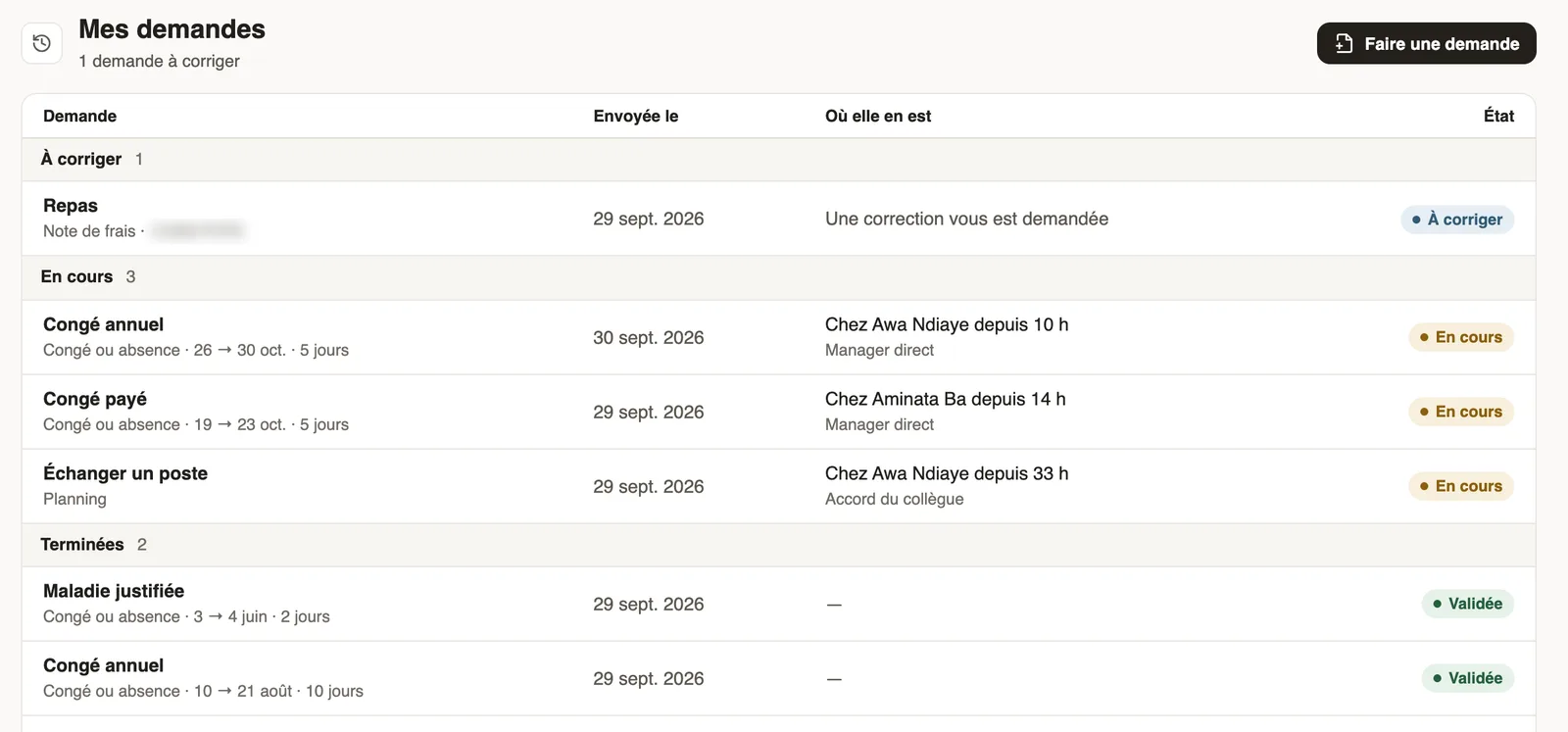
In Weplanify, Requests → My requests lists the leave, expense claims, advances and forms you sent, in three groups: To correct, In progress and Finished.
Steps
- Read the Where it stands column: who holds the request, since when and at which step.
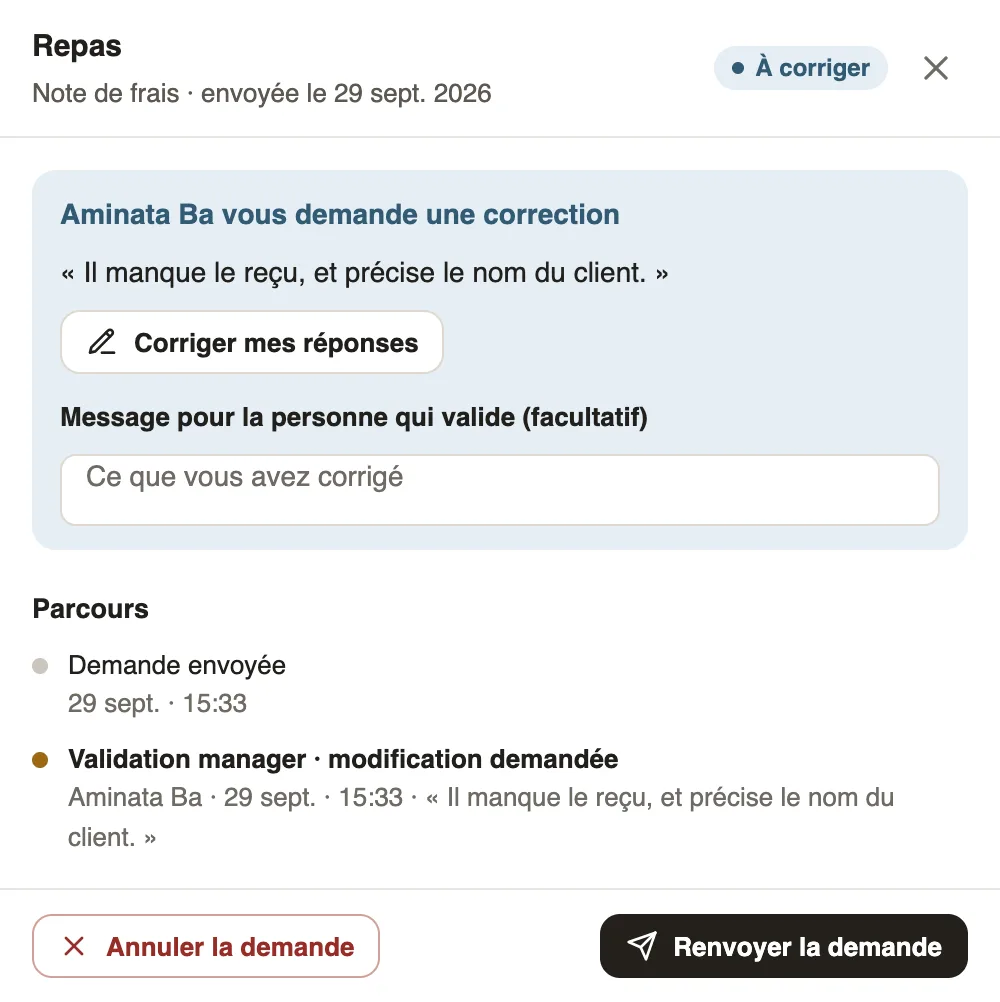
- Click a request: its Path, your Answers and the Discussion open on the side.
- If a correction is asked of you, click Correct my answers, add a message for the approver if needed, then Send the request again: it goes through the whole circuit again.
- For a request in progress, Remind, followed by the approver's first name, sends them a reminder, once a day at most.
- Cancel the request withdraws it: nobody will have to handle it any more.
Good to know
- A request can be cancelled as long as nobody has decided, or when a correction is asked of you.
- The Discussion lets you talk with the approvers without changing the request.
- For a new request: Make a request.
Go further
Make a request: leave, expense, advance or formIn Weplanify, the Make a request screen brings leave, expense claims, advances and forms together: find what you need and send your request.Weplanify forms: requests, reports and surveysIn Weplanify, every company form sits in a single list, sorted by category, showing what is waiting for your decision and what is running late.Receive employees' HR requestsIn Weplanify, HR requests is a category of forms (equipment, certificate, working hours) that employees find in their Make a request screen.