
Decide what follows a trial period
In Weplanify, after the manager’s opinion, confirm the employee, renew their trial or end it; ending a trial then opens their final departure.
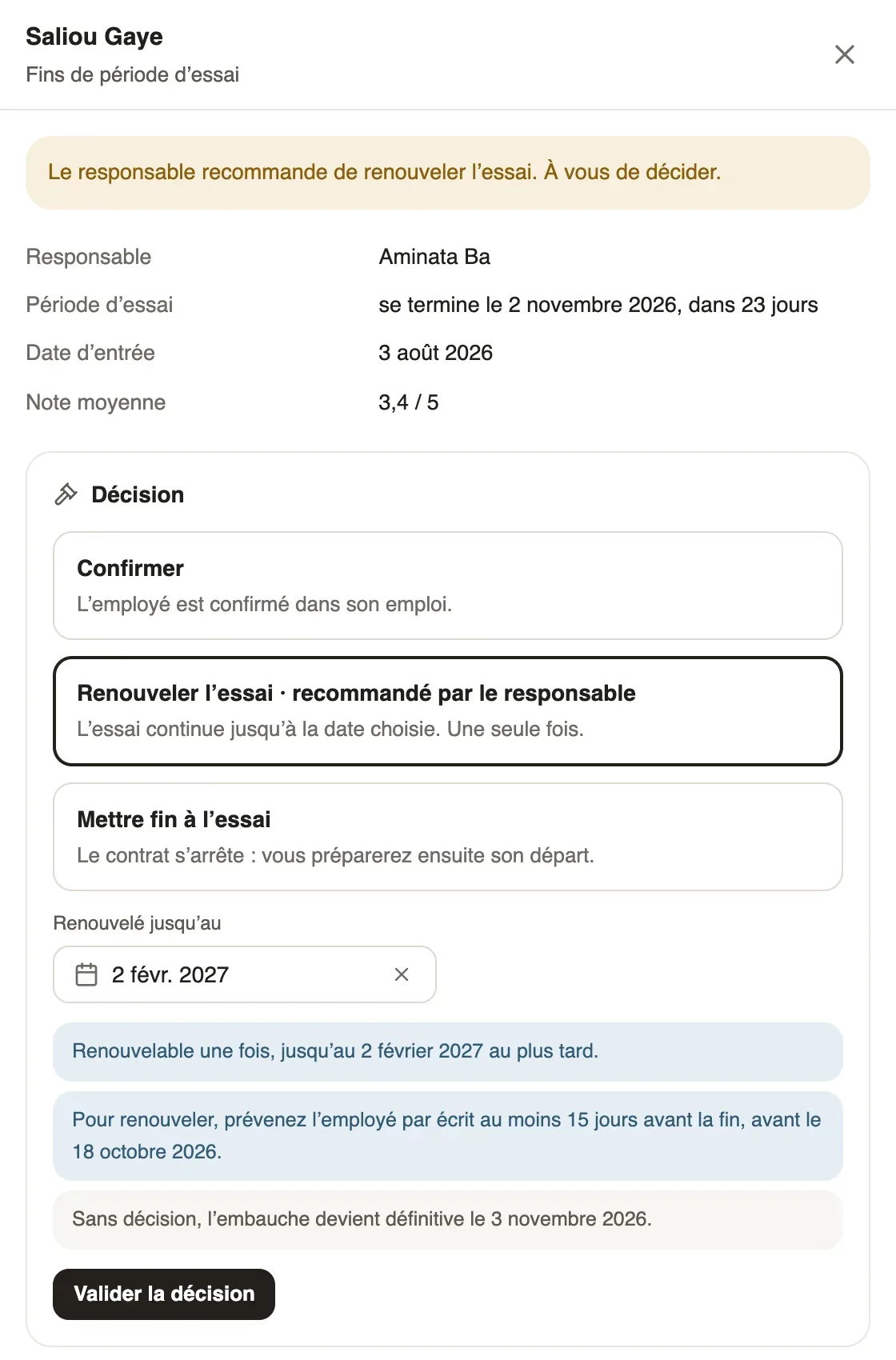
In Weplanify, once the manager has sent the evaluation, the end of trial becomes To decide. Their recommendation is preselected, but HR takes the decision.
Steps
- Open the evaluation from the End of trial periods follow-up or from To do on the dashboard.
- Read the ratings, strengths and points to improve, and the Manager’s recommendation.
- Under Decision, choose Confirm, Renew the trial with the Renewed until date, or End the trial with the Last day of work.
- Click Confirm the decision, then confirm.
- After ending a trial, click Prepare the departure: the final departure opens with the reason "End of trial period" and the exit date (declare a departure).
Good to know
- Under the date, reminders say until when the trial can be renewed, before which date to tell the employee in writing, and when the hire becomes final without a decision, according to your country’s rules.
- A trial is renewed only once. You can decide even if the manager has not answered yet.
- Renewing updates the end of trial on the contract. For a confirmed trial contract, Create the permanent contract opens a new contract.
- Send back to the manager returns the evaluation to complete; Cancel the evaluation removes it from the follow-up.
- The employee is told and reads the decision with their evaluation (read your evaluation).
Go further
Declare a departure on leave or a final departureIn Weplanify, declare a departure on leave or a final departure from the employee's record, Contracts tab, so that payroll prepares what is due to them.Read your evaluationIn Weplanify, the employee is told when their evaluation is ready and reads it on the web: ratings, the manager’s answers and any trial decision.Follow the ends of trial periodsIn Weplanify, each end of trial period written on a contract arrives on its own in the follow-up, with an evaluation asked from the manager in time.Handle requests from the dashboardIn Weplanify, the dashboard's To do list gathers absences, requests and clock-ins waiting for you: approve, decline or fix them without leaving the page.