
Follow trial ends and annual reviews
In Weplanify, the Evaluations module follows the ends of trial periods and runs annual reviews, from the manager who evaluates to the employee.
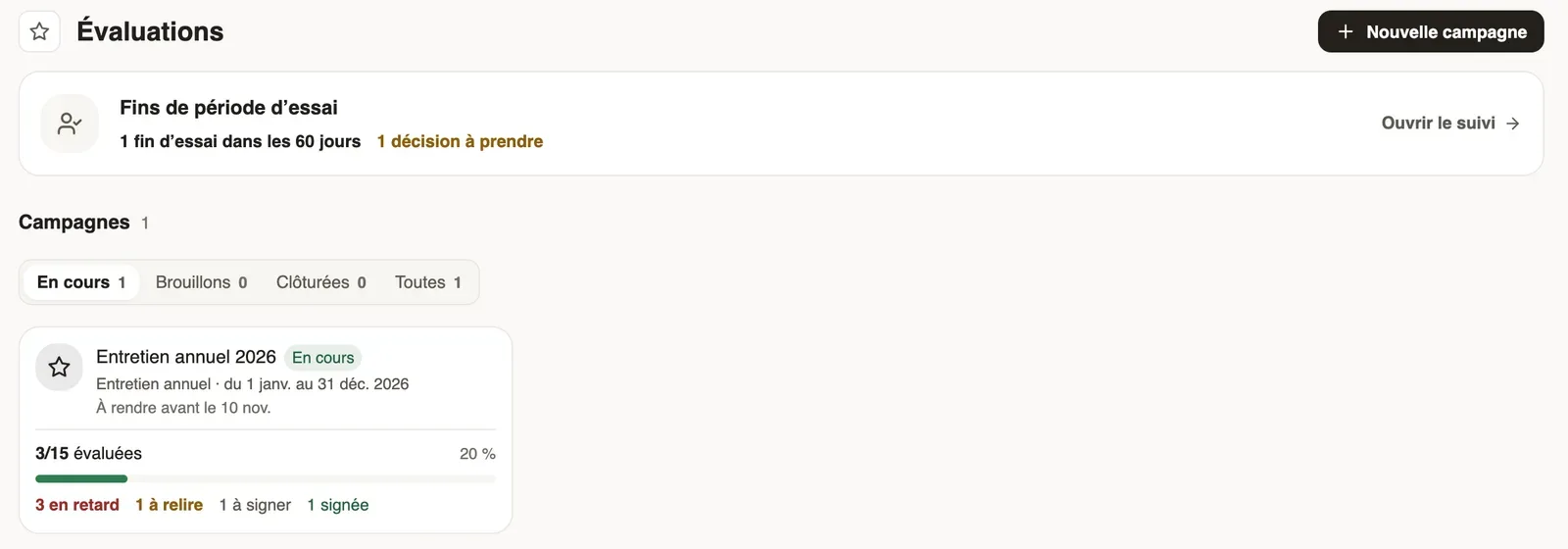
In Weplanify, Requests → Evaluations does two things: decide in time what follows a trial period, and run annual reviews through campaigns. Each employee is evaluated by their manager, the one on their record.
Steps
- Open Requests → Evaluations.
- At the top, the End of trial periods card sums up the trials that end and the decisions to take; Open the follow-up gives the details (follow the ends of trial).
- Below, Campaigns lists your reviews, filtered by In progress, Drafts, Closed or All. Each card shows the progress ("3/15 evaluated"), late ones and what is left to review.
- Click a card to follow the campaign (follow a campaign), or New campaign to create one (create a campaign).
Good to know
- The administrator sees every evaluation. A manager only sees, in this menu, the evaluations they have to do (fill in an evaluation).
- The employee sees their evaluation once it is sent to them (read your evaluation).
- No approval circuit: the manager fills in, HR reviews or decides, then the employee reads.
- Everyone's evaluations are gathered on their record (the Evaluations tab).
Go further
Create and launch an annual review campaignIn Weplanify, a campaign asks each manager to evaluate their team: choose who, the period and the deadline, check the draft, then launch it.Decide what follows a trial periodIn Weplanify, after the manager’s opinion, confirm the employee, renew their trial or end it; ending a trial then opens their final departure.The Evaluations tab of the employee recordIn Weplanify, the Evaluations tab of the record gathers an employee’s current trial period, last rating, latest objectives and evaluation history.Follow the ends of trial periodsIn Weplanify, each end of trial period written on a contract arrives on its own in the follow-up, with an evaluation asked from the manager in time.Read your evaluationIn Weplanify, the employee is told when their evaluation is ready and reads it on the web: ratings, the manager’s answers and any trial decision.Choose who is evaluated and by whomIn Weplanify, the Evaluated people tab of a campaign shows who evaluates whom: change the manager, add someone or remove a person from the list.Adapt the questionnaire of a campaignIn Weplanify, each campaign starts from a ready-made questionnaire: add, edit or reorder its questions until the first evaluation is filled in.Review an evaluation and send it to the employeeIn Weplanify, when the HR review is on, each evaluation filled in by a manager waits for your go-ahead before it is sent to the employee concerned.Fill in an evaluation as a managerIn Weplanify, a manager finds in Evaluations the people of their team to evaluate, with their job, their site and the deadline for each one.Follow a campaign and remind managersIn Weplanify, the Follow-up tab of a campaign shows each manager’s progress, late evaluations and signatures, and reminds them in one click.Weplanify forms: requests, reports and surveysIn Weplanify, every company form sits in a single list, sorted by category, showing what is waiting for your decision and what is running late.Create a form and add its questionsIn Weplanify, create a form from your need and a ready-made template, then adjust its questions while the phone preview shows what employees see.Run a survey with your employeesIn Weplanify, run a satisfaction survey with your teams, anonymous if you wish, without any approval step, and read the results question by question.