
DocumentationForms & requestsWeplanify forms: requests, reports and surveysCreate a form and add its questions
Choose who can answer a form, and when
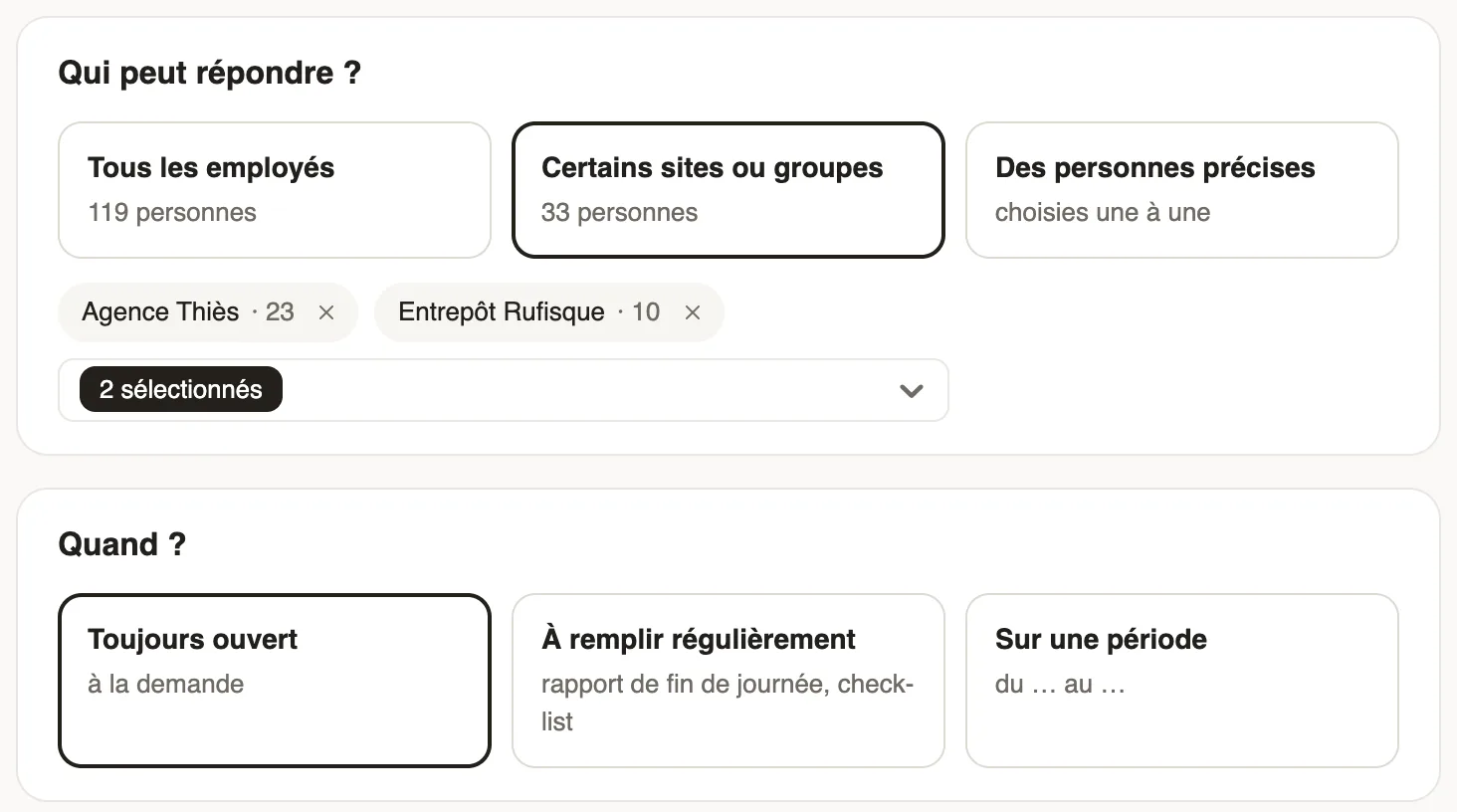
In Weplanify, a form's Sharing step sets who can answer it (everyone, some sites, some groups or some people) and during which period of time.
In Weplanify, only the people chosen at the Sharing step see the form, in the app and in Make a request.
Steps
- Open the form, Sharing step (or tab).
- Under Who can answer?, choose All employees, Some sites or groups or Specific people: the number of people is shown.
- For sites or groups, open Add a site or a group and tick them; for people, Add a person.
- Under When?, choose Always open, To fill in regularly (end of day report, checklist) or Over a period, with its dates.
- Publish or, for a form already published, click Save changes.
Good to know
- Over a period, the form closes by itself after the end date; a start date in the future schedules its publication.
- Someone who later joins a chosen group sees the form right away.
- The category may already limit who sees its forms.
- For people without an account: public link or poster.
Go further
Make a request: leave, expense, advance or formIn Weplanify, the Make a request screen brings leave, expense claims, advances and forms together: find what you need and send your request.Publish a form and let employees knowIn Weplanify, publish a form and let people know: notification, New card on the home screen, poster; then close it or reopen it whenever needed.Sort forms into categoriesIn Weplanify, categories sort your forms: their icon, their sentence, who sees them and their order in the employees' Make a request screen.Share a form through a public link or a posterIn Weplanify, open a form to people who have no account (day workers, subcontractors, clients) with a public link or a poster carrying a QR code.Make a request or fill in a form on mobileIn Weplanify, employees make their requests from the app: an expense, an advance, a schedule change, a report or any other form, then follow them.Create and manage employee groupsIn Weplanify, a group brings employees together for planning, forms, approvals, bonuses and documents, and it also sets a manager's own scope.Create a form and add its questionsIn Weplanify, create a form from your need and a ready-made template, then adjust its questions while the phone preview shows what employees see.