
Publish a form and let employees know
In Weplanify, publish a form and let people know: notification, New card on the home screen, poster; then close it or reopen it whenever needed.
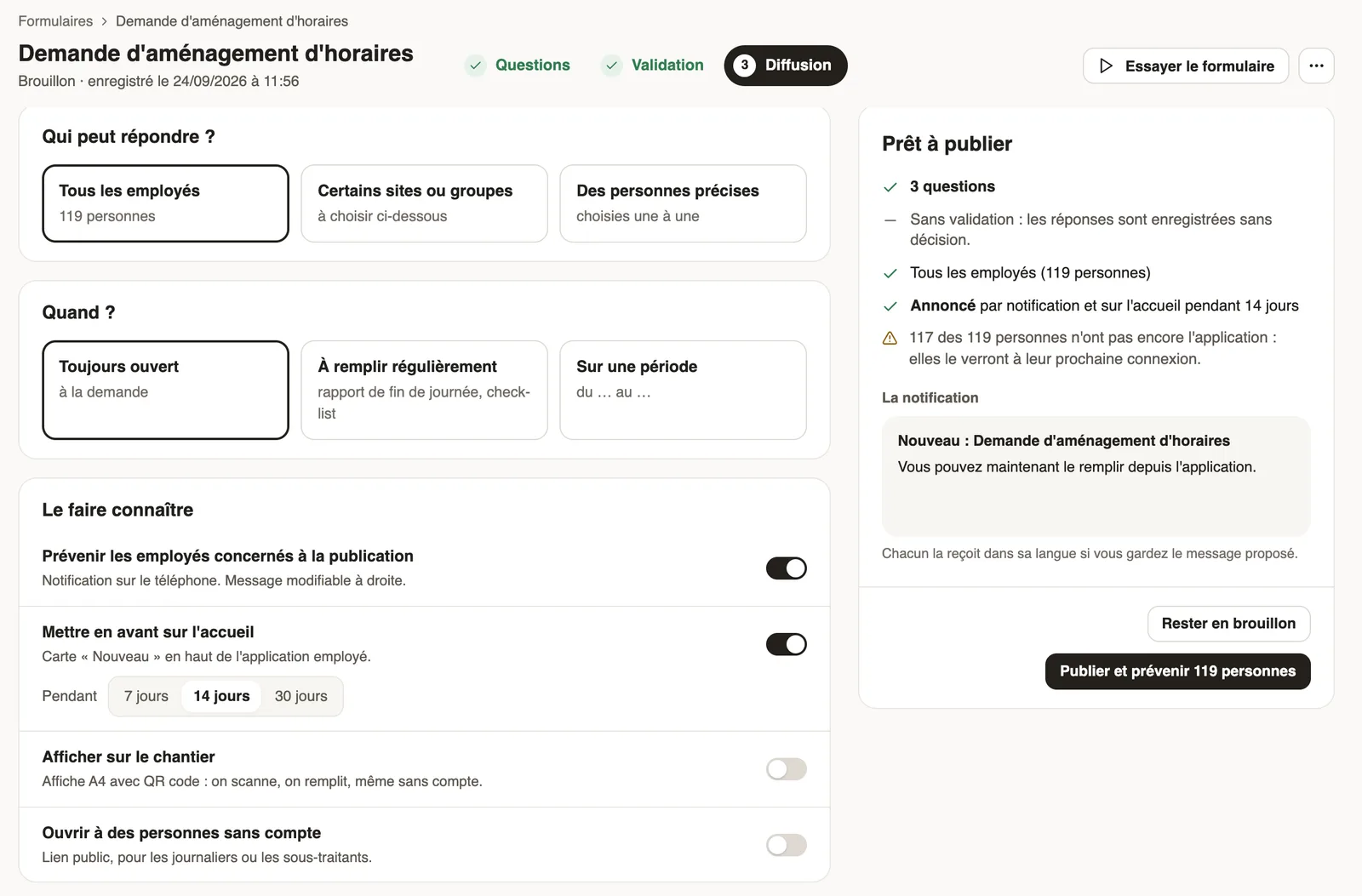
In Weplanify, a form stays a draft, seen by nobody, until it is published. The Sharing step sums everything up in the Ready to publish box.
Steps
- At the Sharing step, set who can answer and when.
- Under Let people know, keep or turn off Notify the employees concerned when publishing; the notification message can be edited on the right.
- Keep Feature on the home screen to show a "New" card at the top of the employee app, for 7, 14 or 30 days.
- For a site or for people without an account, turn on Display on site or Open to people without an account (public link and poster).
- Check the box, then click Publish and notify followed by the number of people (Publish without a notification). Keep as draft saves your settings without publishing.
Good to know
- Close the form, at the Sharing step or when hovering the list, stops people from answering; answers remain available.
- A closed form moves to the Closed tab; Reopen makes it available again.
- Archive removes it from the list and from the app; the list's archive icon finds it again, with Restore.
- The box points out people who do not have the app yet: they will see the form the next time they sign in.
Go further
Share a form through a public link or a posterIn Weplanify, open a form to people who have no account (day workers, subcontractors, clients) with a public link or a poster carrying a QR code.Choose who can answer a form, and whenIn Weplanify, a form's Sharing step sets who can answer it (everyone, some sites, some groups or some people) and during which period of time.Make a request or fill in a form on mobileIn Weplanify, employees make their requests from the app: an expense, an advance, a schedule change, a report or any other form, then follow them.Receive employees' HR requestsIn Weplanify, HR requests is a category of forms (equipment, certificate, working hours) that employees find in their Make a request screen.Make a request: leave, expense, advance or formIn Weplanify, the Make a request screen brings leave, expense claims, advances and forms together: find what you need and send your request.Run a survey or an evaluation with your employeesIn Weplanify, run a satisfaction survey or an evaluation with your teams, without any approval step, and read the results question by question.