
DocumentationForms & requestsWeplanify forms: requests, reports and surveysFollow, approve and export a form's responses
Read the summary of a form's responses
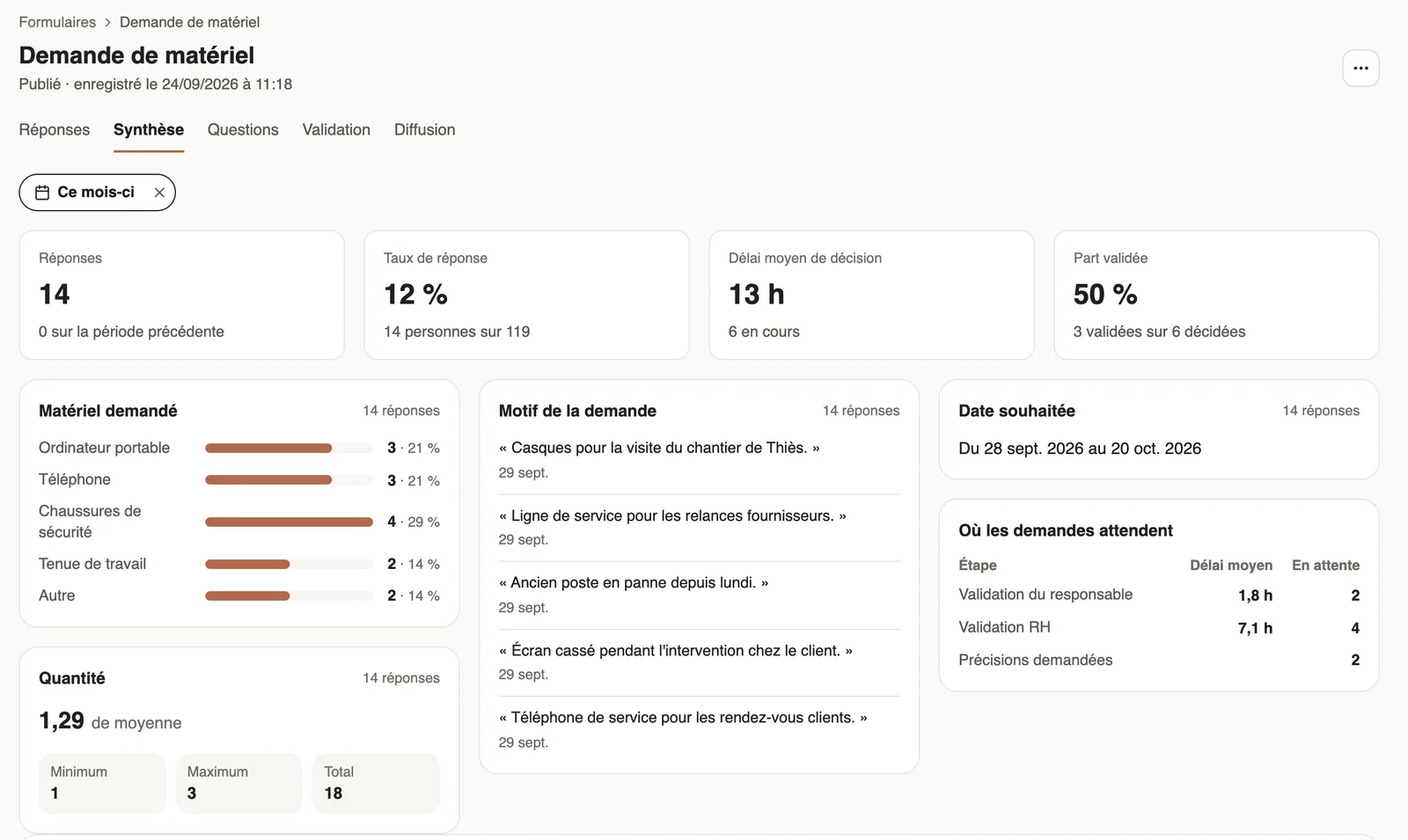
In Weplanify, a form's Summary tab sums up its answers: key figures, one card per question and the approval steps where requests are waiting.
In Weplanify, the Summary tab turns a form's answers into readable results, over the period you choose.
Steps
- Open the form, Summary tab. Change the period with the filter at the top (This month at first).
- Read the key figures: Answers (compared with the previous period), Response rate, Average decision time and Approved share.
- Go through the cards, one per question: the share of each choice, the average, minimum, maximum and total of a number, the latest written answers.
- The Where requests wait table gives, for each step of the circuit, the average time and the number of requests waiting, plus the clarifications asked.
- Answers per month shows the activity of the last months.
Good to know
- Decision time, approved share and Where requests wait only show for a form with validation.
- For the detail of each answer or an Excel file: the Responses tab.
- For a survey of your teams: run a survey.
Go further
Follow, approve and export a form's responsesIn Weplanify, a form's Responses tab sorts answers by status, opens each one on the side so you can decide, and exports everything to Excel.Run a survey or an evaluation with your employeesIn Weplanify, run a satisfaction survey or an evaluation with your teams, without any approval step, and read the results question by question.