
Prepare the month's time and absences
In Weplanify, the Time and absences step gives each employee's paid days, leave, absences and overtime, taken from the source chosen for their site.
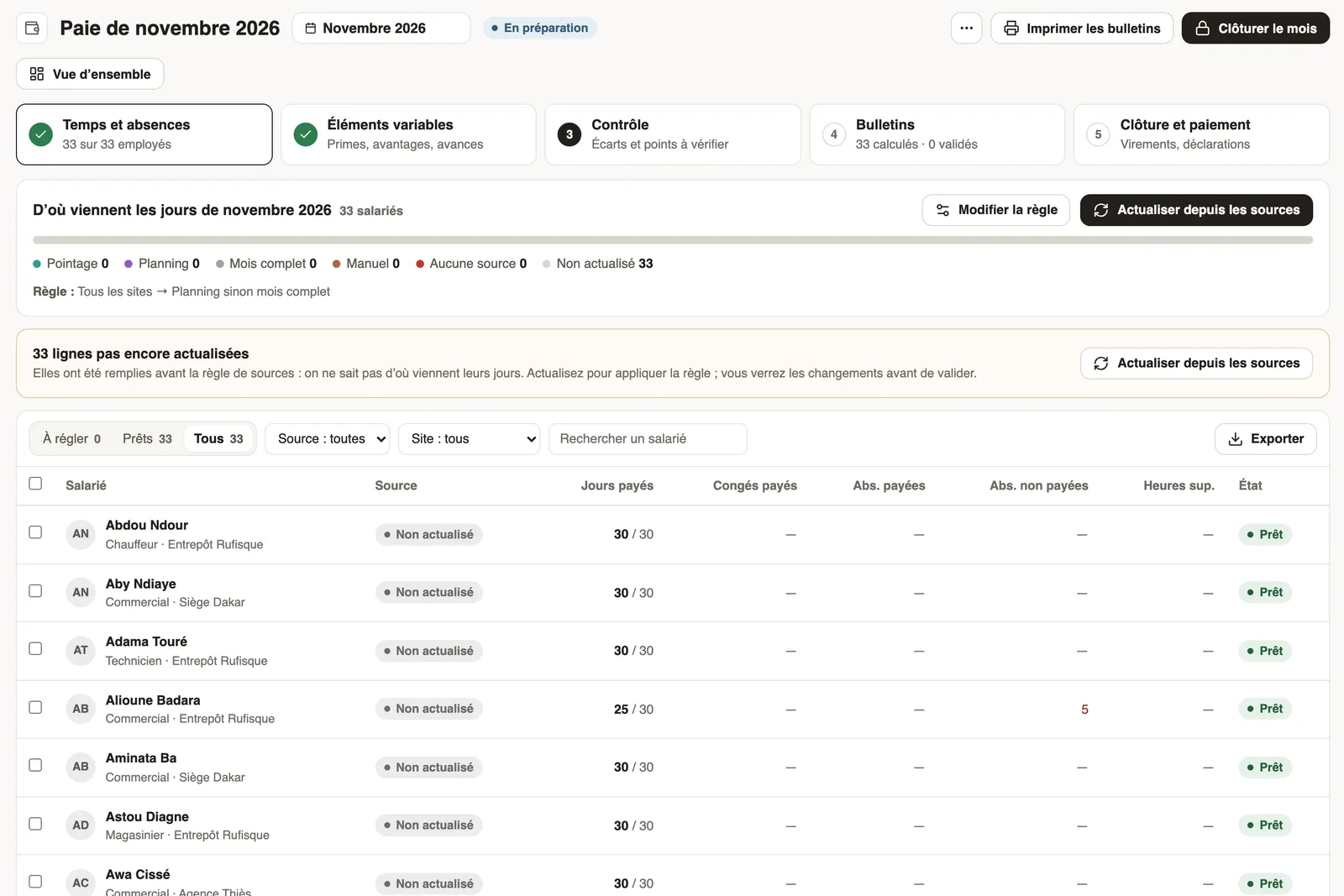
In Weplanify, the Time and absences step gives one row per employee: it sets the paid days of the payslip.
Steps
- In the monthly payroll, open the Time and absences step.
- Read the top bar: how many rows come from time tracking, the schedule, the full month, a manual entry or no source (the source rule).
- If rows are "Not refreshed", click Refresh from the sources: you see the changes before applying them.
- Go through the table (To settle, Ready, All tabs; filters by source and site): paid days, paid leave, paid and unpaid absences, overtime.
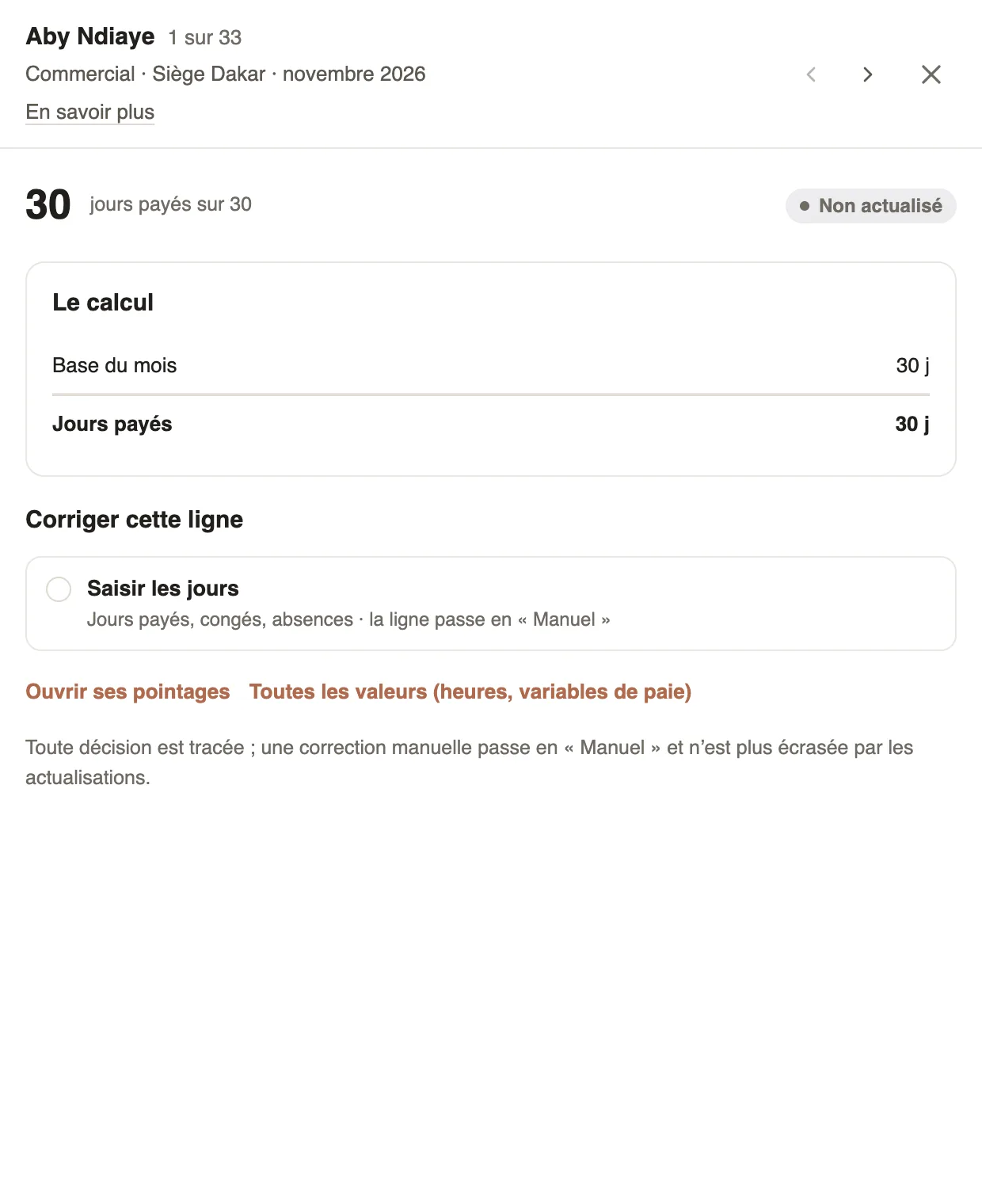
- Click an employee to see how their row is computed and, if needed, Enter the days or open their clockings.
Good to know
- A row corrected by hand turns "Manual" and is no longer overwritten by refreshes; every decision is logged.
- With time tracking, a scheduled but unclocked day becomes an unpaid absence, to confirm: check missed clock-ins first.
- Paid leave lowers worked days without lowering paid days; the effect of an absence on pay depends on its type.
- Lateness is deducted only if lateness deduction is on; overtime only if its tracking is on.
Go further
Choose where paid days come from: time tracking, schedule or full monthIn Weplanify, the source rule says, site by site, whether paid days come from time tracking, the schedule or the full month, and what to do without data.Absence typesIn Weplanify, each absence type says whether it is paid, unpaid or deducted from the leave balance: it is the type that decides the effect on payroll.Deduct lateness from the salaryIn Weplanify, turn the month's accumulated lateness into unpaid days, with a monthly tolerance granted before anything is deducted from the salary.Set up the time clock and overtimeIn Weplanify, allow several clock-ins per day, set the length of a working day and set up overtime tracking for the whole company in one place.Manage leave and absencesIn Weplanify, the Leave and absences screen gathers the whole team's requests, as a list or a calendar, with the requests to approve shown first.Public holidaysIn Weplanify, check and complete the year's public holidays: they are used by the planning, by leave counting, by the time clock and by payroll.Approve or reject an absence requestIn Weplanify, approve or reject an absence request from To handle or from its panel, which shows the effect on pay and on the balance before you decide.Clock in from your phoneClock in and out with the Weplanify app, by geolocation on site or by scanning the QR code posted at the workstation.Payroll in WeplanifyIn Weplanify, the monthly payroll is prepared in five steps, from time, absences and variable elements up to the payslips, the payment and the closing.Follow the monthly payroll step by stepIn Weplanify, the Monthly payroll page shows where payroll stands: the next step, what is left to settle, the provisional figures and the five steps.The team planningIn Weplanify, the planning says who works, when and where, week after week; the slots stay as drafts until you publish them to your employees.Employee time clockIn Weplanify, the Time entries screen shows, day by day, each employee's arrival and exit against what was planned, and what is left to fix.Fix an arrival or exit timeIn Weplanify, fix a day's arrival, exit or break from its detail, with a reason kept in the history, or add all the exits that were forgotten.Turn on overtime trackingIn Weplanify, turn on overtime counting, then set the weekly threshold, the way overtime hours are approved, and the range of the night hours.Follow the monthly payroll from the dashboardIn Weplanify, the dashboard Payroll card shows where the month's payroll stands, step by step, what blocks the payslips and the time left before closing.