
DocumentationForms & requestsThe Forms home and its modulesRecruit: job offers and candidate tracking
Invite a candidate to an interview
In Weplanify, an interview is set from the candidate's file: day, time, place or video call, people from the company and an e-mail invitation.
In Weplanify, an interview is set from the candidate's file. The candidate gets the invitation by e-mail, and the people from the company you invite get it too, with a file that adds the interview to their calendar (Google, Outlook…).
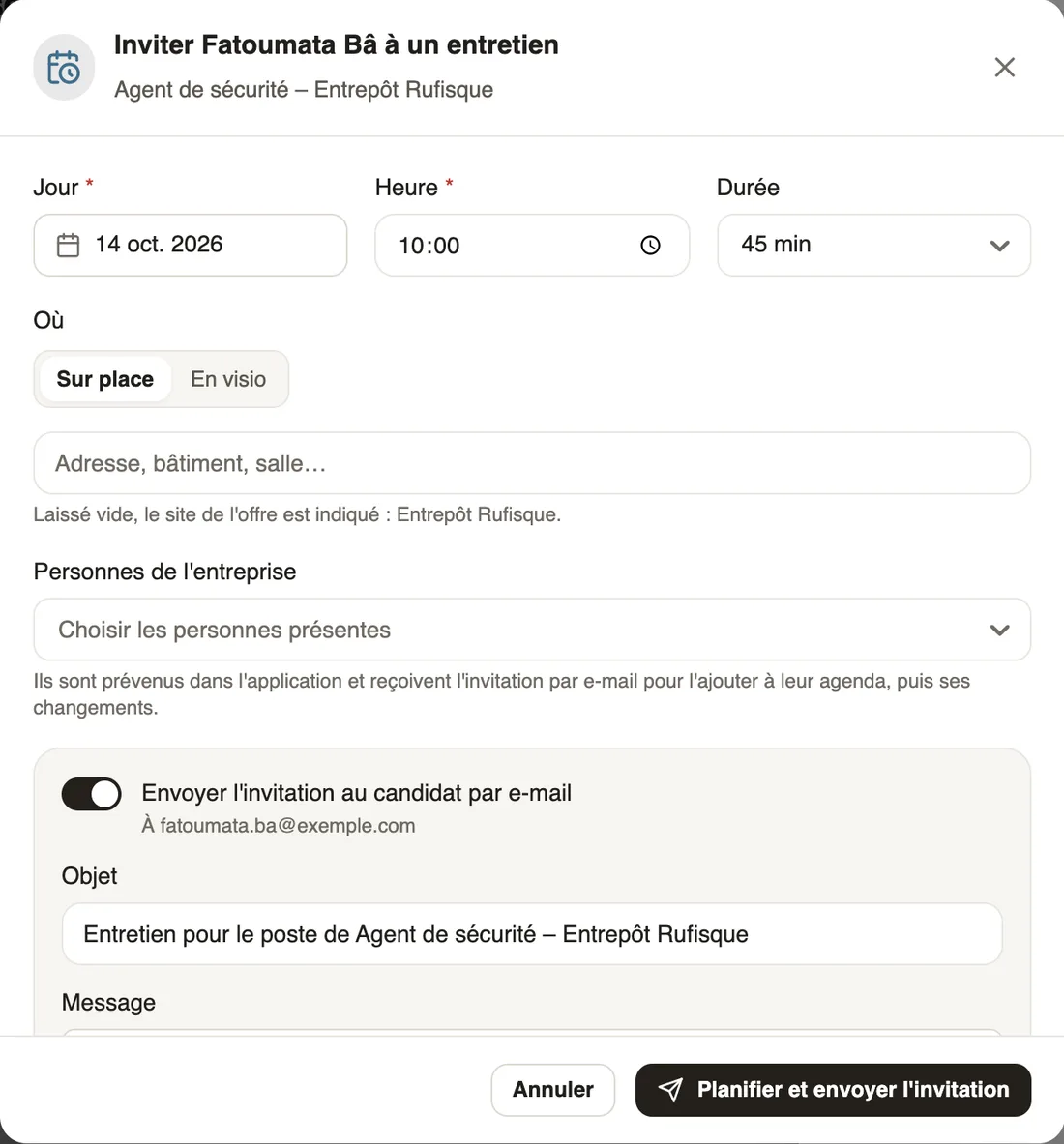
Steps
- Open the candidate's file and click Invite to an interview. When you move a candidate to the Interview step, the window opens by itself.
- Choose the Day, the Time and the Length.
- Under Where, choose On site and type the address or room, or Video call and paste the Google Meet, Zoom or Teams link.
- Under People from the company, choose who will hold the interview, for example the Thiès site manager.
- Read the prefilled Subject and Message for the candidate, then click Plan and send the invitation. If you switch sending off, the button becomes Plan the interview.
Good to know
- Left empty, the address is the offer's site. The e-mail to the candidate gives the job, day, time and place, or the button to join the video call; if they reply, the answer comes to you.
- The invited people are notified in the app and get the invitation by e-mail, then any change and the cancellation.
- Planning an interview moves the candidate to the Interview step if they were still before it. The interview shows on their card and in the upcoming interviews box of the Candidates tab.
- In the file, the interview box offers Reschedule and Cancel the interview; telling the candidate is then optional and off at first.
- After the interview: write the report.
Go further
Write the report of an interviewIn Weplanify, after an interview, record whether it was Positive, Mixed, Negative or Did not come, with a note the team reads and the candidate never sees.Recruit: job offers and candidate trackingIn Weplanify, Recruitment shows your job offers as cards: create an offer, share its link and follow every candidate from application to hiring.Move candidates from step to stepIn Weplanify, the Candidates tab puts each candidate in their step: search, sort, drag their card or open their file to read the application and decide.Move or reject several candidates at onceIn Weplanify, the Select mode of the Candidates tab ticks candidates in one or several steps, so you can move them or reject them all together.